🐧 Linux Native#
Blender and the solver both run on the same Linux machine, and the
add-on starts the solver itself. ppf-cts-server is launched as a child
process and reached over a loopback TCP socket; no SSH, no Docker, and
no shell script in between.
The root you point it at is either the extracted Linux Native distribution from GitHub Releases or a checkout you built. The x86_64 archive carries the CUDA, ROCm, and CPU backends together, and the aarch64 one carries CUDA and CPU, so one folder can hold several builds and the panel is where you say which of them runs; see Choosing the build.
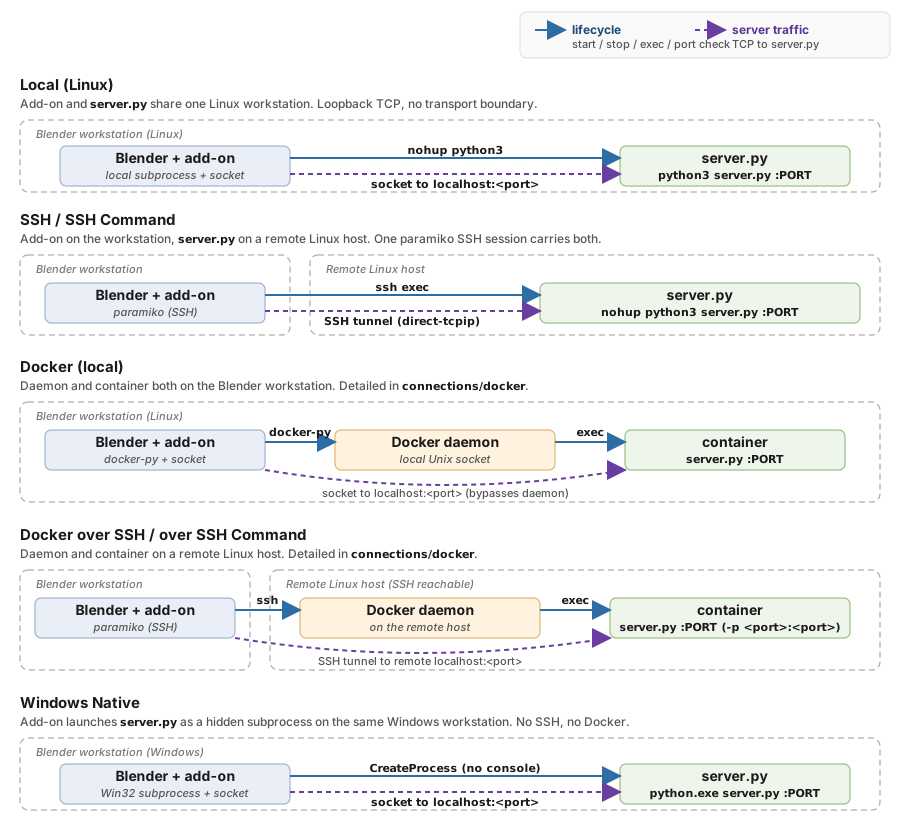
Linux Native is the first row: everything on one machine, the add-on
spawning ppf-cts-server as a child process (blue solid arrow) and
talking to it over a loopback socket (purple dashed arrow). macOS
Native has the same shape; see macOS Native.#
When to Use It#
A Linux workstation that has the GPU, so there is no remote host to reach and no reason to spin up a container.
The extracted Linux Native distribution, which needs no Python, CUDA Toolkit, or ROCm installation and installs nothing outside its own folder.
Iterating on solver code on that machine: the disconnect/reconnect turnaround is the shortest of any type, and file transfers copy directly on disk rather than going through the socket.
A machine with no usable GPU at all, where the CPU build runs instead.
Tip
The distribution is self-contained, but a developer checkout on
Linux is provisioned by
warmup.py,
which is destructive (system package installs via apt, CUDA toolkit,
shell rc edits, user-level venv, nvm, rustup, NTP) and cannot be
reverted cleanly. If you want the solver on your real workstation and
do not intend to build it yourself, download the distribution or use
the Docker backend rather than running warmup.py on a
machine you care about.
Setup#
Set Type to
Linux Native.Set Solver Path to the root of the distribution or checkout – the directory that has
target/release/ppf-cts-serverunder it, or a per-backendtarget/cuda/release/,target/rocm/release/, ortarget/cpu/release/. Picking a subfolder is fine: the add-on walks up to the real root and names the one it used on the line below the field.Set Compute Device, and GPU Backend if the folder holds more than one GPU build. See Choosing the build.
Set Project Name on the main panel.
Click Connect. This resolves the root and checks that it holds a build for the device you picked; it does not start the server.
Click Start Server on Remote. The add-on spawns
ppf-cts-serveron the configured port (9090by default) and waits up to 16 seconds for it to answer the solver protocol. If appf-cts-serverfrom a previous Blender session is still listening on that port, the add-on attaches to it instead of launching a second one.
Fields#
Field |
Description |
|---|---|
Solver Path |
Root directory holding |
Compute Device |
|
GPU Backend |
|
The panel does not draw a server port field on this type – the port
field is drawn only for the Docker-family types – so the port used
here is whatever the shared port property currently holds, 9090 by
default. Set it from a Docker mode and switch back, or give an entry
its own with a connection profile’s docker_port key.
Troubleshooting#
ppf-cts-server not found under <root>– the selection is not inside a solver root at all. A subfolder is resolved upward automatically, so this usually means the folder you picked is the one you extracted the archive into rather than the archive root. The message names the four layouts it accepts. If you are building from source, runcargo build --release -p ppf-cts-serverfirst.<root> holds the CPU build of the solver and no GPU build(or the reverse) – the folder is right and Compute Device is not. Set it to the build that is there, or point Solver Path at a folder that has the one you want.<root> holds these GPU builds: cuda, and no rocm build– same situation one level down: GPU Backend names an accelerator this folder does not carry. Set it to one of the builds named, or toAutomatic.No GPU build in this folder has a usable device– raised at Start Server on Remote when GPU Backend isAutomatic, the folder holds several GPU builds, and none of them reports a device it can run on. The message carries what each backend said. Check the GPU driver, or set Compute Device toCPU. The add-on never falls back to the CPU build on its own;GPUmeansGPU.A solver server is already running on port N, and its runs use the build in ...– Start Server on Remote found a server it did not launch, running a different build from the one selected. See Attaching to a running server.Server startup timed out. – the solver launched but did not answer within 16 seconds. Check
server.login the solver root; the panel prints its last 20 lines when the timeout fires.Port N is in use– something other than appf-cts-serverthe add-on recognizes is bound to the port. Use the Force Terminate Process button shown next to the error.Server output not visible – stdout and stderr go to
server.login the solver root, not to a console.
Under the hood
Layout
A Linux distribution ships in the same shape it builds in:
build-linux-native/bundle.sh copies each backend into the
target/<backend>/release directory it was built in and writes the
.ppf-backend marker there, so an extracted distribution and a
checkout are the same layout and no bin/ row is needed.
<root>/
  bin/                     # backend libraries and ffmpeg -- no server here
  python/bin/python3       # the distribution's own interpreter
  target/cuda/release/     # ppf-cts-server, one directory per backend shipped
  target/rocm/release/
  target/cpu/release/
Which Python the build worker runs under
The interpreter belongs to the folder, not to the machine. A
distribution ships its own at <root>/python/bin/python3 with the
frontend dependencies already installed into it; a checkout ships none
and uses the developer environment at
~/.local/share/ppf-cts/venv/bin/python. The choice is passed to the
server as PPF_CTS_BUILD_PYTHON, and an inherited value of that
variable wins, so launching Blender from inside a distribution’s own
environment does not produce two answers. VIRTUAL_ENV is set
alongside it when the interpreter really is a venv (decided by
pyvenv.cfg, not by the path) and cleared when it is not, so a venv
that happened to be active in the shell that started Blender cannot
contradict the interpreter actually chosen.
No library search path is set
Every binary shipped here finds its backend library through its own
RPATH, which the loader searches before LD_LIBRARY_PATH, and
build-linux-native/bundle.sh writes that RPATH precisely so a
distribution does not depend on what a developer’s shell exports.
Adding a search path at launch would reintroduce what that arrangement
exists to prevent.
Subprocess environment
PYTHONPATHbegins with<root>so the build worker can import the project’s Python modules.CARGO_TARGET_DIRnames the target directory the resolved server came out of, so the build worker’s cdylib and the session’sSOLVER_PATHcome from the same build as the server. Without it, a CPU server would happily drive a solve that ran the GPU solver out oftarget/release, with nothing reporting the split.CUDA_VISIBLE_DEVICEScarries the GPU picker’s choice, and is left alone for a CPU run.
Server log file
The child’s stdout and stderr are redirected to server.log in the
solver root, opened in append-binary mode. Writing to a real file
rather than subprocess.PIPE avoids a wedge: nothing in the add-on
drains that pipe, so once the OS buffer filled, every further write
would block the tokio worker that emitted it and the server would
appear to accept connections and never answer.
Stop and disconnect
Disconnect leaves the server running on purpose, so the next Connect
attaches to it rather than fighting for the port. Stop Server on
Remote ends it: the owned process is terminated and killed after 5
seconds if it survives; an adopted one is found by port and killed
the same way. The kill is always scoped to this connection’s port,
never to the binary’s name, so a second ppf-cts-server on another
port is left alone.
File transfer fast path
Transfers copy directly on disk instead of going through the solver TCP
socket: no CBOR-over-TCP overhead, and much faster than the SSH or
Docker paths. The panel shows no bandwidth figure while such a transfer
runs, which is expected here. Set PPF_FORCE_TCP_TRANSFER=1 in the
environment to force the socket path instead.