📇 Connection Profiles#
A connection profile is a TOML entry that captures every connection field of the Backend Communicator panel for one connection. Profiles let you switch between hosts without re-typing credentials and share presets across a team.
Profiles live in a plain .toml file; one file can contain many
profiles as top-level tables.
Important
You do not write these TOML files by hand. Fill in the connection
fields in the panel, then click the Save icon (floppy disk) at the
top-right of the profile row. The add-on creates the .toml file for
you on first save and appends or overwrites the current entry on
subsequent saves. The file format documented below is shown only so you
can inspect or share the output; the intended authoring path is always
through the UI.
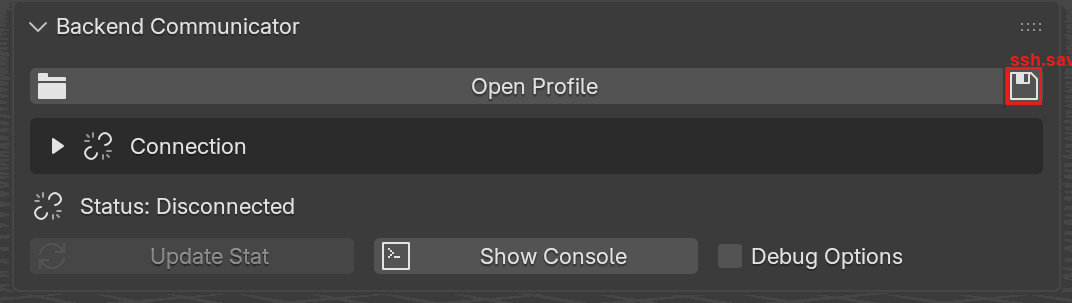
The Save icon (floppy disk, highlighted in red) at the top-right of
the profile row. Click it to write the on-screen connection fields to a
.toml file, creating the file the first time and overwriting the
currently selected entry after a profile is loaded.#
The Profile Row#
At the top of the Backend Communicator panel, four buttons manage the active file:
Button |
Effect |
|---|---|
Open |
Pick a |
Clear |
Forget the loaded file; connection fields stay as they are. |
Reload |
Re-apply the currently selected entry, discarding any edits you made since load. |
Save |
Write the current field values back into the file under the currently selected entry (or a new one if none is selected). |
Save takes whatever is on screen and writes it to disk. Entries in the file that you are not currently editing are preserved.

The profile row. Open Profile picks a .toml file; once a file is
loaded, this row changes to a profile dropdown plus Open / Clear /
Reload / Save icon buttons. The save icon on the right writes the
current on-screen fields back into the file.#
Note
The Save button does not preserve comments or formatting in the TOML file. If you keep comments in your profile file, re-save from a backup or edit the file by hand rather than round-tripping through the button.
File Format#
The sections below describe the on-disk layout for reference. Remember that this file is generated by the Save icon, not authored by hand. Open it in an editor only to inspect, diff, or share entries; round-tripping through the Save button is the supported edit path.
Each profile is a top-level table. The table name is free-form (quote it if it contains spaces or other non-bare characters). Inside the table, one required discriminator and up to fourteen connection fields:
TOML key |
Notes |
|---|---|
|
Required. One of |
|
SSH host / alias. |
|
SSH port. |
|
SSH user. |
|
Private key path. |
|
Jump host to tunnel through, as |
|
Raw |
|
Docker container name. |
|
Remote solver directory for SSH. |
|
Solver directory inside a Docker container. |
|
Local solver directory. |
|
Windows solver root. |
|
Server TCP port (1024-65535). Applies to every type, not just the Docker ones. |
|
CUDA device index for the solver, or |
|
Stable UUID of the selected GPU. This is the identity actually used at Start Server on Remote. An entry that carries |
Unknown keys are silently ignored, so it is safe to sprinkle comments or future additions in the file.
Example#
# connections.toml -- one entry per environment
[Local]
type = "Local"
local_path = "~/ppf-contact-solver"
docker_port = 9090

[LocalDocker]
type = "Docker"
container = "ppf-contact-solver"
docker_path = "/root/ppf-contact-solver"
docker_port = 9090

[GPU01]
type = "SSH"
host = "gpu01.example.com"
port = 22
username = "alice"
key_path = "~/.ssh/id_ed25519"
remote_path = "/home/alice/ppf-contact-solver"
docker_port = 9090

[GPU01 via command]
type = "SSH Command"
command = "ssh -p 22 -i ~/.ssh/id_ed25519 alice@gpu01.example.com"
remote_path = "/home/alice/ppf-contact-solver"
docker_port = 9090

[GPU01 Docker]
type = "Docker over SSH"
host = "gpu01.example.com"
port = 22
username = "alice"
key_path = "~/.ssh/id_ed25519"
container = "ppf-contact-solver"
docker_path = "/root/ppf-contact-solver"
docker_port = 9090

[Workstation Windows]
type = "Windows Native"
win_native_path = "C:\\Users\\alice\\ppf-win"
docker_port = 9090
Remember to escape backslashes in Windows paths (\\) or use forward
slashes.
Loading a Profile#
Click Open and pick the
.tomlfile.The Profile dropdown now lists every top-level table, sorted alphabetically.
Pick an entry; the connection fields fill in from the table.
Edit anything you like, then Connect as usual. Your edits stay in the UI; Reload reverts them to the file’s version, Save writes them back.