🔌 Connections#
The add-on talks to a solver process over one of several transports. Pick the one that matches where the solver runs.
Type |
Use when |
See |
|---|---|---|
Docker over SSH / Docker over SSH Command |
Solver runs inside a container on a remote Docker host |
|
Docker |
Solver runs inside a container on the local Docker daemon |
|
Windows Native |
Solver runs as a Windows subprocess using a bundled Python + CUDA |
|
SSH / SSH Command |
Solver runs directly on a remote Linux host |
|
Local |
Solver runs on the same machine as Blender |
All types share the same server-side protocol (TCP) and the same UI flow in
the panel: Connect -> Start Server on Remote -> transfer data ->
Run -> Fetch. The wire payloads are CBOR envelopes whose schema is
defined by the ppf-cts-formats crate. Text commands use the TCMD header
followed by a 4-byte big-endian length prefix and a heartbeat-based recovery
flow.
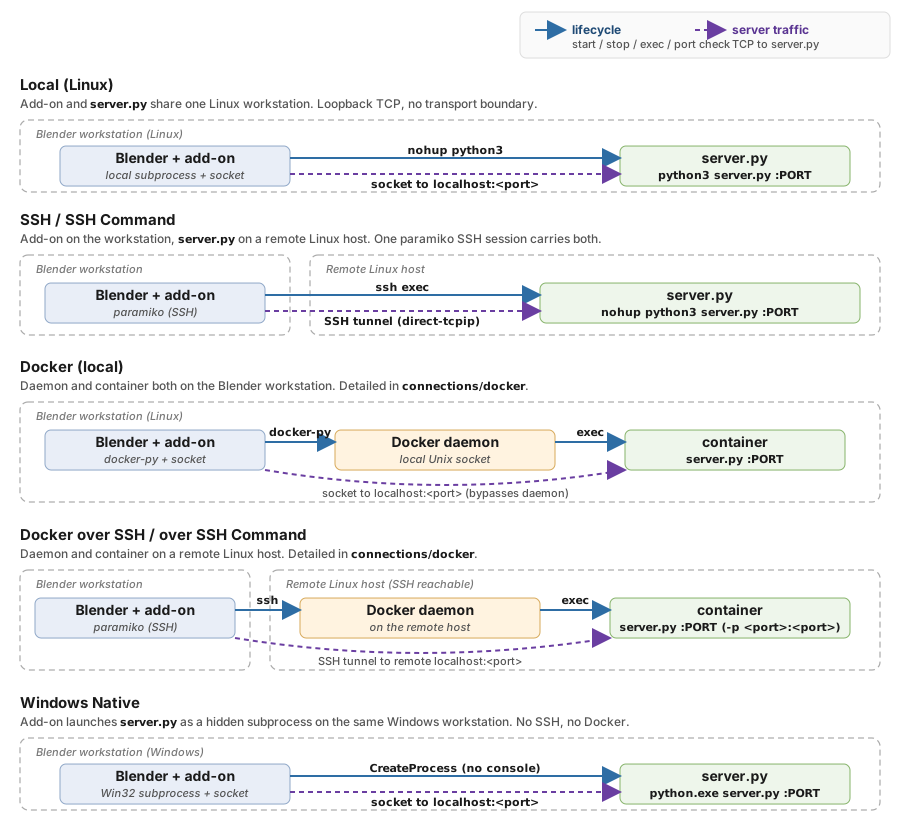
Where each piece lives, and how the add-on reaches it, for the five
connection types. Blue solid arrows carry lifecycle commands
(start / stop / exec / port check); purple dashed arrows carry the TCP
connection to the ppf-cts-server binary. The three Docker sub-modes
of rows 3 and 4 are broken out separately in Docker (Local) and
Docker over SSH.#
What Happens When You Connect#
Starting a solver session is two button presses:
Connect opens the transport to wherever the solver lives (a local process, an SSH session, or a Docker container) and checks that the
ppf-cts-serverbinary is actually present at the path you configured. If the check fails, an error is shown in the panel; the transport stays open so you can correct the path without reconnecting.Start Server on Remote launches
ppf-cts-serveron the remote side and waits up to 16 seconds for it to report that it is ready to accept work. If the server prints an error during startup, the panel reports the error immediately; if it simply never becomes ready, you get a timeout and a tail of its log.
The panel stays responsive while this happens – the actual work runs on a background thread and the UI polls it several times a second.
Windows Native follows the same two steps: Connect only resolves the
solver root and checks that ppf-cts-server.exe is under it, and Start
Server on Remote launches it as a hidden subprocess (or attaches to one
already listening on the port).
Tip
Save the connection once it works. After a successful Connect
has confirmed the fields, Disconnect, then click the Save icon on
the profile row to write them to a .toml file; the whole profile row
is disabled while a connection is live. Next session, Open the file, pick
the entry, and every field auto-fills, with no retyping host, key path,
container, or port. See Connection Profiles for the full
workflow.
Picking a GPU#
The solver never calls cudaSetDevice, so it runs on device 0 of
whatever CUDA can see, and the add-on is what launches the server on
every backend. The GPU row in the Connection box is therefore the
only place to say which device a run uses: the choice is delivered as
CUDA_VISIBLE_DEVICES on the server’s environment at launch, and the
server’s own hardware probe reads the same variable, so the Remote
Hardware block below the box names the device the solver ended up on.
The row appears only while connected, on every connection type. The
list is read from the solver host by running nvidia-smi through the
connection, so before Connect there is nothing to offer, and the
devices named are those of the machine that will run the server – which
for SSH and both Docker modes is not the machine Blender runs on.
Dropdown and Refresh grey out together while the server is running or launching, because the selection is applied at Start Server on Remote and nothing later re-reads it. Moving a running solver to another device is Stop Server on Remote, pick, Start Server on Remote.
What the entries mean#
Entry |
Meaning |
|---|---|
Automatic |
The default. The add-on sets no |
|
One per device |
|
Not a device. It is a saved selection this host cannot satisfy, kept visible and named rather than quietly resolving to a different GPU. The label carries the saved UUID rather than a number when the selection was made from a populated list. It cannot be chosen; picking any real entry replaces it. |
A pick saves two things: the index, which is what the panel shows, and
the device’s UUID, which is what the launch actually uses. CUDA’s own
device ordering can differ from nvidia-smi’s, and the UUID is the
identity that survives that disagreement. Both are written to a
connection profile; see Connection Profiles.
Start Server refuses a device the host does not have, rather than launching against an empty visible set, which would otherwise surface much later as a solver error naming no GPU at all:
GPU 3 is not present on the solver host. Detected: 0 (NVIDIA RTX 6000 Ada Generation), 1 (NVIDIA RTX 6000 Ada Generation).
That refusal only fires when the devices could be enumerated; with no list there is nothing to contradict the request with.
If Start Server on Remote attached to a server that was already listening
instead of launching one, the selection reached nothing, and when the
device that server is on is not the one picked, a line under the picker
says so – Solver is on GPU 1, not the selected GPU 0, followed by
Press Stop Server, then Start Server, to move it. Agreement gets no
line of its own, since Remote Hardware already names the device. A
server too old to report its device at all gets Server does not report
which GPU it is on instead, because silence there would read as
agreement.
Either way, every start writes one line to the add-on console recording
what the launch did with the selection – the GPU it started on and the
CUDA_VISIBLE_DEVICES it set, or that it attached to a server whose
device was already fixed. A run’s GPU is otherwise only visible while
the panel is open.
Refresh GPU List#
The refresh icon beside the dropdown re-runs nvidia-smi on the solver
host and rebuilds the list. It exists because the list is enumerated
exactly once, at Connect, and cached for the life of the
connection: the dropdown asks for it on every redraw, and each answer
costs a command on the solver host. The outcome is cached whether it
succeeded or failed, so a host with no NVIDIA driver is not re-probed
on every redraw either – which is why a probe that failed stays failed
until you press Refresh.
Reach for it when the probe failed at Connect and you have since fixed the cause, or when the solver host’s devices changed while you stayed connected.
Disconnecting drops the list rather than refreshing it: the next connection may reach a different machine, where a list left over from this one would name GPUs that are not there.
Hosts with one GPU, or none#
A single-GPU host still offers both Automatic and that one device,
and the two are not the same instruction. Automatic leaves any
CUDA_VISIBLE_DEVICES already in the server’s environment intact;
naming the device replaces it, so the panel’s choice wins over an
inherited one.
When nvidia-smi reports no device, cannot be run, or answers with
something unreadable, the dropdown holds Automatic alone and the
reason is spelled out on a line beneath it, one of:
nvidia-smi listed no CUDA device. An NVIDIA GPU is required to run the solver.
nvidia-smi failed on the solver host: (its stderr)
Could not run nvidia-smi on the solver host: (the backend error)
The last of the three is what an unreachable host or a backend command error looks like; the probe is given five seconds. None of them blocks Start Server on Remote – with nothing enumerated there is no list to check a request against – so the launch goes ahead and a genuinely missing GPU surfaces from the solver instead: a server that starts but resolves no device turns the outcome line under the picker red, reading Server resolved no CUDA device. Treat the probe error as the panel saying it could not confirm the host has a usable device, not as a refusal.
Port Usage at a Glance#
Port |
Role |
Default |
|---|---|---|
Server |
Solver TCP listener ( |
|
MCP |
MCP Streamable HTTP server (for AI integration) |
|
Only the server port crosses the transport boundary; MCP is local to the machine running Blender. The server port is configurable per connection.
Note
For both Docker modes the server port must be published on the container
(-p 9090:9090). Local Docker checks it at Connect; Docker over SSH
checks it before Start Server on Remote. Either way the add-on refuses to
continue if the port is not exposed. Local Docker makes one exception:
a container on --network host publishes nothing, needs no -p, and is
accepted as is. The Docker-over-SSH check has no such exception.
Port Already in Use#
If the port is already bound when the add-on tries to start the server,
the panel shows a Port N is in use error and a Force Terminate
Process button. Clicking it locates the listening process by port and
kills it, including child processes on Windows.
If the listener is itself a ppf-cts-server from a previous Blender
session (for example after a Blender restart on Windows native), the
add-on detects this with a TCMD probe and reuses the running server
instead of erroring. Foreign listeners on the port still surface the
in-use error so the user can decide whether to terminate.
Under the hood
Non-blocking UI
The panel does not freeze while Connect or Start Server is running. Work happens on a background thread and the panel refreshes several times a second, so any status or error reported by the background work appears in the panel promptly.
Connect step
Connect opens the configured transport (SSH session, Docker client, or a
local subprocess) and verifies that the ppf-cts-server binary is
present at the configured path. If that verification fails, the error is
reported in the panel but the transport remains open.
Start Server step
On Unix-family backends (Local, SSH, Docker, Docker over SSH) the
add-on launches the server via a small script that activates
$HOME/.local/share/ppf-cts/venv if it exists (the Rust server spawns a
Python build worker that imports the _ppf_cts_py PyO3 module from that
venv) and then runs:
nohup ./target/release/ppf-cts-server --port <port> > server.log 2>&1 &
The UI waits up to 16 seconds for the server to announce it is
ready. If a line containing ERROR or FAILED appears first, the wait
aborts with that message; on plain timeout, the panel prints the last 20
lines of server.log.
Windows Native launches the server from the Start Server on Remote step
too, but as a Win32 subprocess rather than through a shell script, and it
waits for a TCMD probe instead of a progress.log marker.
See Windows - Under the hood.
Docker port pre-launch check
Before Start Server on Remote runs on Docker-over-SSH, the add-on checks that the configured server port is published on the container. If it is not, the operator aborts with:
Docker port 9090 is not exposed on container ‘ppf-contact-solver’. Please expose the port with ‘-p 9090:9090’ when starting the container.
The add-on cannot publish a port on an existing container; this has to
be fixed on the container side (for example by re-running docker run -p or editing compose.yaml).