🤖 MCP Server#
The add-on bundles a Model Context Protocol server that exposes nearly every operation (connecting to hosts, creating groups, running a simulation, capturing the viewport, running arbitrary Python) as MCP tools. External agents (Claude Desktop, IDE plugins, automation scripts, CI runners) drive Blender and the solver through a Streamable HTTP JSON-RPC surface instead of scripting the UI.
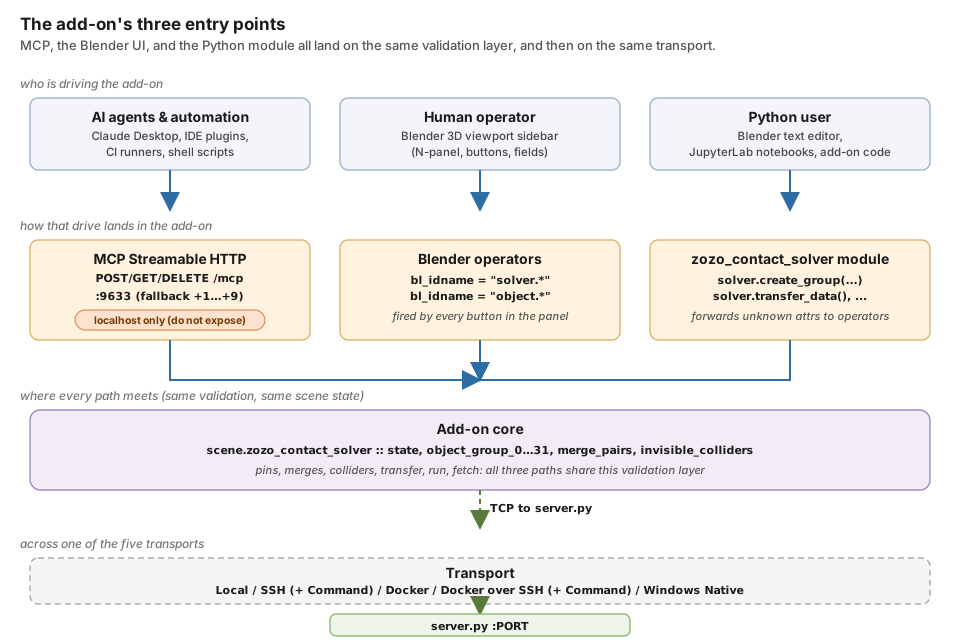
The MCP server sits beside two sibling entry points: the Blender
sidebar and the add-on’s Python API (exposed under
bl_ext.user_default.ppf_contact_solver.ops.api). All three cover
the same surface, land on the same validation layer, and share the
same transport to ppf-cts-server. An agent calling tools/call hits the
same operator a human hits by clicking the button. The “localhost
only” pill on the MCP box is the single security boundary this stack
relies on; see Security below.#
What MCP Gives You#
A stable JSON surface that does not care how the add-on’s buttons are laid out this week.
The same validation the UI uses: pins, merges, and colliders all go through the add-on’s shared mutation layer, so a misbehaving agent gets the same errors a user would.
One
run_python_scripttool if you genuinely need rawbpy.*access, and oneexecute_shell_commandtool for provisioning remote hosts.
Starting the Server#
Solver panel → MCP Server → Start MCP Server on Local.

The MCP Server section, expanded. Start MCP Server on Local launches
the HTTP server on the port shown to the right; while running, this
button swaps to Stop MCP Server and the port field becomes
read-only. The collapsed header reads MCP Server (Stopped) or
MCP Server (Running :<port>) to reflect the current state.#
The server binds to the MCP Port on localhost (default 9633).
If the port is busy it first waits for it to be released, retrying five
times with a backoff, and only then walks port+1, port+2, … up to
port+9. A substituted port is reported as a warning and written back
into the MCP Port field, so the MCP Server (Running :<port>)
header always names the live port. Stop MCP Server shuts the HTTP
listener down and closes any live MCP session.
Warning
The server binds to localhost only. Do not port-forward it or bind
it to 0.0.0.0. run_python_script and execute_shell_command are
remote code execution by design: anyone who can reach the port has
full control of Blender and the machine it runs on.
Adding the Server to an MCP Client#
Once the server is running, point your MCP client at
http://localhost:9633/mcp
using the Streamable HTTP transport (protocol version 2025-06-18).
If the default port was busy and the add-on fell back to 9634, 9635,
and so on, use the port printed to the Blender console.
For Claude Code, run:
claude mcp add --transport http zozo-contact-solver http://localhost:9633/mcp
For clients configured through a JSON config file (Claude Desktop, Cursor, Windsurf, and similar), add an entry like:
{
  "mcpServers": {
    "zozo-contact-solver": {
      "type": "http",
      "url": "http://localhost:9633/mcp"
    }
  }
}
Restart the client after editing its config so it picks up the new
server. If the client only supports stdio-based MCP servers, use a
generic Streamable HTTP bridge (for example
mcp-remote) to wrap the
endpoint.
Security#
run_python_script evaluates arbitrary Python inside Blender.
execute_shell_command runs arbitrary shell. There is no sandboxing,
no allowlist, no auth. This is intentional: it is the escape hatch
that lets agents do anything the add-on cannot yet express.
Rules of the road:
Bind localhost only. The server already does; do not change that.
Do not expose the port through
ssh -R,ngrok,gh codespaces, or any reverse proxy unless you have decided the machine is disposable.Treat prompts as untrusted. If you pipe unsanitized LLM output into
run_python_script, you have given the LLM shell. Audit its tool calls.
Protocol#
Property |
Value |
|---|---|
Version |
|
Transport |
Streamable HTTP on a single |
Requests |
|
Server push |
|
CORS |
Enabled on every response |
All traffic goes through /mcp. The client calls initialize first; the
server replies with the negotiated protocolVersion and capabilities. The
JSON-RPC surface itself is the standard MCP set: initialize, tools/list,
tools/call, resources/list, resources/read.
Exposed Tools#
The authoritative list, with every tool name, its parameters, and its
description, lives at MCP Tool Reference.
That page is regenerated from the handler sources at every docs build,
so it cannot drift. For a live, schema-attached enumeration against a
running server, use tools/list (or the CLI tools subcommand).
Tool descriptions returned by tools/list are built from the function
docstrings registered via the handler decorators, with a pointer to the
relevant llm:// resources appended so a client scanning descriptions
knows where to read for usage context. Do not match on the docstring
text verbatim.
Calling a Tool from the CLI#
The debug CLI at blender_addon/debug/main.py wraps the MCP client,
which is the fastest way to poke at the server:
# List every tool (names only)
python blender_addon/debug/main.py tools

# Same, with full JSON Schema
python blender_addon/debug/main.py tools --json

# Call a tool; arguments are a single JSON blob
python blender_addon/debug/main.py call run_python_script '{"code": "print(1+1)"}'
python blender_addon/debug/main.py call capture_viewport_image '{"filepath": "/tmp/shot.png"}'
python blender_addon/debug/main.py call create_group '{}'

# Dump current scene state
python blender_addon/debug/main.py scene

# List MCP resources
python blender_addon/debug/main.py resources
Global options are --host and --mcp-port. --timeout is
per-subcommand: on call it is the request timeout (default 30s), on
runtests the per-scenario timeout (default 60s). Run
python blender_addon/debug/main.py --help for the full subcommand
surface.
Calling a Tool over HTTP#
If you are integrating from something that is not the bundled CLI, drive the
HTTP transport directly. The server is stateful: the initialize response
returns an Mcp-Session-Id header, and every subsequent request must send it
back. A non-initialize POST without a valid Mcp-Session-Id is rejected with
HTTP 404.
HDR_ACCEPT='Accept: application/json, text/event-stream'
HDR_JSON='Content-Type: application/json'

# 1. Initialize. Use `-D -` to dump response headers and read the session id.
SID=$(curl -s -D - -o /dev/null -X POST http://localhost:9633/mcp \
  -H "$HDR_JSON" -H "$HDR_ACCEPT" \
  -d '{"jsonrpc":"2.0","id":1,"method":"initialize",
       "params":{"protocolVersion":"2025-06-18","capabilities":{},
                 "clientInfo":{"name":"example","version":"0"}}}' \
  | awk -F': ' 'tolower($1)=="mcp-session-id"{print $2}' | tr -d '\r')

# 2. Call a tool, passing the captured session id on every request.
curl -s -X POST http://localhost:9633/mcp \
  -H "$HDR_JSON" -H "$HDR_ACCEPT" -H "Mcp-Session-Id: $SID" \
  -d '{"jsonrpc":"2.0","id":2,"method":"tools/call",
       "params":{"name":"run_python_script",
                 "arguments":{"code":"import bpy; print(bpy.app.version_string)"}}}'
POST bodies over 10 MB are rejected with HTTP 413.
Resources#
The MCP server exposes two resource families via resources/list and
resources/read:
URI |
Content |
|---|---|
|
Live JSON snapshot of the current Blender scene. Refreshed on every read. |
|
Top-level router listing every other |
|
One markdown topic from the bundled LLM doc set under |
The llm:// URIs are enumerated dynamically at every resources/list
call. Use llm://index first to see the available topics. Bare names
without a slash resolve under the blender_addon section, so
llm://overview reads LLM/blender_addon/overview.md from the
installed add-on.
Enumerating Resources#
curl -s -X POST http://localhost:9633/mcp \
  -H 'Content-Type: application/json' \
  -H 'Accept: application/json, text/event-stream' \
  -d '{"jsonrpc":"2.0","id":2,"method":"resources/list"}'
Reading a Resource#
curl -s -X POST http://localhost:9633/mcp \
  -H 'Content-Type: application/json' \
  -H 'Accept: application/json, text/event-stream' \
  -d '{
    "jsonrpc": "2.0",
    "id": 3,
    "method": "resources/read",
    "params": {"uri": "blender://scene/current"}
  }'
The response is a JSON-RPC envelope whose result.contents[0].text
holds the JSON body:
{
  "jsonrpc": "2.0",
  "id": 3,
  "result": {
    "contents": [
      {
        "uri": "blender://scene/current",
        "mimeType": "application/json",
        "text": "{...}"
      }
    ]
  }
}
Unknown URIs return a JSON-RPC error with code -32602.
See Also#
Blender Python API: the same surface, but called from Blender’s text editor instead of over HTTP.
Under the hood
Thread model
The server is a ThreadingHTTPServer running its handle_request()
accept loop on one daemon thread and handing each accepted request to a
worker thread. It has to stay off Blender’s main thread, because
Blender owns the main thread. Mutating bpy.* from the server thread
would race the UI and corrupt scene state, so tool dispatch marshals back
onto Blender’s tick via a task queue.
  HTTP request comes in
      -> ThreadingHTTPServer hands it to a per-request worker thread
      -> worker thread enqueues the tool call on the main-thread task queue
      -> Blender's main-thread tick drains the queue and runs the tool
      -> worker thread wakes, serializes the result, returns HTTP response
Practical consequences:
The server spawns a thread per HTTP request, so the blocking
GET /mcpkeep-alive stream does not stall other requests.Every tool call serializes through Blender’s main thread, so two
tools/callrequests cannot mutate the scene at the same time. That is what keeps the validation layer coherent.Handlers see a fully valid
bpy.contextand can callbpy.ops.*.Handler callbacks should not block for long. Long-running work (simulate, transfer) runs asynchronously in the add-on; the MCP call just kicks it off and returns.
Because the queue is drained on Blender’s tick, tool dispatch is effectively paused while Blender is modal (popups, file dialogs).