🛠️ Install#
Prerequisites#
Blender 5.0 or newer. The extension manifest pins
blender_version_min = "5.0.0"; older builds will refuse to enable it.A solver backend. Build or deploy the engine from st-tech/ppf-contact-solver on any one of: the same machine (simplest), an SSH-reachable Linux host, a Docker container, or a Windows workstation. On Linux and Windows the solver requires an NVIDIA GPU and the CUDA 12.8 toolkit (on Linux the build checks
nvcc --versionand refuses any other release); on Apple Silicon it is the Metal build that runs (see Local). See Connections for the full matrix and GPU requirements. The add-on is just a client and runs fine anywhere Blender runs on one of the platforms its manifest declares: Apple-silicon macOS, x86-64 Linux, and x86-64 Windows.(Optional) paramiko / docker-py. Needed only for SSH and Docker connections. You do not need to install them yourself. When you pick an SSH or Docker server type without the module present, the main panel surfaces an Install Paramiko to Add-on Directory / Install Docker-Py to Add-on Directory button that installs into Blender’s user
scripts/addons/modulesdirectory.cbor2 (bundled). Every Transfer is encoded with cbor2, so the add-on needs it. It ships as a bundled wheel that is installed for you when you install the extension, so there is normally nothing to do. If the bundled wheel is missing (for example after a manual file copy of the add-on, or a Blender version migration that did not reinstall the wheels), an Install cbor2 to Add-on Directory button appears in the Backend Communicator panel. Clicking it installs cbor2 into Blender’s user
scripts/addons/modulesdirectory.
Note
The solver binary itself is not shipped with the add-on. You build or deploy
it separately at the path you point the connection at. The add-on only looks
for the ppf-cts-server binary (ppf-cts-server.exe on Windows Native) at
that path.
Install the Add-on#
The add-on is packaged as a Blender 5.x extension (blender_manifest.toml,
schema 1.0.0, id ppf_contact_solver). The recommended path is to register
our static extensions repository so Blender can install and auto-update the
add-on for you. A manual zip install is also documented below for offline or
development use.
Option A: Add as a Remote Repository (recommended)#
This route gets you auto-updates: when a new add-on release is published, Blender’s Get Extensions panel shows it, and one click upgrades.
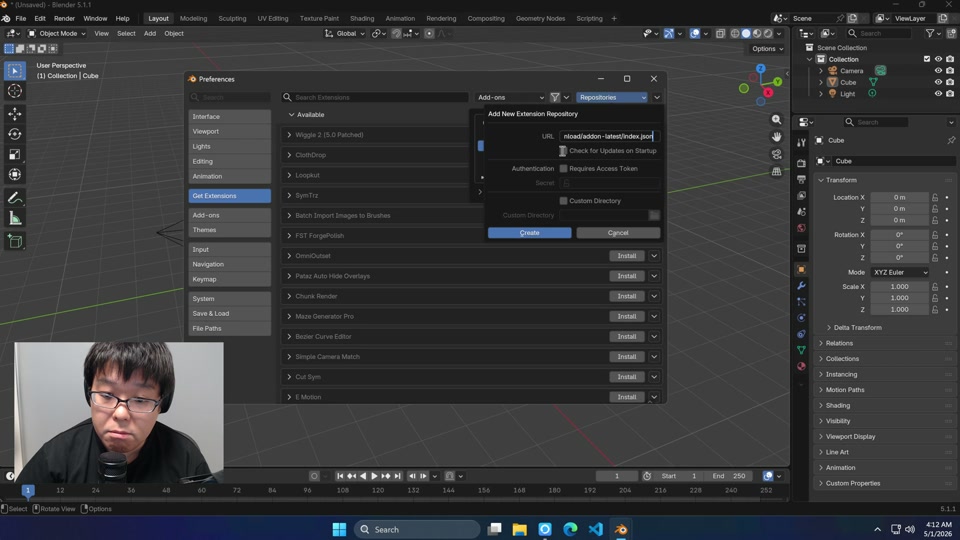
In Blender, open Edit → Preferences → Get Extensions.
Click the dropdown menu (top-right of the panel) and pick Repositories → + → Add Remote Repository.
Paste this URL into the URL field and confirm:
https://github.com/st-tech/ppf-contact-solver/releases/download/addon-latest/index.jsonMake sure the new repository is enabled, then back in Get Extensions search for
ZOZO. The ZOZO’s Contact Solver add-on should appear; click Install.Verify by opening the 3D viewport sidebar (
N). A new tab labeled ZOZO’s Contact Solver should appear.
The URL is permanent. Each new release replaces the index.json asset on
the addon-latest GitHub Release in place, and the per-version zip lives
on an immutable addon-YYYY-MM-DD-HHMM release that the index references
by absolute URL.
Option B: Install from a Local Checkout (script)#
Useful when you are working from a checkout or want to install a build that
has not been published as a release yet. The scripts link the repository’s
blender_addon/ directory into Blender’s extensions/user_default so edits
in the checkout are picked up after a Blender restart, with no re-zipping.
The first run needs Python and network access. Before linking anything the
script runs blender_addon/wheels/fetch.py, which downloads the cbor2 wheels
named in blender_manifest.toml; those wheels are gitignored, so a fresh
clone has none, and the script aborts rather than linking an add-on that
cannot encode a Transfer. It also needs a working python3/python on
PATH, or PPF_PYTHON_BIN (PPF_BUILD_PYTHON on Windows) pointing at one.
Once the wheels are on disk the fetch is a no-op, so later re-runs are
offline-safe.
Clone the repository and
cdinto it.Run the script for your platform from the repository root:
On macOS or Linux:
./install-blender-addon.shOn Windows PowerShell:
.\install-blender-addon.ps1The script auto-detects your installed Blender version. On a fresh machine where Blender has not been launched yet, point it at the binary so it can create the prefs directory itself:
PPF_BLENDER_BIN=/path/to/blender ./install-blender-addon.sh$env:PPF_BLENDER_BIN = "C:\Program Files\Blender Foundation\Blender 5.0\blender.exe" .\install-blender-addon.ps1
Start Blender and enable ZOZO’s Contact Solver under Edit → Preferences → Add-ons (search for
ZOZO), or pass--addons bl_ext.user_default.ppf_contact_solveron the command line.Verify the sidebar tab as in Option A.
To remove the link later, re-run the script with the uninstall flag:
./install-blender-addon.sh --uninstall
.\install-blender-addon.ps1 -Uninstall
Tip
If the sidebar tab is missing after install, the add-on probably crashed while enabling. Open Window → Toggle System Console and re-enable the extension from Preferences to see the traceback.