🖥️ Local#
The solver runs on the same machine as Blender, with no SSH or Docker
layer in between. On Windows, use the Windows Native
backend instead. Linux needs an NVIDIA GPU and CUDA; on Apple Silicon
it is the Metal build of the solver that runs, and its macOS bundle
lays the binary out at target/release/ppf-cts-server (inside
ppf-contact-solver.app/Contents/Resources) exactly as a Linux
checkout does, so Local mode reaches that too.
Warning
Not recommended for day-to-day workstations. The Linux installation performed
by warmup.py
is destructive (system package installs via apt, CUDA toolkit, shell rc
edits, user-level venv, nvm, rustup, NTP) and is impossible to revert or
uninstall cleanly. Even if you have a Linux machine with an NVIDIA GPU, we strongly
recommend the Docker backend instead. Local mode is intended for
the special case where Blender and the solver both live on a disposable VM
or short-lived environment that you are willing to wipe.
When to Use It#
You are on a disposable Linux VM, cloud instance, or short-lived test rig where you do not care about the host being modified by
warmup.py.That same machine happens to run both Blender and the solver, so there is no remote host to SSH into and no reason to spin up Docker.
You are iterating on solver code on such a machine and want the fastest possible disconnect/reconnect turnaround, with file transfers copying directly on disk instead of going through SSH or Docker.
If your Linux box is your real workstation, use the Docker backend instead, even though the GPU is local.
Setup#
Set Type to
Local.Fill Path with the root of your solver checkout – the directory that has
target/release/ppf-cts-serverunder it, e.g.~/ppf-contact-solver. The add-on appendstarget/release/itself, so do not point the field at that subdirectory.Set Project Name on the main panel.
Click Connect. The add-on checks that
target/release/ppf-cts-serverexists under the path you gave it.Click Start Server on Remote. The panel waits a few seconds for the server to report that it is ready.
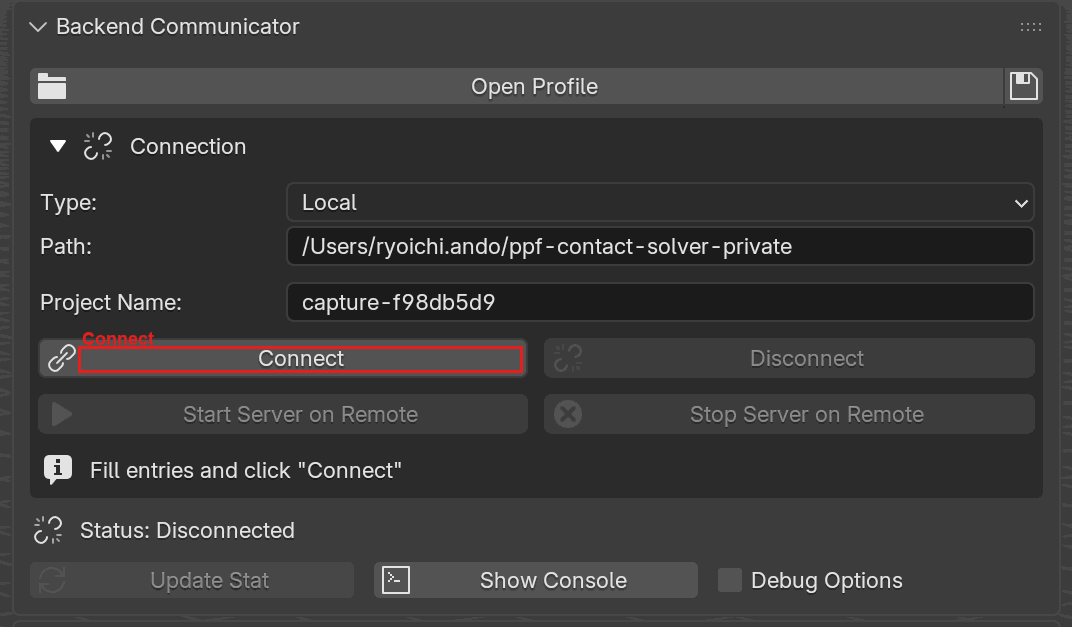
Backend Communicator with Type set to Local. Only Path
and Project Name show up; no SSH, Docker, or Windows-native fields.
Connect is highlighted.#
Tip
If you ran the solver’s installer, it may have created a Python virtual
environment at $HOME/.local/share/ppf-cts/venv. When the add-on finds
that venv it activates it automatically before launching the server –
you do not need to do anything.
Fields#
Field |
Description |
|---|---|
Path |
Solver checkout root, i.e. the directory with |
The panel does not expose a server port field in Local mode – the port
field is drawn only for the Docker-family types – so the port used here
is whatever the shared port property currently holds, 9090 by default.
It can still be changed from a Docker mode, or set per entry in a
profile with the docker_port key.
Dependencies#
Local mode requires neither paramiko nor docker-py. The main panel’s
Install Paramiko to Add-on Directory and Install Docker-Py to Add-on Directory buttons are only relevant for
SSH and Docker modes.
Troubleshooting#
“Remote path not found (…/ppf-cts-server)” - the add-on looked for
<Path>/target/release/ppf-cts-serverand did not find it. Point Path at the checkout root (the directory that containstarget/), not attarget/release/itself, and make sure the solver has been built there.Server startup timed out. - the solver launched but did not report readiness within 16 seconds. Check
server.loginside the solver directory; the panel also prints the last 20 lines when the timeout fires.Port already in use. - another solver (or a stale
ppf-cts-serverprocess) is already bound to the port. Click Stop Server on Remote first, use the Force Terminate Process button shown next to the port-in-use error, or change the port as described under Fields.
Under the hood
Launch script
Local mode launches the server with a bash script (nohup, source .../bin/activate, ./target/release/ppf-cts-server). That is the same
launch path the SSH and Docker backends use. The script is bash-only,
which is why Local mode needs a bash shell on the solver machine;
Windows has none and goes through the Windows Native backend instead.
macOS has bash, and the Metal build of the solver uses the same
target/release/ layout, so Local mode works there as well.
Shared port field
The Docker Port field the Docker modes draw is the same underlying
property for every connection type, Local included; only the field’s
visibility is per-mode. The key in profile TOML files is docker_port
for the same historical reason, even on Local connections.
Virtual environment activation
Local mode reuses the same launch script as the SSH and Docker
backends: it sources $HOME/.local/share/ppf-cts/venv/bin/activate if
that file exists. The Rust server spawns a Python build worker that
imports the _ppf_cts_py PyO3 module from that venv. The solver’s
own install scripts are responsible for creating the venv; the add-on
never creates or modifies it.
File transfer fast path
On local connections, file transfers copy directly on disk instead of going through the solver TCP socket: no CBOR-over-TCP overhead, and much faster than the SSH or Docker paths. The trade-off is cosmetic: the panel does not display a bandwidth figure while a local transfer is in progress. That is expected on this backend.