📓 JupyterLab#
JupyterLab is a first-class way to drive the solver, not just a place to export a notebook. Once a scene has been transferred, the same project can be simulated, previewed, inspected, and iterated on entirely from a notebook on the solver host. Blender itself does not have to stay open: you can quit it, run the full simulation from JupyterLab, relaunch Blender later, and fetch the finished animation back onto the original meshes.
This page covers the whole loop in one place.
When to Reach for JupyterLab#
Headless simulation. You have a laptop that you need to close, but the solver host can keep running. Export, quit Blender, and drive
app.session.run()from a notebook that stays alive on the server.Parameter sweeps and variant generation. Scripting
app.session.session.paramedits in a notebook is faster than clicking through the sidebar, and the results stream back as plots instead of viewport redraws.Inspecting the codebase. The notebook attaches to the same
frontendpackage the add-on talks to, so you can poke atapp.scene,app.session,app.session.session.param, the fixed-scene report, and the live solver state interactively. It is a much faster way to learn the API than reading source, and a convenient surface for summarizing what a project contains.Long runs you want to leave unattended. Kick off
app.session.run()in a notebook cell, close the browser tab, and reconnect later toapp.session.stream()the tail of stdout.
The End-to-End Loop#
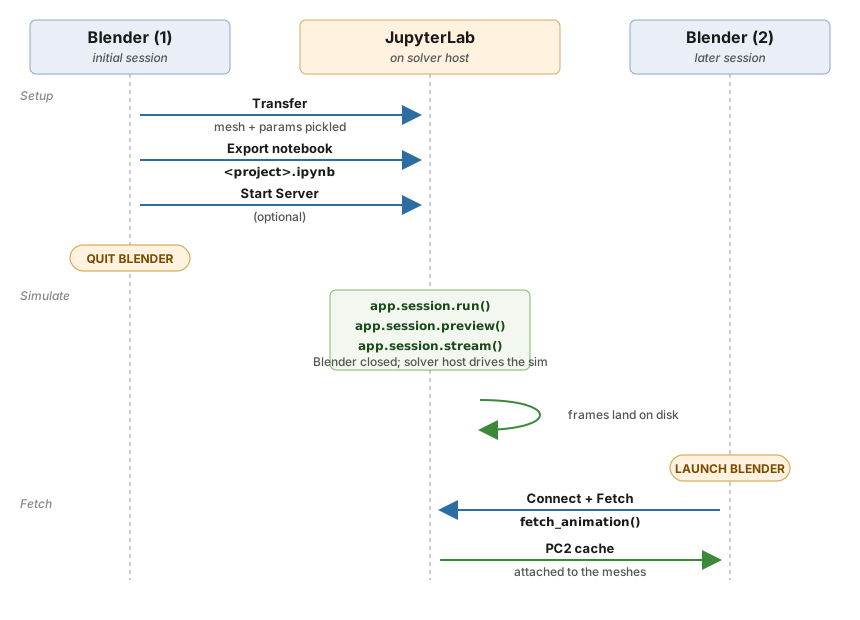
The three-lane loop. The first Blender session transfers the scene,
exports the notebook, and optionally starts the solver, then quits.
JupyterLab drives run() / preview() / stream() on the solver host
while frames land on disk. A later Blender session launches,
reconnects, and fetches the animation back onto the original meshes.#
The thing that makes this work is the solver’s on-disk project state: mesh / param pickles from Transfer, plus whatever frames the solver has produced. As long as those live on the solver host, it does not matter whether Blender, JupyterLab, or neither is currently attached.
Note
You do not have to switch to JupyterLab just to leave a run unattended. A simulation launched from the Blender add-on Run button also survives Disconnect and even quitting Blender; reconnect later and Fetch All Animation to pull the frames. See Disconnecting while a simulation runs. Reach for JupyterLab when you want to drive the run (parameter sweeps, live previews, interactive inspection), not just step away.
Prerequisites#
JupyterLab running and reachable from the add-on, by convention on the solver host, on the JupyterLab Port (default
8080).A live connection: Connect plus Start Server on Remote on the main panel.
At least one Transfer into the current session so the notebook has something to attach to. Without it,
BlenderApp.open(...)has no pickles to build from and raisesFileNotFoundError.
The Jupyter Row#
The Solver panel’s JupyterLab section holds three notebook buttons on one row, a debug row below them, and a Port field:
Button |
What it does |
|---|---|
Export |
Write the template notebook onto the solver host |
Open URL |
Open |
Delete |
Remove the notebook file from the solver host |
Transfer without Build |
Upload data and parameters without triggering a remote build |
Build |
Trigger a remote build without retransferring data |
Transfer without Build and Build are debug halves of what Transfer does in one go; Port is the JupyterLab Port that Open URL points the browser at.
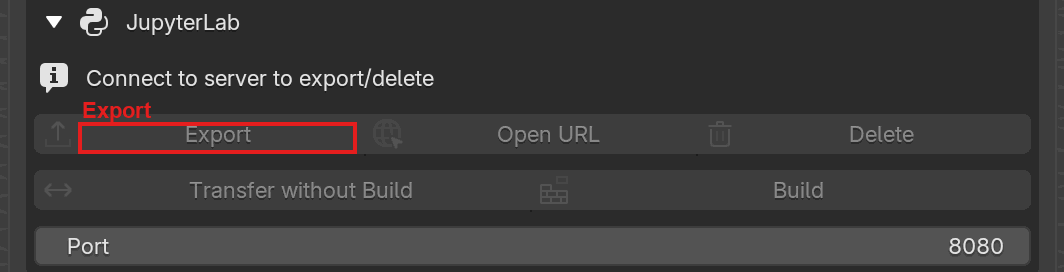
The JupyterLab section, expanded. The Export button writes the notebook onto the solver host. Open URL points the browser at it once an export exists, and Delete removes the server-side file.#
Export pops a dialog for the target path. The default is
blender-export/<project_name>.ipynb (or whatever you exported last).
The filename must end with .ipynb. Writes go through the solver
connection, not through Jupyter’s REST API.
Open URL is enabled once an export exists. It does not check that the file still exists on the server; if you deleted it manually, you will get a 404 in the browser.
Delete removes the server-side file and clears the add-on’s record of the last export, which disables Open URL again.
The Generated Notebook#
Three cells, all Python:
Banner comment naming the project, so the notebook is self-identifying when shared.
Attach:
from frontend import BlenderApp

app = BlenderApp.open("<project>")
app.scene.report()
app.scene.preview()
BlenderApp.open(...)raisesFileNotFoundErrorunless the add-on has already uploadeddata.pickle,param.pickle, andupload_id.txtunder the project root; with those in place it populates and builds the scene from them. Every call rebuilds, so re-running this cell is safe but not free on a heavy scene.Run:
app.session.run()
app.session.preview()
app.session.stream()
run()starts the solver (or attaches to an existing run, which is useful if you kicked it off from the add-on already).preview()gives a live frame playback widget,stream()tails stdout in realtime. To pick up a saved state instead, callapp.session.resume()explicitly.
Note
The notebook’s BlenderApp comes from the solver repo’s frontend
package, not the add-on. The add-on only writes the file.
Simulating Entirely from JupyterLab#
Once the notebook is open, Blender is no longer required. A typical “quit Blender and simulate in the notebook” session looks like this:
In Blender, finish scene setup, Transfer, then Export notebook. Optionally press Start Server on Remote so a solver is already warm; if not, the notebook will spawn one when
run()is called.Open the notebook in your browser. Confirm the attach cell brings up the expected scene via
app.scene.report()andapp.scene.preview().Quit Blender. The solver host keeps the pickles and any running server process; closing Blender only drops the add-on’s live connection.
From the notebook, run the simulation:
app.session.run()        # or app.session.resume() to continue
app.session.preview()    # live frame widget in the notebook
app.session.stream()     # tail solver stdout inline
Iterate in place. You can tweak parameters through
app.session.session.param.*(see the JupyterLab Python API) and re-run without re-exporting. Because the notebook attaches to the pickled scene on disk, you can close the browser tab and reopen it later. The cell outputs may be gone, but rerunning the attach cell puts you right back where you were.
Returning to Blender and Fetching#
When the run is done (or whenever you want the animation back on your Blender meshes):
Launch Blender and reopen the
.blendyou transferred from.Connect to the same solver host. The session ID baked into the scene is how the add-on recognizes it is the same run.
Press Fetch All Animation. The add-on downloads the frames the JupyterLab run produced and wires the downloaded PC2 files up to each simulated mesh, exactly as if Blender had driven the run itself.
Scrub the timeline to confirm, then optionally Bake (see Baking Animation) to turn the fetched animation into plain Blender data.
Tip
If the reopened .blend warns about a session mismatch, it means the
solver host has a different session stamped than your .blend
remembers. Either reconnect to the run you actually want (matching
session), or accept the mismatch if you are deliberately attaching to
a new one; see Simulating → Sessions and recovery.
Inspecting the Codebase from a Notebook#
The same notebook is a very natural place to explore what the solver understands about a project. Useful idioms:
app.scene.report()                       # group summary, counts, flags
app.scene.preview()                      # 3D preview of the fixed scene
app.session.session.param                # live param object; tab-complete it
help(app.session)                        # frontend FixedSession API surface
app.session.session.param.dyn("gravity") # dynamic-parameter builder
Because frontend is just a Python package, inspect.getsource(...),
?? magics, and regular dir() all work. This makes a notebook a
good place to summarize a project (what groups exist, what pins are
bound, what parameters are in play) without clicking through every
sidebar section in Blender.
Tips#
Re-export after major scene changes. The notebook’s
BlenderApp.open(...)picks up whatever pickles are on disk at the time the cell runs, so you normally do not need to re-export just to iterate on parameters. Re-export when you add or remove objects, rebuild groups, or change the project name.Repeated exports overwrite. The filename is derived from the project name, so hitting Export twice is safe.
Delete to tidy up. Useful when flipping between experiments so stale
.ipynbfiles do not accumulate underblender-export/.If Open goes to the wrong port, the add-on uses the JupyterLab Port from scene state. Adjust it in the Jupyter preferences row, not via the URL.
Headless-friendly.
run(),preview(), andstream()all work with Blender closed; the notebook does not depend on Blender’s Python at all.
See Also#
Connecting to a solver host: required before Export is enabled.
Simulating: covers Transfer, Start Server on Remote, and the Fetch button you press when you come back to Blender.
Baking Animation: converting a fetched animation into standard Blender keyframes once a JupyterLab-driven run is done.
JupyterLab Python API: the full surface of
app.scene,app.session, andapp.session.session.paramthat the notebook exposes.
Under the hood
How it fits together
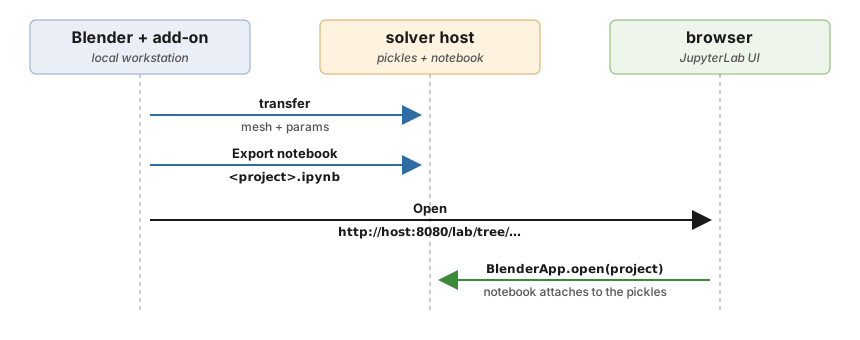
Transport topology. The add-on pushes mesh, params, and the notebook
file through the solver connection, then opens the JupyterLab URL in
the browser. Once loaded, the notebook attaches back to the solver
host through BlenderApp.open(...).#
The running JupyterLab process lives on the solver host (or wherever the configured port can reach). The add-on never touches JupyterLab’s REST API directly.
Transport
Writes go through the solver’s control channel as JSON requests; the
server resolves them under <src>/examples/ and replies OK or an error.
This indirection exists because writing through JupyterLab’s own
contents API was making the exported file (and its parent
blender-export/ directory) vanish after a while, a suspected
interaction with JupyterLab’s cloned-workspace state. Routing through
the solver sidesteps that entirely.