🚀 Running the Simulation#
Once the scene is organized into groups, parameters are set, and pins / colliders are in place, the day-to-day loop is: Transfer -> Run -> Fetch, with Resume, Update Params on Remote, and Clear Local Animation for iteration.
The Solver Panel#
Open the sidebar (N) in the 3D viewport and switch to the add-on tab.
The Solver panel is the second panel in the tab, directly below
Backend Communicator and above Scene Configuration, Dynamics
Groups, Snap and Merge, Utility Tools, Visualization, and
Object Statistics. It is always visible (never collapsed by
default) because it is the primary control surface during simulation
work.
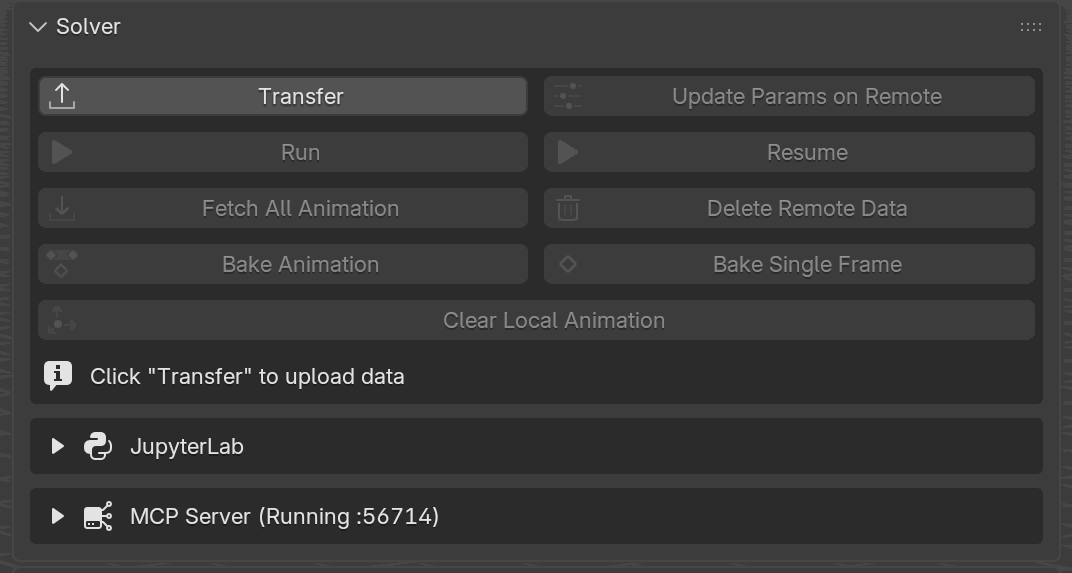
The Solver panel right after the server comes up. Only Transfer is enabled; everything downstream of it is grayed out until the remote has the scene. The info line at the bottom (Click “Transfer” to upload data) reinforces which step is next.#
The panel is a stack of two-button rows, followed by inline notices and the boxed sections below them:
cbor2 warning (conditional). When the bundled
cbor2wheel is missing, the panel opens with an error line saying Transfer and Run cannot encode, pointing at the recovery button on Backend Communicator. Connection settings and the Connect / Disconnect buttons live on Backend Communicator, not here.Action rows. Two buttons per row, in this order:
Transfer | Update Params on Remote. Transfer uploads geometry and parameters; Update Params on Remote re-uploads the parameters without resending geometry.
Run | Resume. Run starts the solve; Resume opens a checkpoint picker and continues an existing run from a saved state, without re-uploading or rebuilding.
Fetch All Animation | Delete Remote Data. Download the simulation results, or wipe the solver’s project data.
Bake Animation | Bake Single Frame. Convert the fetched animation into standard Blender keyframes (see Baking Animation).
Clear Local Animation, on a full-width row of its own.
Inline notices. Below the action rows the panel surfaces whatever applies right now: Click “Transfer” to upload data, Clear local animation before running, N frames unfetched. Press “Fetch All Animation”., a missing-PC2 data path with a Migrate button, or a stale-cache warning with a Remove Stale Cache button. The running solver’s status line is on Backend Communicator, not here (see “Visual Feedback During Each Stage” below).
Where the stop buttons are. Clear Local Animation and Delete Remote Data are on this panel. Terminate, Save and Quit, and the transfer/fetch Abort are not: Backend Communicator draws them, and only while something is in flight — Abort during a transfer or fetch, Save and Quit / Terminate while the simulation itself is live.
Progress bars. The Solver panel draws an inline bar with an Abort button for a running bake, a Capture Deformation, or a pin capture. The Fetch All Animation progress bar and its bandwidth readout appear on Backend Communicator instead.
Deformations box. Below the main block is a box labeled Deformations holding two scene-wide buttons. Re-capture All Deformations re-records every deforming Static collider and every animated pin in one pass, so a change to an action or a modifier stack does not mean walking the groups by hand before Transfer. Clear All Deformations deletes every captured recording in the scene, including any left behind by an object that was deleted or taken out of its group. See Static Objects.
Export box. Below that, an Export box holds Export USD and Export Alembic (ABC), which write the fetched deformation out as a point cache for another application instead of baking it into Blender keyframes. See Exporting USD and Alembic Caches.
JupyterLab and MCP Server boxes. Two collapsible boxes close the panel. JupyterLab holds the notebook export / open / delete buttons and the Jupyter port — see JupyterLab. MCP Server starts and stops the local MCP server and sets its port; its header reads the current state — see MCP Server.
Buttons that are not applicable to the current state are grayed out. For example, Run is grayed out until a successful Transfer has completed, and Resume is grayed out unless the server still holds at least one saved state to continue from.
The Buttons#
Button |
What it does |
|---|---|
Transfer |
Encode geometry → encode parameters → upload both atomically → build. Overwrites |
Run |
Re-encodes the scene and refuses if geometry or parameters drifted from the last upload, then clears existing animation and starts the solve. |
Resume |
Opens a checkpoint picker and continues an existing run from a saved state. No re-upload, no rebuild. |
Update Params on Remote |
Re-encodes and uploads parameters, then rebuilds. No geometry resend. |
Fetch All Animation |
Downloads per-frame vertex data and applies it as PC2 animation. |
Clear Local Animation |
Removes simulation keyframes and |
Delete Remote Data |
Asks the server to wipe its current project data. |
Terminate |
Hard-stops the current simulation on the server. |
Save and Quit |
Graceful shutdown: flushes state to disk, then exits the server. |
Abort |
Interrupts the current transfer or fetch. Does not touch running sim. |
Re-capture All Deformations |
Re-records every deforming Static collider and every animated pin in the scene, colliders first, with a progress readout and an Abort button while it runs. |
Clear All Deformations |
Deletes every captured deformation in the scene, including recordings orphaned by a deleted or un-grouped object. |
Export USD |
Writes the fetched deformation to a USD point cache ( |
Export Alembic (ABC) |
The same result as an Alembic |
Terminate and Save and Quit target the server itself; Terminate
is the hard equivalent of pulling the plug, while Save and Quit lets
the solver flush its state first so a later reconnect can pick up from
there.
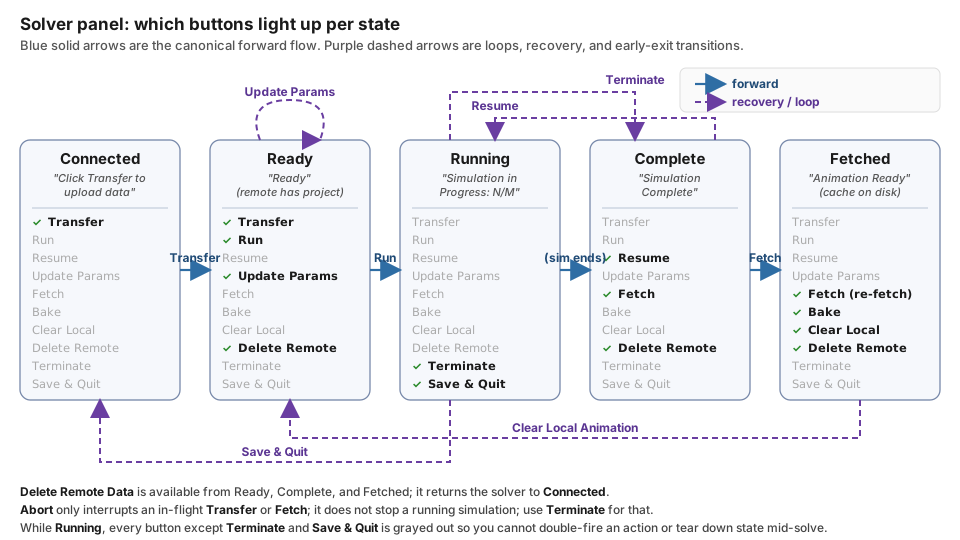
Which buttons light up in each state. The canonical forward flow runs left-to-right along the blue arrows; the purple dashed arrows cover the loops (Update Params on Remote), recovery transitions (Clear Local Animation, Resume), and early exits (Terminate, Save and Quit). If a button is grayed out, find the current state on the diagram; the enabled list inside that box is the full answer. The diagram covers the main block only. The Deformations and Export boxes below it are gated by what the scene holds rather than by solver state: Export USD and Export Alembic (ABC) need at least one simulated mesh in the view layer, and the two Deformations buttons need something to capture or something captured.#
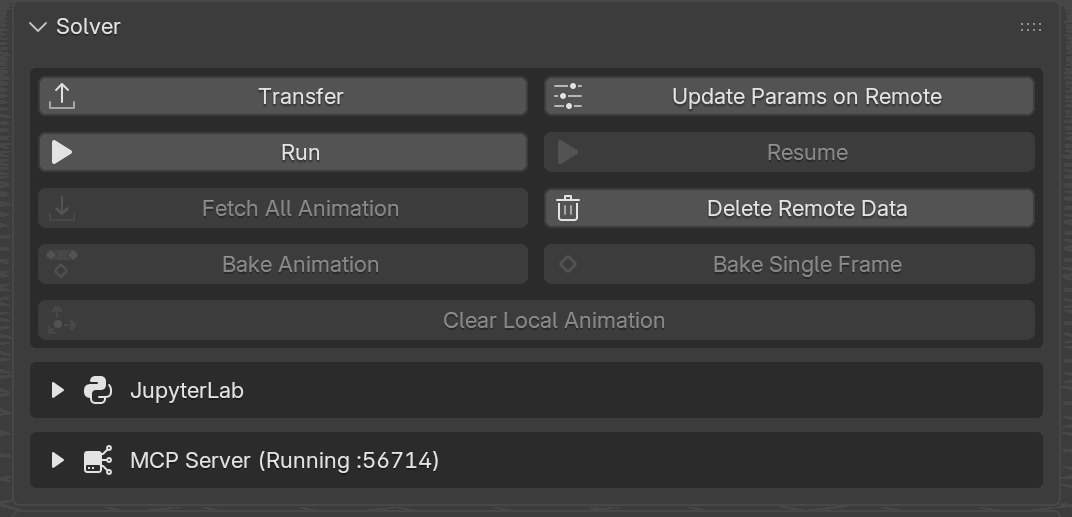
After Transfer completes, the panel settles into the Ready to Run state. Run lights up (the play icon turns solid), and Delete Remote Data is also armed because the remote now holds a project. This is the state you press Run from.#
Visual Feedback During Each Stage#
The status line on the Backend Communicator panel keeps you informed of what the solver is doing at every moment. Here is what you see during each major operation:
Transfer#
A labeled progress bar on Backend Communicator cycles through several sub-stages as the transfer proceeds:
“Encoding scene geometry…”. The add-on serializes vertex positions, edges, and faces for every active group.
“Encoding parameters…”. Material parameters, scene parameters, pins, operations, merge pairs, and invisible colliders are encoded. Geometry and parameters then go up together as one atomic upload (“Uploading scene…”), so the server never sees a mismatched pair.
“Building Scene…”. The solver is constructing its internal data structures (BVH trees, constraint graphs, contact maps). This step can take a few seconds for complex scenes.
“Ready to Run”. The transfer is complete. The Run button is now enabled.
If any sub-stage fails, the status line shows an error message in red text describing the failure (e.g. “Transfer failed: mesh has zero faces”). The panel remains in the pre-transfer state so you can fix the issue and retry.
Run#
Once the simulation starts:
The status line on the Backend Communicator panel reads “Simulation Running…” and a blue progress bar appears below it, labeled with the same status.
Live counters appear on Backend Communicator in two blocks. Realtime Statistics shows the current
frameplus several rows, grouped by what they measure:Timing (wall-clock):
time-per-frame,time-per-step,matrix-assembly,pcg-linsolve,line-search.Counts:
num-contact,newton-steps,pcg-iter.Ratios:
toi,toi-advanced,dyn-consumed, andstretch(stretchappears only when the run actually stretches shells or rods).Host:
GPU Util,VRAM Usage,CPU Usage,RAM Usage(shown only when the solver host reports them).
Large counts are abbreviated with a
k,M, orBsuffix (12.44krather than a long digit run). The per-iteration rows (matrix-assembly,num-contact,pcg-iter,pcg-linsolve,line-search,toi) are averaged over the latest step rather than showing a single iteration. Scene Info tracksSimulated FramesagainstTotal Framesso you can see how far through the run you are.When the simulation completes, the status line returns to “Ready to Run”,
Simulated FramesreachesTotal Frames, and a warning row (N frames unfetched. Press “Fetch All Animation”) appears at the bottom of the Solver panel’s button block, directing you at the next step.
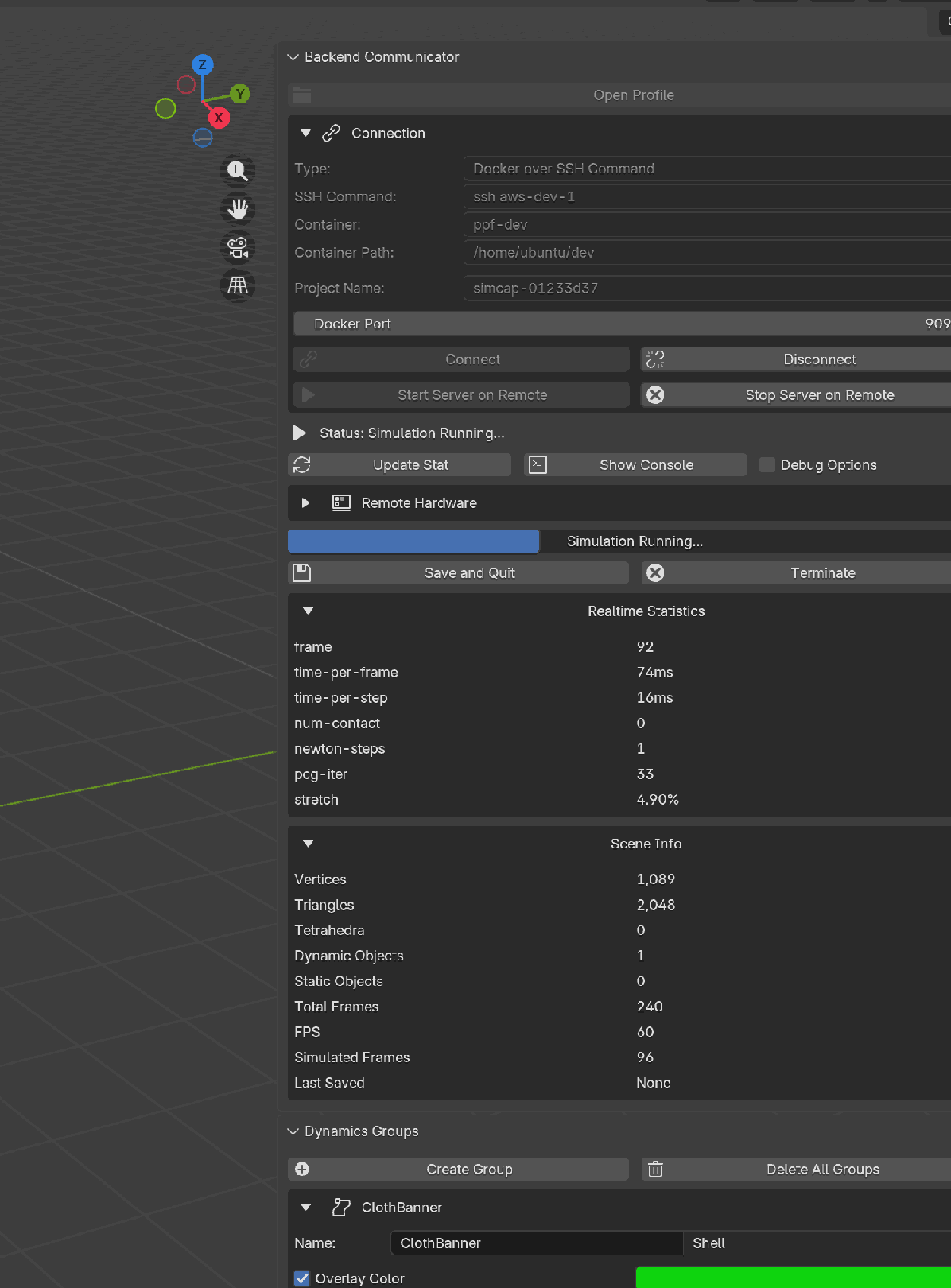
Backend Communicator mid-solve: the status line reads Simulation
Running…, the blue progress bar carries the same label, and the
Realtime Statistics block updates in place as each frame lands. The
Scene Info block below shows Simulated Frames ticking toward
Total Frames.#
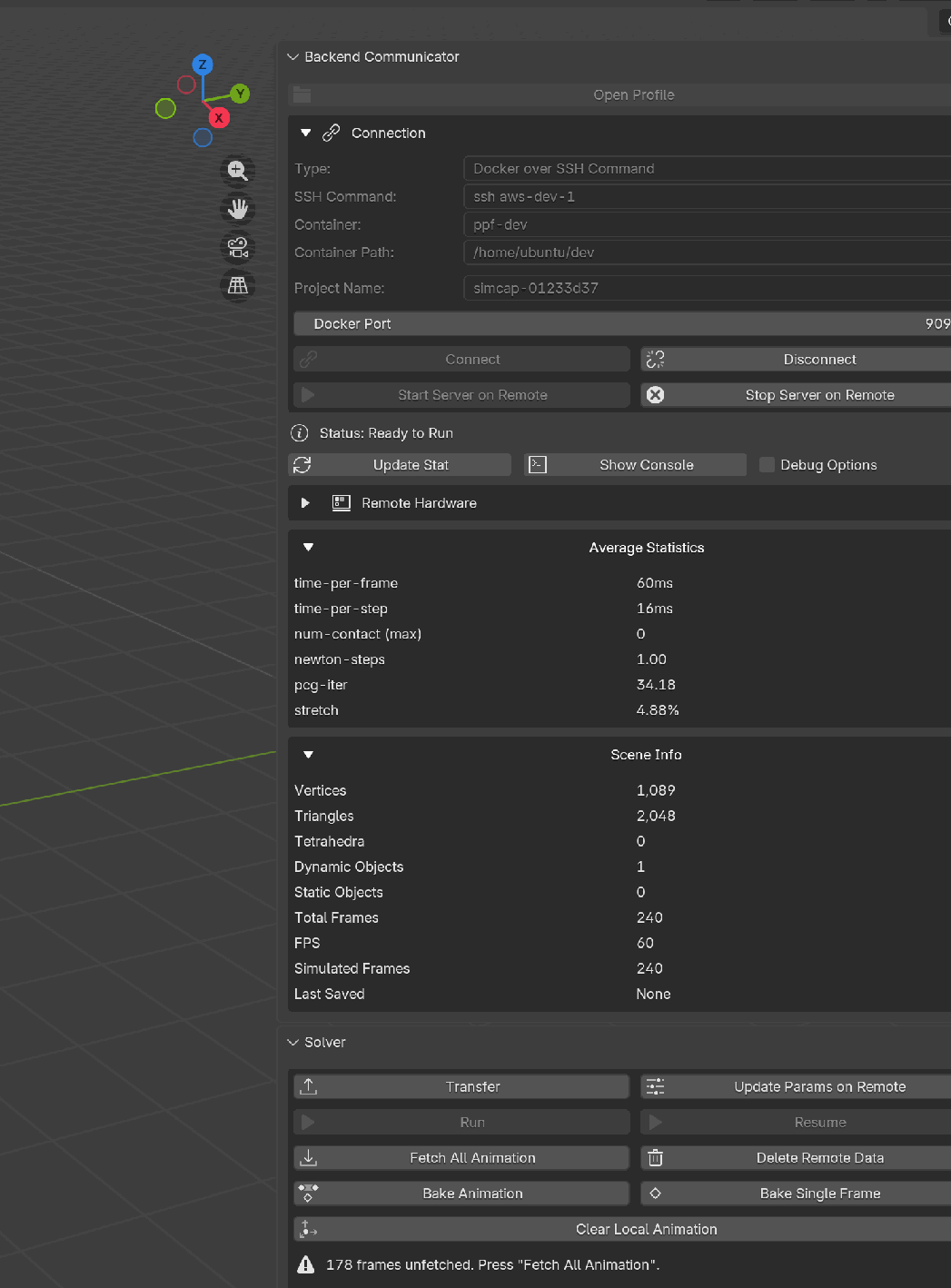
After the run finishes, the status line returns to Ready to Run, the
live counters collapse into an Average Statistics block, and
Simulated Frames matches Total Frames. The warning row at the foot
of the Solver panel tells you exactly how many frames are still on the
remote and which button to press next.#
Once a run is no longer live, the same box switches its title to
Average Statistics and shows the run summarized over all simulated
frames instead of the latest step: the timing rows become per-frame
averages, and the count and ratio rows are averaged — except
num-contact and dyn-consumed, which are reported as run peaks and
relabeled num-contact (max) and dyn-consumed (max). This block stays
available after the run as long as the solver still has its log data, so
you can read the overall cost of a solve without watching it live.
Fetch#
During a fetch:
A progress bar fills from left to right on Backend Communicator as frame data is downloaded. The bar shows a percentage and the number of frames fetched so far (e.g.
120 / 240 frames).Bandwidth statistics appear alongside the progress bar (e.g.
12.3 MB/s).On completion the status line returns to “Ready to Run”, the scene’s frame range is set to the fetched range, and the add-on starts timeline playback on its own rather than waiting for you to scrub.
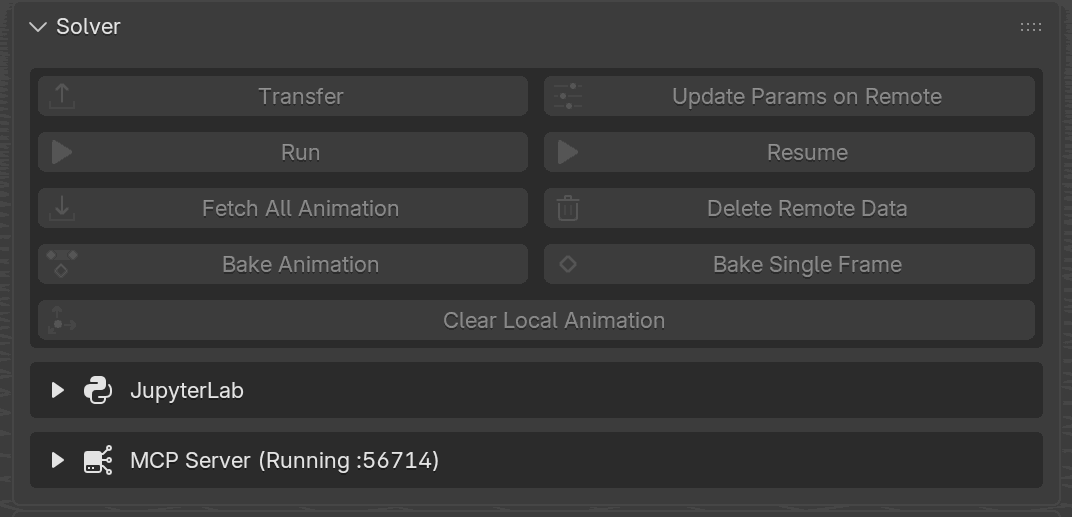
While the simulation is live, the Solver panel goes fully inert; every button is grayed out so you cannot double-fire an action or tear down state mid-solve. The progress counter and per-frame stats live on the Backend Communicator panel above; this panel simply stays out of the way until the solve ends.#
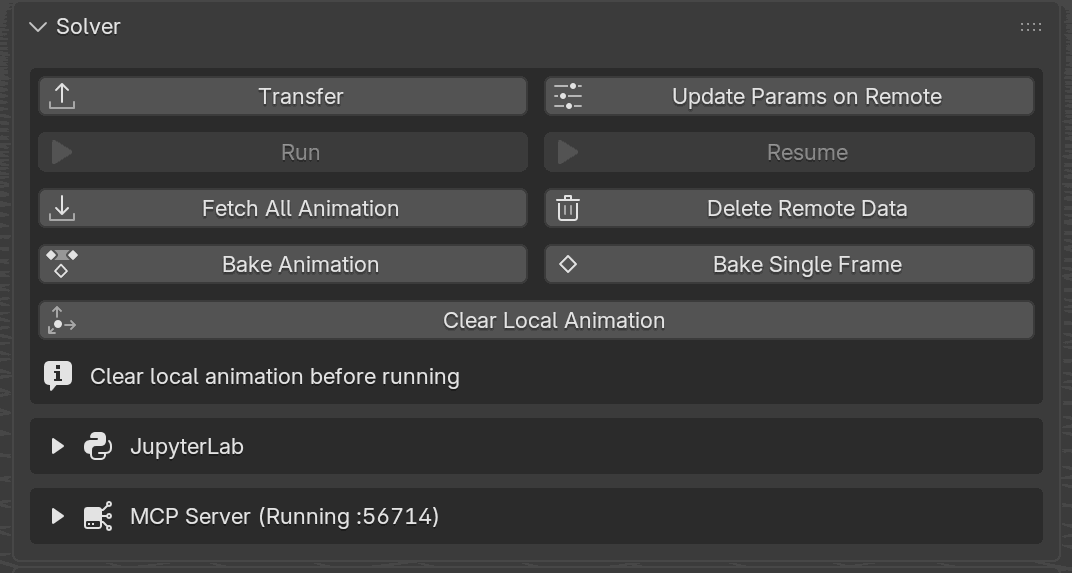
Once Fetch All Animation finishes, the panel returns to its post-sim resting state: Fetch All Animation and Delete Remote Data stay enabled so you can re-fetch or wipe the remote project, and the info line Clear local animation before running reminds you that a second Run needs the previous animation cleared first.#
Update Params vs Transfer#
When iterating on a scene, the question comes up: does this change need a full Transfer, or is Update Params on Remote enough? The rule is:
Transfer re-sends geometry and parameters, then rebuilds.
Update Params on Remote re-sends parameters only, then rebuilds. Mesh buffers on the server are preserved, which is why it completes much faster on large scenes.
So Transfer is required whenever mesh topology or group membership changes; Update Params on Remote is enough for everything else that lives in the parameter payload (scene settings, material params, pins, colliders, dynamic parameters). The table below enumerates the common edits:
Edit |
What to press |
|---|---|
Mesh topology change (add/remove verts, edges, faces) |
Transfer |
Add or remove an object from a group |
Transfer |
Change a group’s type (e.g. Shell → Solid) |
Transfer |
Pure transform of an assigned object (move/rotate/scale) |
Transfer (new rest) |
Add a new pin vertex group on existing geometry |
Update Params on Remote |
Edit an existing pin’s operations (Move By / Spin / Scale / Torque) |
Update Params on Remote |
Change material parameters (density, stiffness, friction, …) |
Update Params on Remote |
Change scene parameters (gravity, wind, air, step size, …) |
Update Params on Remote |
Edit dynamic-parameter keyframes |
Update Params on Remote |
Add, remove, or keyframe an invisible collider |
Update Params on Remote |
Add or remove a snap/merge pair |
Update Params on Remote |
Load a scene profile or material profile |
Update Params on Remote |
Toggle an overlay (a pin’s eye, preview arrows) |
(nothing; viewport only) |
The topology warning in the next section is the add-on’s safety net: if you skip Transfer after a topology change, it shows up before Run or Fetch and tells you to re-transfer.
If a run is slow to converge, the Preconditioner scene parameter (Block Jacobi by default, or Schwarz) is one knob worth trying; see Preconditioner.
“Groups Have Changed” Warning#
If you edit your meshes (add or remove vertices, change group membership, reassign an object’s type) after Transfer but before Run or Fetch, the add-on reports a warning in Blender’s status bar:
Mesh topology changed since last transfer (groups differing: Cloth). Re-transfer to sync.
That report does not block you, but it means the solver’s data no longer matches what is in Blender. Click Transfer again to re-upload before running or fetching.
Run goes further and refuses outright. It re-encodes the scene when you click it and compares the result against the hashes the server echoed for the last upload: a geometry change aborts with Geometry has changed since the last transfer. Click “Transfer” to re-upload before running., and a parameter change aborts with Parameters have changed since the last transfer. Click “Update Params” before running. So a material-parameter edit, which leaves the topology report silent, still stops a Run until you press Update Params on Remote. Resume runs the same two checks in its own wording; see Resuming a Run.
Pure transforms and material-parameter edits do not change the topology report; adding a pin vertex group or re-capturing a Static collider’s deformation does, because both feed the same hash.
How Animation Plays Back#
After Fetch, the add-on downloads per-frame vertex data next to
your .blend file and wires it up to each simulated mesh. Scrub the
timeline and the mesh deforms to the solver’s output. Curves (rods)
update directly on every frame change.
Internally the hookup lives in the Modifier Properties tab, as a
ContactSolverCache entry whose File Path points at a .pc2
file under <blend_dir>/data/<blend_basename>/:
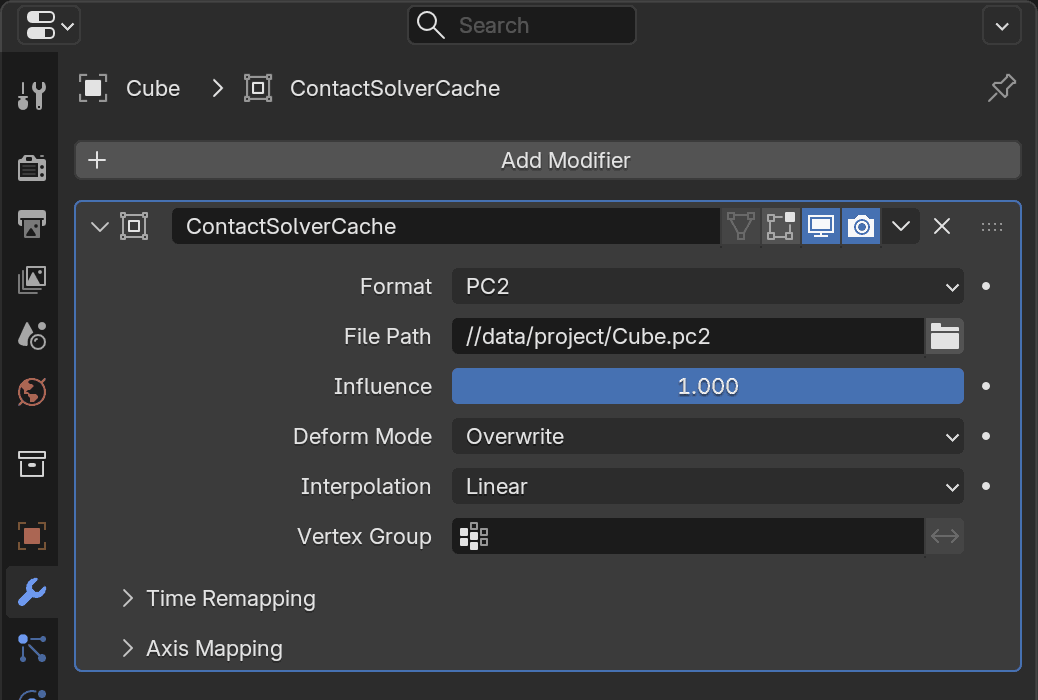
What the ContactSolverCache entry looks like in Modifier
Properties after a successful fetch. The File Path points at
the per-object .pc2 file under
<blend_dir>/data/<blend_basename>/, and that is what plays the
simulation back while you scrub. Leave it in place; deleting it (or
its .pc2 file) removes the animation. To convert the fetched
animation into regular Blender animation (shape keys + fcurves), run
Bake Animation instead; see Baking.#
Tip
Save the .blend after fetching. The add-on migrates the fetched PC2
files into a permanent location on save, so the animation survives
closing and reopening the file.
Reading Per-Frame Statistics#
Fetch brings back more than vertices. Every frame the solver
measured also carries a small record of per-object numbers, and those
records ride along with the vertex data on the same fetch. They land
beside the PC2 caches in the same <blend_dir>/data/<blend_basename>/
folder, as one statistics_manifest.cbor plus one .stats file per
object, and saving the .blend migrates them into place with the PC2
files.
The Object Statistics panel, last in the sidebar and collapsed by default, is what reads them back. It looks up the record for the current frame minus the starting frame and redraws on every frame change, so the numbers always belong to the frame the playhead is on and scrubbing walks the run. Which rows appear depends on the object:
Location, Velocity, Speed, Acceleration and its magnitude, Angular Velocity, Angular Speed and Angular Axis are measured for every object in the scene, Static colliders included.
Surface Area appears for an object with faces, Volume for one built from tets or closed by its own surface, Rod Length for a strand; a Sand group reports area and volume both. Each of the three is printed with a percentage in parentheses, its value relative to the same measure on the run’s first frame, so
102%beside a surface area means the sheet has stretched two percent since it started.Contact Count is abbreviated past a thousand (
12K,1.5M). An emulated build counts no contacts, so on one of those the row readsN/A.
A frame that has not been fetched has no record: every row reads N/A
and Export CSV is grayed out. Clear Local Animation deletes the
statistics along with the fetched animation, and the panel then reports
Statistics unavailable; rerun the simulation for that object — the
data is gone, not corrupt, and a fresh Run and Fetch brings it
back.
Export CSV opens a menu of the values the selected object supports and writes the one you pick, for every fetched frame, to a file three columns wide:
Column |
What’s in it |
|---|---|
|
Blender frame number: the solver’s frame index with the starting frame added back, so it lines up with the timeline. |
|
Solver time in seconds at that frame. |
|
The value. A vector metric is written as one |
Only frames that were actually fetched are written, so a partial fetch produces a shorter file rather than one padded with blanks.
Disconnecting While a Simulation Runs#
Once Run is pressed on a remote backend (SSH, Docker, or Windows Native), the solver is doing its work on the remote host; Blender is just watching. You do not have to keep Blender open for the run to continue:
Press Disconnect on the Backend Communicator to drop the live connection. The remote solver keeps going.
You can even quit Blender entirely. The remote process is owned by the solver host, not by the add-on.
Later (minutes, hours, or after a reboot of your workstation), launch Blender, reopen the same
.blend, press Connect, and Fetch All Animation pulls in whatever frames have landed on disk so far.
The session ID baked into the .blend is what the add-on uses to
recognize “this is the same run I started before”. See
Sessions and recovery below for how the
session check works, and
Auto-save and graceful shutdown for
making sure the solver’s own state survives a crash between sessions.
This is not the same as running the sim from JupyterLab. In that scenario the sim was launched from the Blender add-on; JupyterLab just happens to be another way to drive a project that lives on the same solver host. See JupyterLab if you also want to poke at the run from a notebook while Blender is closed.
Sessions and Recovery#
Every successful connect mints a fresh session ID and the add-on
stamps simulation artifacts (the fetched PC2 files and the remote
project directory) with it. Saving the .blend stores the active
session on the scene; on reopen, reconnecting compares the new session
against the saved one and warns if they differ, meaning the fetched
frames on disk may no longer correspond to anything the remote knows
about. This
is how the add-on distinguishes “this is the sim I was running before I
closed Blender” from “this is a fresh run on a different server”.
Auto-Save and Graceful Shutdown#
Three related features:
Auto-save (the Auto Save and Auto Save Interval fields on the Scene Configuration → Save and Checkpoints sub-panel): when enabled, the solver periodically dumps its state so a crash or disconnect does not cost all the progress. This runs inside the server process.
Save State on Finish (same sub-panel): saves a state on the final frame before the solver exits, so a completed run stays resumable even when auto-save is off.
Save and Quit: a one-shot operator that asks the server to flush state and exit cleanly. After Save and Quit, the next reconnect can pick up the run where it left off.
Terminate does not flush state. Use it when the simulation is misbehaving and you want it gone.
Resuming a Run#
Resume continues a run the server already holds, without re-uploading geometry or rebuilding. Click it and a checkpoint picker opens, listing the saved states the server has on disk. Each entry is shown as a Blender 1-based frame, matching Last Saved in Scene Info. Pick one and the solver continues from that frame; frames before the chosen point are kept, and frames after it are overwritten.
Because Resume reuses the state already on the server, it refuses when the scene has drifted from what the server last received:
If the geometry changed, Resume stops and asks you to Transfer then Run for a fresh simulation. The cached state no longer matches the mesh.
If only the parameters changed, Resume stops and asks you to press Update Params on Remote first. That re-sends parameters and rebuilds while preserving the saved checkpoints, so you can Resume immediately afterward.
For Resume to have anything to offer, the server must hold at least one saved state. That comes from Auto Save, from Save State on Finish, from explicit per-frame Save Checkpoints, or from Save and Quit. With no saved state, Resume stays grayed out.
Recovery Scenarios#
The behavior depends on who failed. Four cases cover the common ones; the table shows the first move in each.
What happened |
What the solver has on disk |
What to do next |
|---|---|---|
You closed Blender or lost the network mid-run. Solver kept running. |
Everything up to “now”. |
Reopen the .blend, Connect, Fetch All Animation. If still running, leave it. If it finished while you were gone, fetch picks up the rest. |
You clicked Terminate or killed the run. |
Frames up to terminate, plus any saved states. |
The solver transitions to Resumable. Click Resume, pick a saved state, and continue; or Run to clear the animation and restart. |
The run failed (a frame did not converge). |
Frames up to the failure, plus any saved states. |
The status line reads Simulation Failed, but it stays resumable while at least one saved state exists. Click Resume and pick an earlier state to continue past the trouble spot, or fix the scene and Run again. |
Solver process crashed (segfault, OOM, server reboot). |
Whatever was auto-saved (if Auto Save was on) or just the frames already written. |
Reconnect and Start Server on Remote. If saved states exist, the solver comes up Resumable and Resume lets you pick one. If not, press Run to re-simulate. |
Auto Save is what distinguishes “lose a few seconds of solve” from “redo the last hour” in the crash case. It’s on the Scene Configuration → Save and Checkpoints panel; enable it before long runs and leave the default interval for most scenes.
If Fetch finds a session ID mismatch at reconnect, the remote project on disk is not the one your .blend remembers (a fresh server start, a different cloud host, or a colleague’s run). Either Transfer to replace the remote with your current scene, or connect to the host where the original run lives.
Port-in-Use on Reconnect#
When you restart Blender while a previous ppf-cts-server is still
listening on the configured port (typical for Windows Native, where
the add-on owns the spawn), Connect does not error out: the add-on
probes the port with a minimal TCMD ping, and if the response
identifies a live ppf-cts-server, it attaches to that process
instead of spawning a new one. Your previous run is still there,
ready to Fetch. SSH and Docker backends always start the server
out of band, so attaching is implicit there.
If the port is held by a different process (or by a stale ppf-cts-server
that no longer responds to the protocol probe), the Backend Communicator
panel surfaces the error Port N is in use together with a Force
Terminate Process button. Clicking it walks the process tree, force-kills
the process holding the configured port, and lets the next Connect
spawn a fresh server. The button only appears for this specific error
wording, so it cannot be used to kill an unrelated process by accident.
Aborting a Transfer or Fetch#
Abort interrupts the current transfer or fetch. It does not cancel a running simulation; for that, use Terminate. An aborted fetch clears the in-flight animation buffer; rerun Fetch to restart from the first missing frame. The Solver panel surfaces a warning line when the remote has more frames than have been fetched locally:
N frames unfetched. Press “Fetch All Animation”.
Blender Python API#
The same workflow is available from Python:
from bl_ext.user_default.ppf_contact_solver.ops.api import solver

# The core loop.
solver.transfer_data()
solver.run_simulation()
solver.fetch_animation()

# Iterate on parameters without resending geometry.
solver.param.step_size = 0.002
solver.update_params()

# Clean up.
solver.clear_local_animation()
solver.delete_remote_data()

# Recovery flow: graceful vs hard stop.
solver.save_and_quit_simulation()   # flush, exit server
solver.terminate_simulation()       # no flush, immediate
Under the hood
Operator names
Button |
|
|---|---|
Transfer |
|
Run |
|
Resume |
|
Update Params on Remote |
|
Fetch All Animation |
|
Clear Local Animation |
|
Delete Remote Data |
|
Terminate |
|
Save and Quit |
|
Abort |
|
Any solver.* method not explicitly defined on the solver proxy is
forwarded to bpy.ops.zozo_contact_solver.<name>, an operator generated
from the MCP handler of the same name. Most of those handlers invoke the
solver.* operator in this table; terminate_simulation and
save_and_quit_simulation call the same underlying service directly. So
the names in the Python block above are the handler names
(transfer_data, terminate_simulation, and so on), not the
bl_idnames.
Mesh hash
The topology hash is computed per active group over vertex count, polygon count, edge count, object count, the pin vertex groups and their sizes, and a digest of each captured static-deformation cache. Pure transforms and material-parameter edits do not affect it; adding a pin vertex group or re-capturing a Static collider does.
PC2 files on disk
Per-object PC2 lives under <blend_dir>/data/<blend_basename>/, one
<object-uuid>.pc2 per simulated object. The solver’s own per-frame
vert_N.bin files and its map.pickle / surface_map.pickle
object-to-vertex mappings stay on the remote host under the project’s
session/ directory; a fetch reads them over the wire and writes the
local .pc2 files from them.
ContactSolverCache entry
Mesh playback is driven by a ContactSolverCache entry in the
Modifier Properties tab, pointing at the object’s PC2 file. It
sits in the first modifier slot with frame_start set to the
solve’s Starting Frame (1 by default), so it deforms the rest mesh
before any other deformer runs. The exception is an object whose own
deformers fed the solver — a Static collider, or a dynamic object
carrying a deforming modifier stack such as an Armature or Lattice.
There the entry is placed after those position-preserving deformers
and before the first topology-changing one, so the solver’s output wins
over the input that produced it. Curves are updated directly on every
frame change and do not need an entry in that tab.
Session ID format
The session ID is a 12-hex-character string. It is embedded in the PC2 header, stamped onto each simulated object, and attached to the remote project directory. That is what the mismatch warning on reopen is comparing against.