🗿 Static Objects#
A Static object group holds meshes that do not deform in the solver: colliders, ground planes, mannequins, props, anything that should influence the simulation without being simulated itself. Static groups share the same panel, transfer, and bake flow as Solid / Shell / Rod groups, but with a smaller material-parameter surface and two exclusive ways to drive motion.
This page centralizes everything specific to the Static type:
Moving a Static object: the three ways (Static Ops, Blender keyframes, captured deformation) and the rule that picks one
The Transform sub-box: where Static ops live in the UI
Armature-driven Static objects: using Capture Deformation to bake a deforming modifier stack into the solver collider
Contact parameters: the small parameter set a Static group exposes
Creating a Static Group#
Click Create Group on the Dynamics Groups panel, then change Type to Static. The group card updates to reflect the Static surface:
The Assigned Objects list accepts only meshes (curves are rejected because they only make sense for Rod groups).
The pin region is relabeled Transform (with a driver icon replacing the pin icon). No vertex-group pins are possible on a Static group; instead this box holds per-object Static ops.
The Material Params box collapses down to Friction, an Apply Soft Constraints box, the Contact rows, and the Allow Intersections box that every group type carries (see Contact parameters).
The default overlay color is blue
(0, 0, 0.75).
Everything else (duplicating the group, per-object Include checkboxes, removing objects, deleting the group) works the same as for Solid/Shell/Rod groups. See Object Groups for the shared UI surface.
Note
A Static collider mesh must have no stray vertices. A point that belongs to no face, often left behind by an imported model, makes Transfer stop with an “isolated vert” error. Click Remove Isolated Vertices under the error, or in Edit Mode use Select > All by Trait > Loose Geometry then Mesh > Delete > Loose, and Transfer again. See Transfer, run, fetch.
Moving a Static Object#
Static meshes do not deform in the simulation, but they can still translate, rotate, scale, or follow an armature pose over time. There are three mutually exclusive ways to drive that motion:
Static ops. UI-assigned Move By / Spin / Scale entries edited per assigned object inside the group’s Transform sub-box. You give each op a time range and a delta, axis, or factor.
Blender transform keyframes. The usual way you animate an object in Blender: select it, hit I on a frame, and pick Location, Rotation, or Scale. Any keyframes you set on the object’s own transform channels get picked up automatically. The add-on samples the world transform at each keyframe and ships the track, including Bezier handles, so eases you see in the Graph Editor carry over to the simulation.
Captured deformation. For objects whose mesh shape changes over time, an Armature modifier driven by a posed rig, a Lattice or Mesh Deform cage, animated Shape Keys, and the like, use the Capture Deformation button to record the animation onto the collider.
Warning
Only one source of motion per object at a time. If an assigned Static mesh has Blender transform keyframes, the add-on uses those and ignores that object’s Static ops list. The UI flags this with the label “Object has Blender keyframes — these ops will be ignored” above the ops list. A captured deformation takes priority over both: while a deformation cache is present for the object, its Static ops and transform keyframes are ignored, because the cache already includes any rigid parent motion in the recorded vertex positions.
Note
Shape Keys and other mesh-level animation are only honored through Capture Deformation. A Static mesh with Shape Key animation will not move in the solver unless you click Capture Deformation, and the add-on will refuse to upload it with an explicit error.
Use Static ops when the motion is scripted and easy to describe with a few time ranges: a sliding floor plate that moves from A to B between frame 30 and 60, a spinning turntable, a shrinking platform. Use Blender keyframes when the motion lives in Blender’s own timeline already at the object level: a prop animated by hand in the Graph Editor, a collider parented to a Camera. Use Captured deformation when the motion is inside the mesh (a posed armature, a deforming lattice, a Shape Key), not just on the object transform.
The Transform Sub-Box#
On a Static group, the region that would be Pins on other group types is relabeled Transform. Expanding it shows:
No object picker of its own: the box edits whichever object is selected in the Assigned Objects list of the group card above. With no row selected it draws the label “Select an assigned object above” and nothing else.
A warning row: visible only when the selected object has Blender transform fcurves; tells you its ops will be ignored.
The static-ops list:
Move By/Spin/Scaleentries with+(add menu),−(remove), and up/down reorder buttons.The per-op editor with fields for the active row:
Start / End: Blender frames; the op is active across the closed range.
Transition:
LinearorSmooth(smoothstep).Delta (m): Move By only;
(x, y, z)translation in world units.Axis / Angular Velocity (°/s): Spin only; pivots around the object’s origin.
Factor: Scale only; uniform scale multiplier around the object’s origin.
Ops compose in list order: if you stack a Move By and a Spin whose
time ranges overlap, the object translates and rotates simultaneously
inside the overlap. Outside every op’s time range the object rests at
its un-modified transform (the pose it was at when you assigned it to
the group).
Static Ops Reference#
Op |
Fields |
Pivot |
Notes |
|---|---|---|---|
|
|
N/A |
Translate the whole object by |
|
|
Object origin |
Rotate around |
|
|
Object origin |
Uniform scale; |
Common fields on every op: frame_start, frame_end, transition
(LINEAR / SMOOTH), and show_overlay (toggle the viewport
preview).
Armature-Driven Static Objects#
When a Static mesh moves because of something inside the mesh, typically an Armature modifier on a body model, but also a Lattice or Mesh Deform cage, animated Shape Keys, or similar setups, the add-on cannot pick up that motion from object keyframes alone. You have to record the animation onto the collider using the Capture Deformation button.
When you assign such an object to a Static group, the panel recognizes the animation and the button row activates with a hint underneath it:
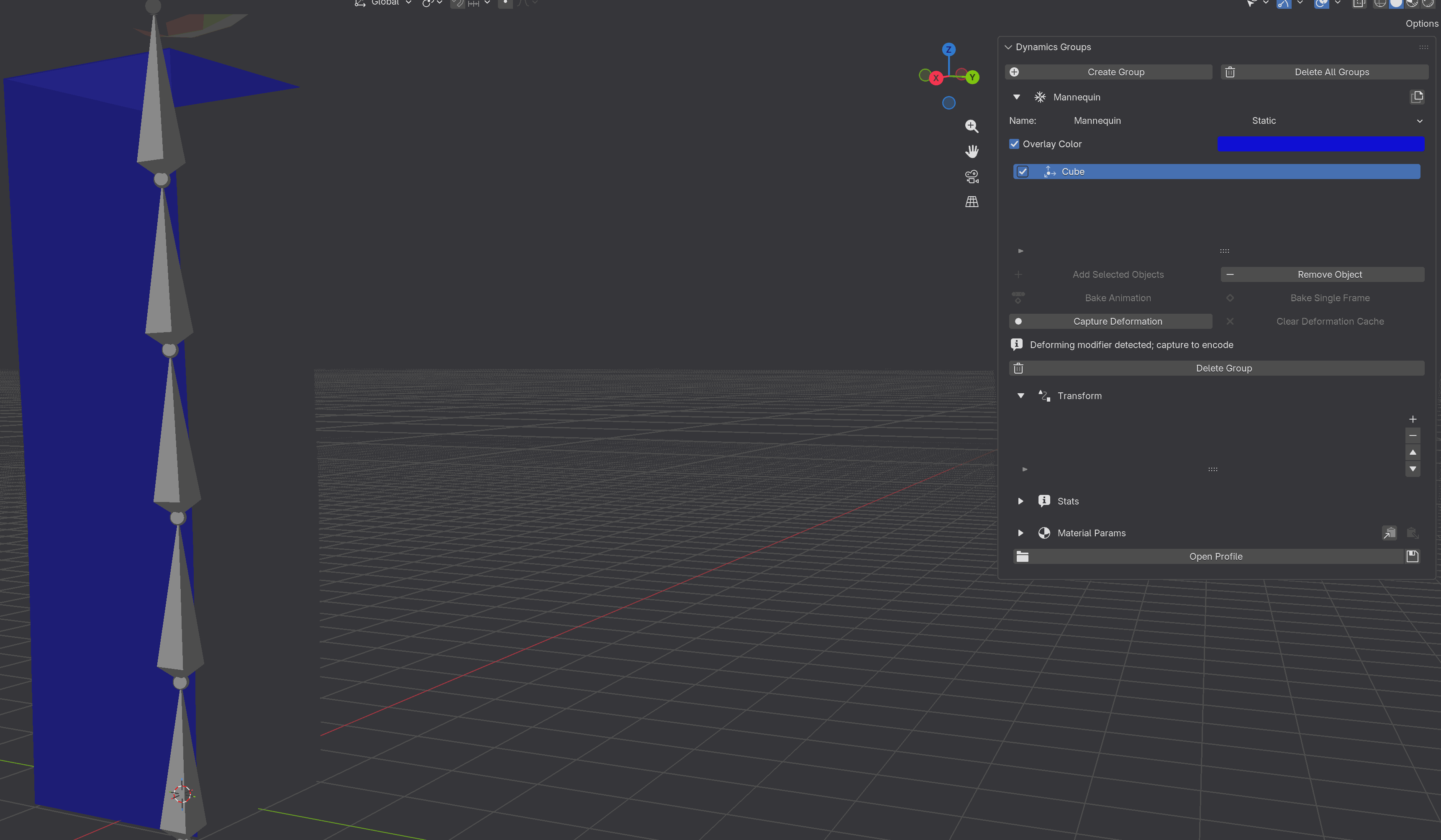
The Static group row immediately after assigning an animated mesh. Capture Deformation is enabled; Clear Deformation Cache is grayed out because nothing has been recorded yet; the hint “Deforming modifier detected; capture to encode” tells you what to do next.#
The Capture Deformation Button#
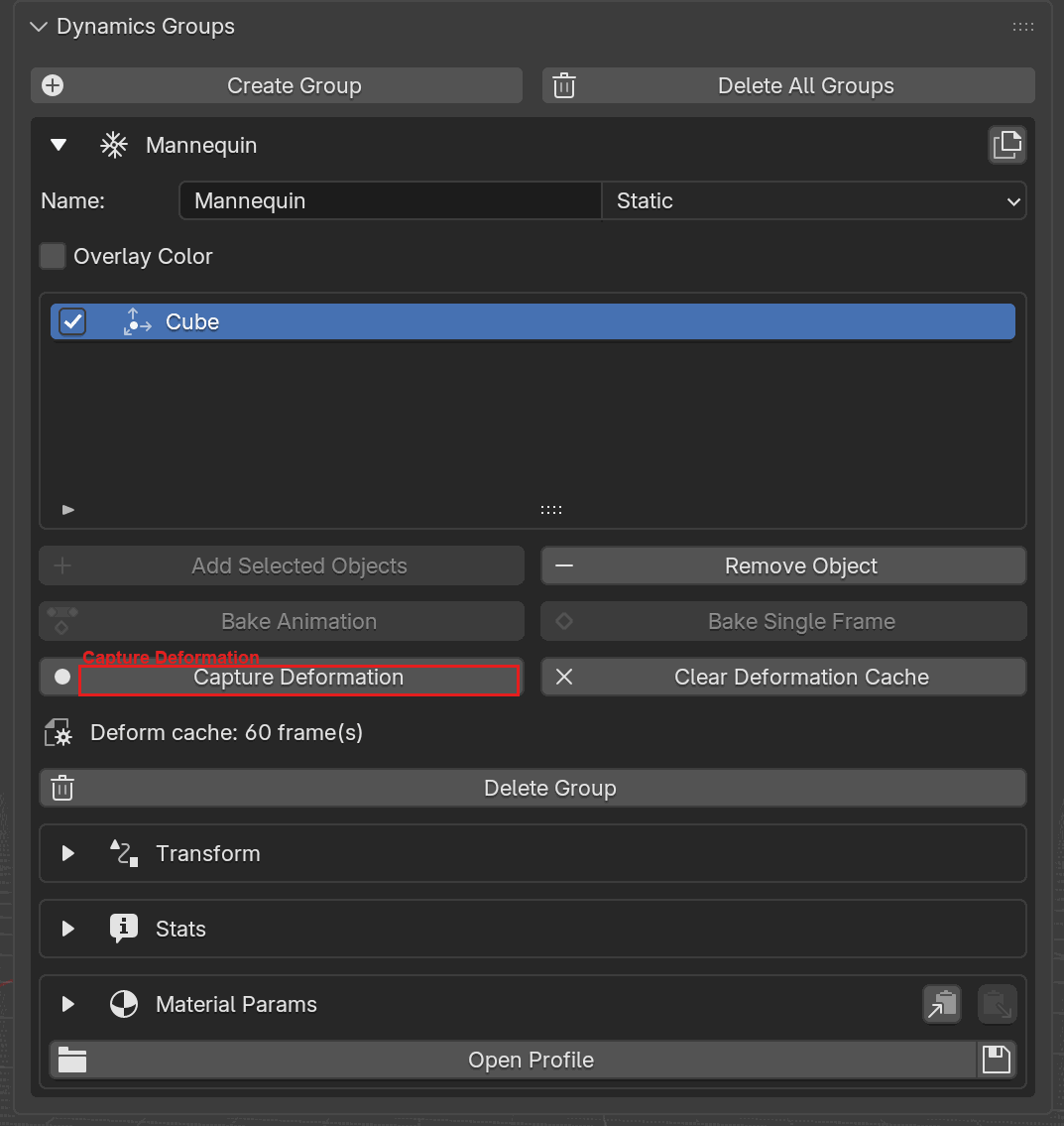
The Capture Deformation button. Press it after assigning an animated mesh to a Static group, and press it again any time the animation changes.#
Click Capture Deformation to record the animation. The add-on plays through the action and stores the per-frame shape of the mesh on the object. After the recording finishes, the panel replaces the hint with the number of frames captured:
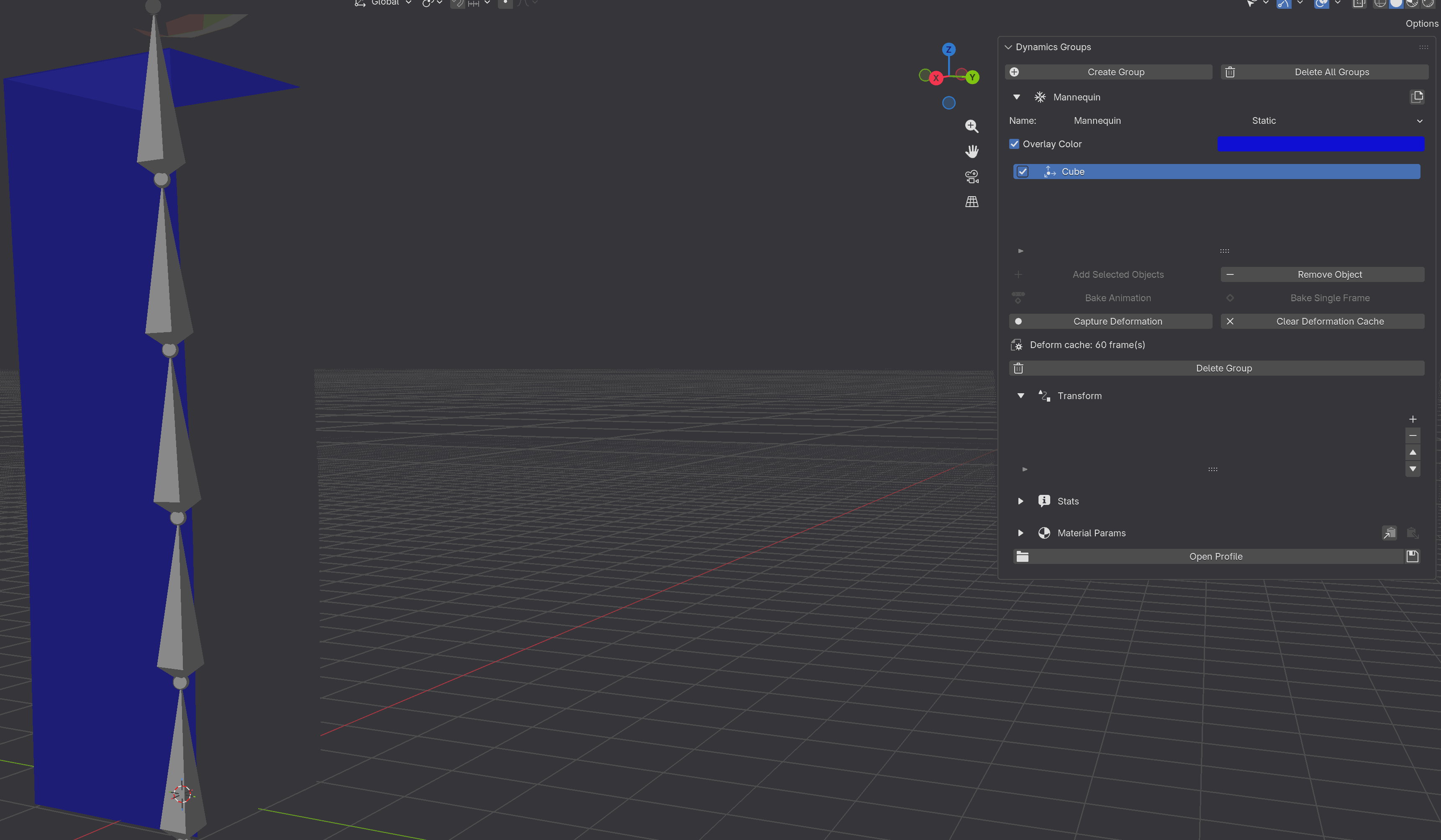
After capturing. The hint is replaced with Deform cache: 60 frame(s), and Clear Deformation Cache is now enabled.#
Warning
You must press Capture Deformation again whenever the animation
changes. The recording is a snapshot taken at the moment you
clicked the button. It does not update on its own. If you tweak the
armature pose, edit the action’s keyframes, change the modifier
stack, edit the rest mesh, or alter parent or constraint chains,
the recording is now out of date and the solver will keep using the
old motion. One stack change is worse than stale: a topology-changing
modifier (Subdivision Surface, Remesh, Decimate) anywhere in the stack
makes the capture abort on that object’s first frame with ‘
The Clear Deformation Cache Button#
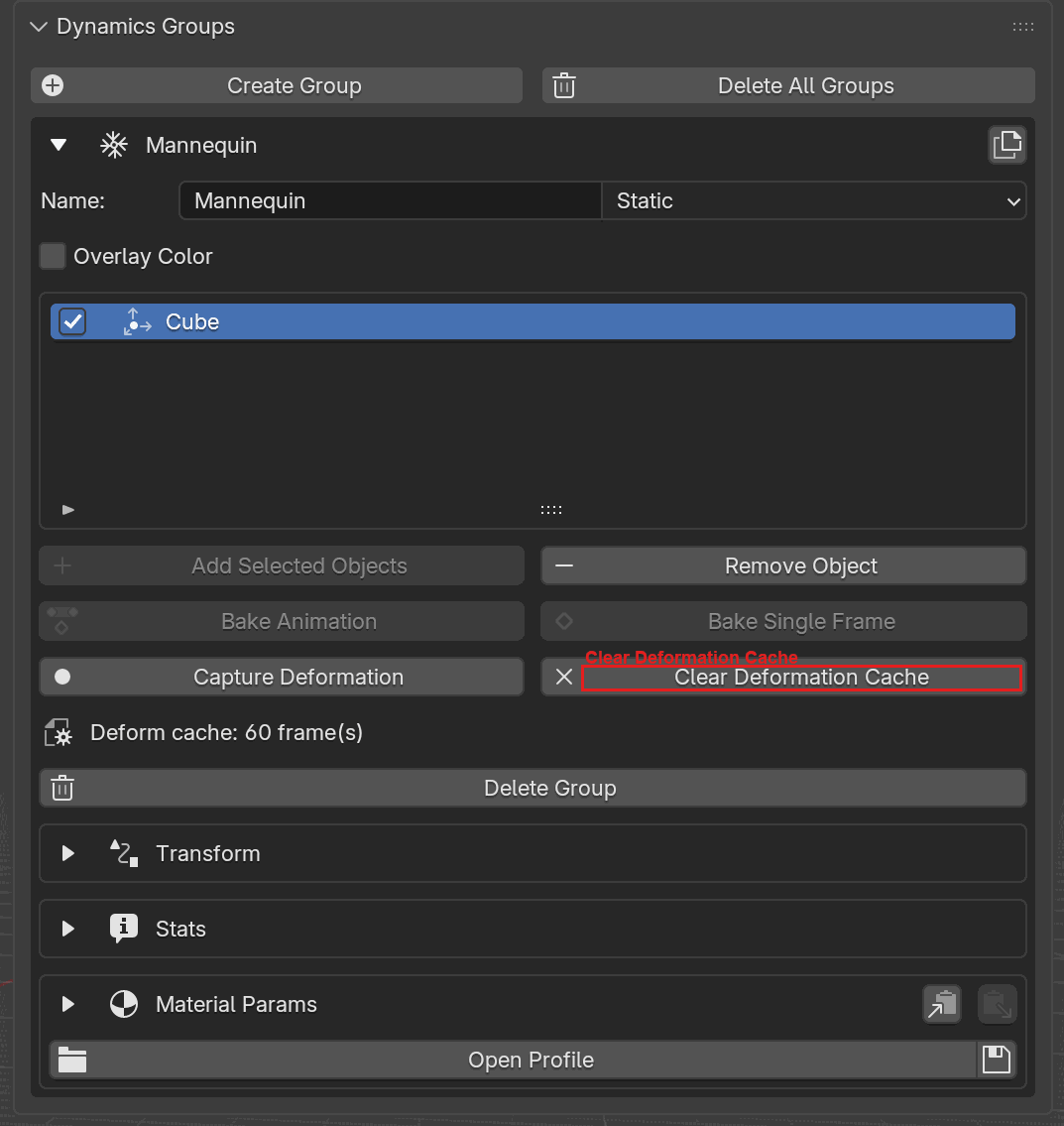
Clear Deformation Cache discards the recording for the selected object. The panel returns to the pre-capture state so Capture Deformation is the only live button on the row.#
Use Clear Deformation Cache when you no longer want the recorded animation, for instance when you turn the object back into a rigid collider, or when you have edited the mesh in a way that changed its vertex count and need to start over.
Re-capturing Every Deformation at Once#
Capturing object by object gets tedious once a scene holds several animated colliders, and a missed one stops the next Transfer. The Deformations box on the Solver panel carries two buttons that work across the whole scene.
Re-capture All Deformations records every deforming Static collider and every animated pin in one pass. It runs the collider captures first and the pin captures after, because the two read the same evaluated scene and cannot run together. A progress readout and an Abort button appear below the box while it runs.
Clear All Deformations deletes every recording in the scene: all Static-collider caches, all animated-pin captures, and any cache left behind by an object that was deleted or taken out of its group. The objects keep their armatures, lattices and shape keys, so Re-capture All Deformations rebuilds what it removed.
Reach for the per-object buttons above when one object’s animation has changed, and for these two after a change that touches many objects at once, or when you are not sure which recordings are still current.
Both buttons are disabled while a capture or a bake is already running. Beyond that, Re-capture All Deformations greys out when nothing in the scene needs a capture (no capturable Static collider and no capturable animated pin), and Clear All Deformations when the scene holds no recording to clear.
Contact Parameters#
Static groups expose only the contact-relevant subset of material parameters. Everything deformation-related (density, Young’s modulus, Poisson ratio, bend, shrink, strain limit, inflate, stitch, plasticity, velocity overwrite) is hidden.
UI label |
Python / TOML key |
Default |
Description |
|---|---|---|---|
Friction |
|
0.5 |
Coulomb friction coefficient between this mesh and other groups. |
Contact Gap |
|
0.001 |
Absolute contact gap distance, in Blender units. |
Contact Offset |
|
0.0 |
Absolute contact offset, in Blender units. |
Use Group Bounding Box Diagonal |
|
|
When true, contact distances are ratios of the group’s bbox diagonal. |
Contact Gap Ratio |
|
0.001 |
Contact gap as a fraction of the group’s bounding-box diagonal. |
Contact Offset Ratio |
|
0.0 |
Contact offset as a fraction of the group’s bounding-box diagonal. |
Apply Soft Constraints |
|
|
Hold the collider with springs instead of locking it to its animation. |
Stiffness |
|
10.0 |
How firmly those springs hold. Shown only when the box above is ticked. |
Allow Self-Intersections |
|
|
Accept a mesh that overlaps itself instead of stopping the run. |
Allow Inter-Object Intersections |
|
|
Accept an overlap against a different mesh instead of stopping the run. |
The last two rows sit in an Allow Intersections box drawn below the type-specific block, and that box is the same on every group type; a Static group is not an exception. What is specific to Static is when the setting bites: a collider reaches the solver as a pin shell carrying the policy only while it is animated, soft-constrained, or named as one end of a cross-stitch. A collider that is none of those stays a contact-only collision mesh and neither box changes any pair, but both are still drawn. See Allow Intersections.
Apply Soft Constraints matters most for the armature-driven colliders above. A body rig folds against itself as it moves, and where it closes onto a garment, an exactly-followed collider leaves the cloth nowhere to go and the simulation stops. Springs let the collider give way at that pinch and return afterwards. See Apply Soft Constraints for how to choose the stiffness.
See Material Parameters
for the full story on absolute vs ratio contact gap, and the
Static profile example there
for a minimal collider material.
Note
Static groups have no collision windows. The Collision Active Duration Windows control, which mutes contact on dynamic objects for chosen frame ranges, is not exposed for Static groups; their meshes collide for the entire timeline. If you need a Static collider to come and go mid-shot, animate its visibility, drive it out of the way with a Static op, or use a per-collider Active Duration on an Invisible Collider instead.
Baking Behavior#
Two buttons carry the label Bake Animation. The one on the Solver
panel walks through active groups in slot order (object_group_0 →
object_group_31) and processes every assigned object; the one inside a
group box bakes only the object currently selected in that group’s
Assigned Objects list. Static groups are included in the scene-wide
pass: if a Static collider was driven by Blender transform keyframes and
therefore carried a ContactSolverCache modifier and .pc2 file after a
Fetch, both are cleaned up during bake even though the Static object
itself has no simulated deformation. Bake never touches object-level
transform fcurves, only the per-frame PC2 data.
If the Static object is driven by Static ops (no fcurves), there is nothing to bake on it; the motion lives on the solver side, and re-running Transfer + Run produces the same motion deterministically. Bake is only meaningful for Static objects that have fetched per-frame vertex data.
See Baking Animation for the full bake flow.
Snap and Merge#
Static objects are valid endpoints for Snap and Merge. The common case is snapping a Shell garment to a Static mannequin so the cloth’s nearest vertices touch the body before the solve begins; the pair is then registered as a merge pair for cross-group stitching, with the contact gap picked from the Shell ↔ Static pairing. See Snap and Merge for the operator and its options.
Python / MCP API#
Create a Static group the same way as any other:
from bl_ext.user_default.ppf_contact_solver.ops.api import solver

floor = solver.create_group("Floor", type="STATIC")
floor.add("Ground")
floor.param.friction = 0.8
Static ops are not yet on the fluent solver surface; drive them
either through Blender’s raw operators or through the MCP handlers.
Blender operators (one op per call; the group_index is the slot
from 0 to 31, not the UI display number):
import bpy

bpy.ops.object.add_static_op(group_index=0, op_type="MOVE_BY")
bpy.ops.object.remove_static_op(group_index=0)
bpy.ops.object.move_static_op(group_index=0, direction=-1)  # reorder up
The operators edit whichever assigned object is currently selected in
the group’s assigned-objects list; set group.assigned_objects_index
first to pick a specific object.
MCP handlers (identify the object by name, not by list index):
add_static_op(group_uuid, object_name, op_type,
              frame_start=..., frame_end=..., transition="LINEAR",
              delta=[x,y,z] | spin_axis=[x,y,z], spin_angular_velocity=deg_per_s
                                                | scale_factor=f)
remove_static_op(group_uuid, object_name, index)
list_static_ops(group_uuid, object_name)
clear_static_ops(group_uuid, object_name)
See the MCP Tool Reference for the full signatures.
For the Blender-keyframe route there is no add-on-specific API at all.
Key the object’s transform in Blender as you normally would (I in the
viewport, the Graph Editor, constraints baked to fcurves, or
obj.keyframe_insert(data_path="location", frame=...) from Python)
and the encoder picks it up at Transfer time.
Under the hood
Mutual exclusion
The encoder checks each Static object in order:
If the object has a populated deformation cache (a PC2 written by Capture Deformation), emit it as
static_deform_animationand override the per-frame transform with identity. The cache already includes any rigid parent motion in the per-vertex stream, so emittingtransform_animationorstatic_opsalongside it would double-count.Else, if the object is deforming (its modifier stack would move vertices and the depsgraph confirms it does), refuse the upload with an explicit error. Shipping it as a rest-pose collider would silently mislead the artist.
Else if
obj.animation_data.actionhas any transform fcurve, extract sparse(time, translation, quaternion, scale)keyframes plus per-segment Bezier-handle data and send them astransform_animation.Else if the matching
AssignedObjecthas a non-emptystatic_opscollection, serialize those ops (frames sent as offsets from the starting frame, axes swapped into solver orientation) asstatic_ops.Else send the object with no animation: a rigid, unmoving collider.
The first match wins; the other channels are dropped. This is why the UI can warn “these ops will be ignored” as soon as fcurves appear on the object, and why Capture Deformation is required (rather than just helpful) for an Armature-driven collider.
Time conversion
Frame values in the UI and MCP handlers are Blender frames, and
simulated time zero is the resolved Starting Frame: the
frame_start field, or the Blender scene’s start frame while Take
Starting Frame from Scene is on. A frame therefore maps to solver
seconds as (frame − starting frame) / fps, where fps is the
effective FPS (scene.render.fps or the add-on’s frame_rate
override) multiplied by Time Scale; see
Scene Parameters. Static ops themselves are
shipped as frame offsets relative to the starting frame, clamped at
zero, and the solver side derives the seconds from the param payload’s
FPS, so changing Time Scale or the effective FPS needs only
Update Params on Remote and no geometry re-transfer. Retiming an
op’s own Start / End, or moving the Starting Frame itself,
changes the offsets baked into the data payload and needs a full
Transfer.
Assigned-object wiring
Static ops live on the AssignedObject record, not on the group or
the mesh. That is why the Transform sub-box shows one ops list per
selected object; deleting an object from the group (or unchecking its
Include box) drops its ops from the next transfer without touching
any other object in the group.