🐳 Docker over SSH#
The solver runs inside a Docker container on a remote Linux host,
managed by a Docker daemon reached through SSH. Two UI modes cover the
two ways to provide SSH credentials: Custom (explicit fields) and
Command (parsed from a raw ssh ... string).
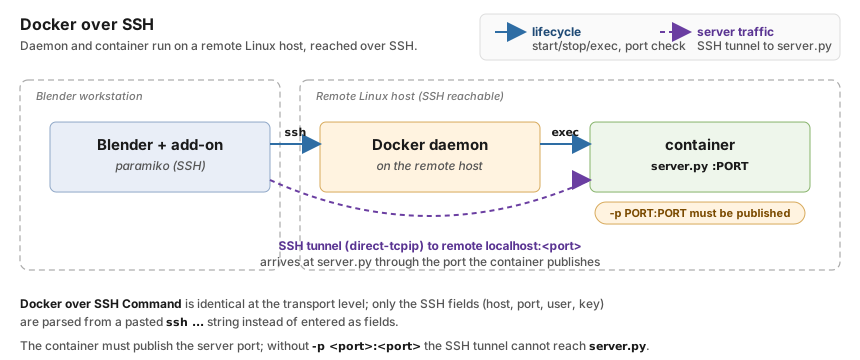
Where each piece lives, and how the add-on reaches it. Blue solid
arrows carry lifecycle commands (container start/stop, exec, port
check). Purple dashed arrows carry the TCP connection to ppf-cts-server,
which rides an SSH tunnel into the container’s published port on the
remote’s localhost. For the local variant where the daemon and
container run on the Blender machine, see Docker (Local).#
When to Use It#
A GPU host runs Docker for you and you reach it over SSH.
Your cluster administrator hands you a container instead of shell access on the bare host.
Multiple solvers share one remote GPU host and you want each project isolated.
Setup - Custom Mode#
The SSH fields from the SSH (Direct) page are combined with the Docker fields: the add-on opens an SSH session to the remote host and runs every Docker command there.
Set Type to
Docker over SSH.Fill Host / Port / User / SSH Key as in SSH Custom mode – these locate the remote host that runs the Docker daemon. Fill Proxy Jump as well if that host is only reachable through a bastion (see Jump Hosts).
Fill Container with the container name on the remote daemon (the field defaults to
ppf-contact-solver). The add-on runsdocker execagainst this name over the SSH session.Fill Container Path with the working directory inside that container (e.g.
/root/ppf-contact-solver). This path is not interpreted on the Blender host or on the remote host’s filesystem – it is the path seen from inside the container, where theppf-cts-serverbinary lives.Set Docker Port to the TCP port
ppf-cts-serverlistens on inside the container.Click Connect. The add-on verifies that the container exists on the remote host and starts it if it is stopped.
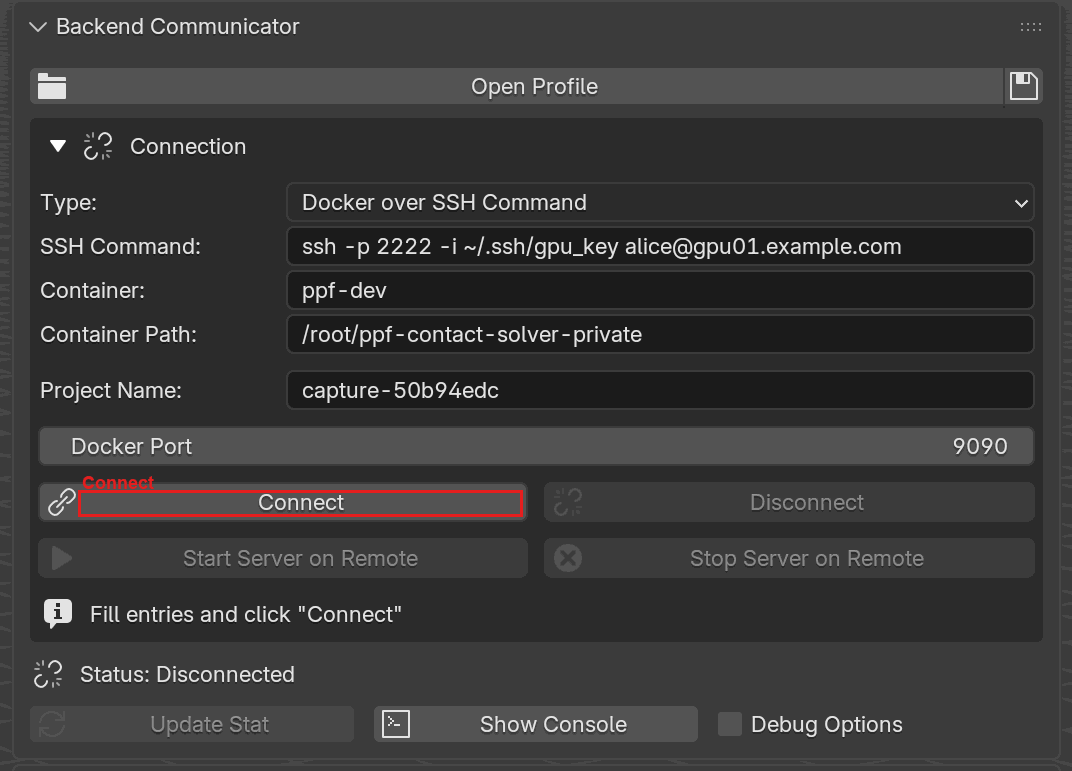
Backend Communicator with Type set to Docker over SSH Command. The SSH Command field replaces the per-field SSH inputs
(in Custom mode you would see Host / Port / User / SSH
Key instead). Container, Container Path, and Docker Port
are the same fields as in Docker (Local). Connect is
highlighted.#
Field |
Description |
|---|---|
Container |
Container name on the remote Docker daemon. Must already exist. |
Container Path |
Working directory inside the remote container that holds the |
Docker Port |
Port inside the container where |
Warning
The server port must be published on the container (-p 9090:9090 or
equivalent in your compose file). Before Start Server on Remote, the
add-on checks the port mapping on the remote host and refuses to continue if
the port is not exposed – the error text tells you exactly which port and
container failed. You must fix this on the container side; the add-on cannot
publish ports on a container that is already created.
Setup - Command Mode#
Identical to Custom Mode, but the SSH parameters come from a pasted command instead of separate fields.
Set Type to
Docker over SSH Command.Paste the SSH command into SSH Command, e.g.
ssh -p 2222 -i ~/.ssh/gpu_key alice@gpu01.example.com. See the SSH Command section for the parser rules.Fill Container with the container name on the remote daemon (the same field as in Custom Mode – it is not parsed from the command string).
Fill Container Path with the working directory inside that container (where the
ppf-cts-serverbinary lives). This is also a separate field and is never derived from the SSH command.Set Docker Port and click Connect.
The Container and Container Path fields behave exactly as in Custom Mode – only the host / port / user / key path are sourced from the pasted command.
Installing paramiko#
Docker over SSH needs the paramiko Python package only: the remote
daemon is driven by docker commands run over the SSH session, not by
docker-py. The main panel shows an Install Paramiko to Add-on
Directory button when it is missing, which installs into Blender’s
user scripts/addons/modules directory.
Troubleshooting#
Container 'X' does not exist.- the name is wrong or the container was removed on the remote. Rundocker ps -aon the remote to see what is actually there.Error starting container 'X'- the daemon returned a non-zero exit or the remote user lacksdockergroup membership.Server startup timed out. - the container started but
ppf-cts-serverdid not become ready within 16 seconds. Checkserver.loginside the directory set in Container Path; the panel prints the last 20 lines automatically.
Under the hood
Transport
An SSH session is opened to the remote host and every Docker command
is wrapped in docker exec -w <cwd> <container> ... on that session.
During connect the add-on checks that the container exists and starts
it if it is stopped; a missing container aborts the connect.
Port publication check
Before Start Server on Remote the add-on runs
docker port <container> <port>
on the remote SSH host. A non-zero exit code aborts with:
Docker port 9090 is not exposed on container ‘ppf-contact-solver’. Please expose the port with ‘-p 9090:9090’ when starting the container.
Fix this on the container side by re-running docker run -p 9090:9090
(or editing your compose.yaml); the add-on cannot publish ports on
an existing container.
Server startup path
Docker over SSH uses the same Unix server-launch path as the SSH and
Local backends (see Connections - Under the hood):
a small script inside the container launches ppf-cts-server on the
configured port and the UI waits up to 16 s for readiness.