🌐 SSH (Direct)#
The solver runs directly on a remote Linux host reached over SSH,
with no Docker layer in between. For a containerized solver on a remote
host, see Docker over SSH. Two UI modes are
available here: Custom (explicit fields) and Command (parsed
from a raw ssh ... string). Both produce the same connection; once
connected, the rest of the UI behaves identically.
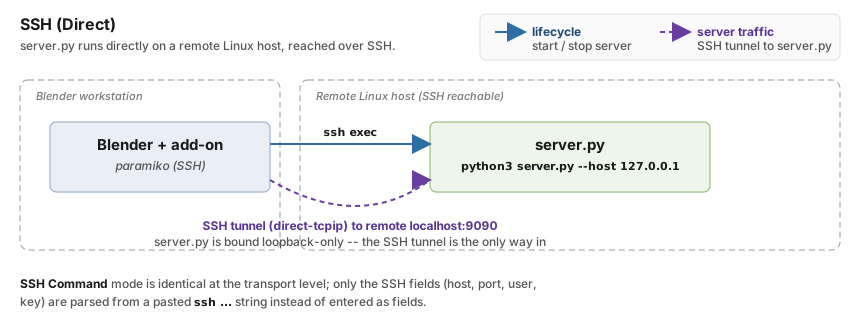
Where each piece lives, and how the add-on reaches it. Blue solid
arrows carry lifecycle commands (start / stop). Purple dashed arrows
carry the TCP connection to ppf-cts-server, which rides an SSH tunnel
into the remote’s loopback port. ppf-cts-server binds 127.0.0.1 by
default and the add-on passes no --host flag here, so the SSH tunnel
is the only path in: nothing else on the remote’s network can reach the
solver port. For the containerized variant where ppf-cts-server runs
inside a Docker container on the remote, see
Docker over SSH.#
Warning
Not recommended. Setting up the remote Linux host with
warmup.py
is destructive (system package installs via apt, CUDA toolkit, shell rc
edits, user-level venv, nvm, rustup, NTP) and is impossible to revert or
uninstall cleanly. Even if you have a remote Linux machine with an NVIDIA
GPU, we strongly recommend the Docker over SSH backend
instead. SSH (Direct) is intended for the special case where the remote
host is a disposable VM or short-lived environment you are willing to wipe.
When to Use It#
The GPU lives on a different machine from the user’s workstation.
Multiple users share a lab or cloud solver box.
You want a persistent remote project that survives Blender restarts.
Setup - Custom Mode#
Set Type to
SSH.Fill in the fields below.
Click Connect -> Start Server on Remote.
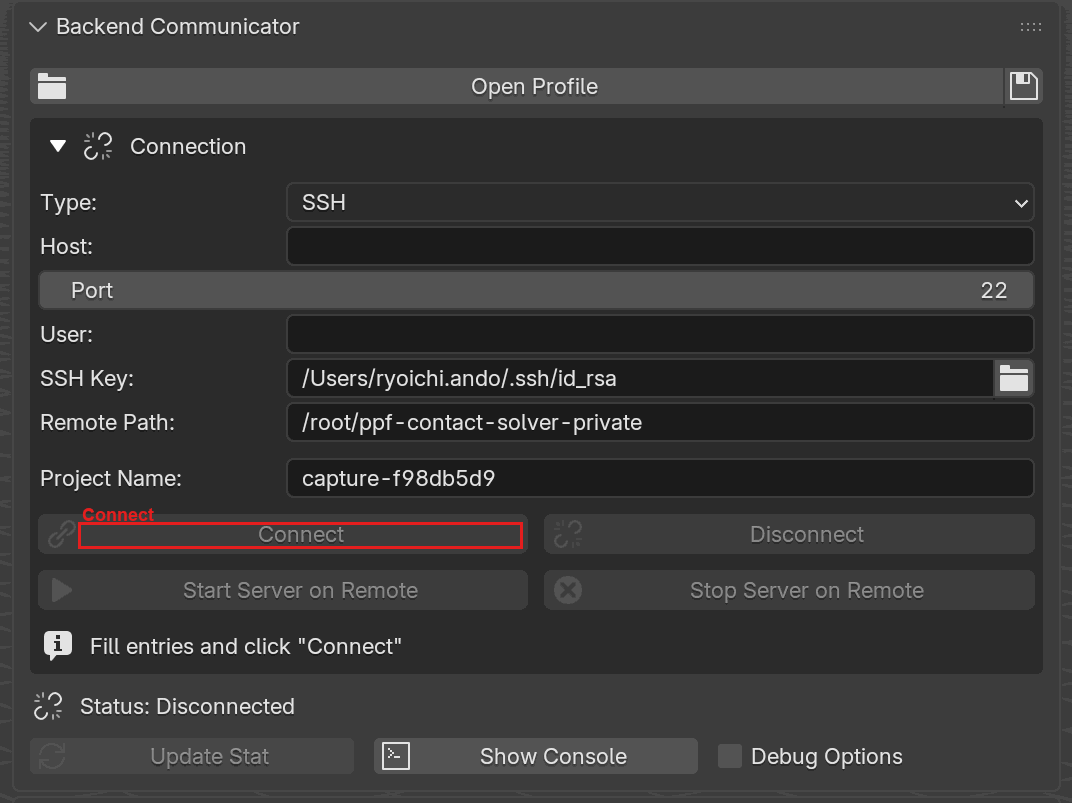
Backend Communicator with Type set to SSH. Host, Port,
User, SSH Key, and Remote Path are exposed, plus the shared
Project Name field. Connect is highlighted. The panel also draws
a Proxy Jump field between SSH Key and Remote Path; this
screenshot predates it.#
Field |
Default |
Description |
|---|---|---|
Host |
|
Hostname or SSH alias from |
Port |
|
SSH port. |
User |
|
Remote user. Leave empty to use SSH config’s |
SSH Key |
|
Private key file. |
Proxy Jump |
|
Jump host to tunnel through, written the way |
Remote Path |
|
Remote solver directory (must contain the |
The panel does not expose a server port field in SSH modes – the port
field is drawn only for the Docker-family types – so the port used here
is whatever the shared port property currently holds, 9090 by default.
That one value is used by every connection type, so a port set while a
Docker type was selected carries over, and a profile can set it on an
SSH entry with the docker_port key.
Aliases from your ~/.ssh/config are resolved automatically, including
entries pulled in via Include directives. If the alias’s config
supplies a hostname, port, user, identity file, or jump host, you can
leave those fields blank in the panel and they will be filled in at
connect time.
Supported ssh_config Options#
The add-on ships its own minimal parser – it does not shell out to
the system ssh binary. Only the following keywords are honored:
Keyword |
Supported |
Notes |
|---|---|---|
|
yes |
Wildcards |
|
yes |
|
|
yes |
|
|
yes |
|
|
yes |
|
|
yes |
Each jump host is resolved through the config in turn, so an alias brings its own |
|
yes |
Relative paths resolve against |
Everything else, including ProxyCommand, Match, ForwardAgent,
LocalForward/RemoteForward, StrictHostKeyChecking,
UserKnownHostsFile, PreferredAuthentications, IdentitiesOnly,
CertificateFile, ControlMaster/ControlPath/ControlPersist,
ServerAliveInterval/ServerAliveCountMax, ConnectTimeout,
AddressFamily, BindAddress, LogLevel, PubkeyAcceptedAlgorithms,
and SetEnv, is silently ignored. Host-key checking is always
AutoAddPolicy regardless of what your config says, and the keepalive
interval is hard-coded to 30 s.
Setup - Command Mode#
Paste a shell-style SSH command and the add-on extracts host, port, username, and key path from it. This is convenient when you already copy such a line from a cloud provider or a shared ops doc.
Set Type to
SSH Command.Paste into SSH Command, for example:
ssh -p 2222 -i ~/.ssh/gpu_key alice@gpu01.example.comSet Remote Path as above. Click Connect. There is no server port field in this mode either; see the note under Custom Mode for how the port is chosen.
The parser reads the destination ([user@]host, or an
ssh://user@host:port URI) plus -p for port, -i for key path, -l
for login name, -J for jump hosts, and those same four settings
written as -o Port=, -o IdentityFile=, -o User=, and
-o ProxyJump=. Every other ssh option is accepted and ignored,
-F included: the add-on always reads ~/.ssh/config. A setting given
twice keeps the first value, so -p outranks a later -o Port=.
Options are matched against ssh’s own option list rather than by a
leading dash, so each one consumes its own argument.
ssh -p 2222 gpu-alias connects to gpu-alias on port 2222, and
ssh -J alice@bastion.example.com gpu01.example.com reads the jump host
as a jump host rather than as the destination. An option written after
the destination counts too (ssh gpu01.example.com -p 2222), matching
ssh itself; anything past a second bare word is the remote command and
is ignored.
If the command cannot be parsed, the operator reports why and aborts: an unknown option, an option missing its argument, an unbalanced quote, or no host token at all.
Jump Hosts#
A solver host that is only routable from a bastion is reached by naming the bastion, and the add-on opens the hops itself. Every SSH-backed server type supports it:
SSH and Docker over SSH: type the jump host into Proxy Jump, in the form
ssh -Jtakes it ([user@]host[:port], comma separated for a chain, ordered outward from your workstation).SSH Command and Docker over SSH Command: put
-J(or-o ProxyJump=) in the command, exactly as you would run it in a shell.Either way, leaving it empty falls back to the
ProxyJumpentry~/.ssh/configgives for the host, so a host already configured for your terminal needs nothing typed into the panel.
ssh -J bastion.example.com gpu01.internal          # Command mode
bastion.example.com                                # Proxy Jump field
alice@bastion.example.com:2222,inner.internal      # two hops
Each hop is resolved through ~/.ssh/config the same way the
destination is, so a jump host written as an alias brings its own
HostName, Port, User, and IdentityFile, and a jump host whose
own config carries a ProxyJump extends the chain in front of itself.
A user or port written into the spec overrides what the config says for
that alias. A hop with no IdentityFile authenticates with your agent
and default keys, the same way ssh would.
The hops are opened in order, each one tunneled through the one before
it, and the connection to the solver host rides the last one. They are
torn down with the connection, and on Disconnect they close from the
far end inward. A hop that refuses the connection reports which one it
was (Jump host bastion.example.com:22 failed: ...) and closes the hops
already opened. A spec that names no host, or one whose jump hosts point
back at each other, is refused before anything is dialed.
Warning
Every hop gets the same host-key treatment as the destination: unknown keys are accepted silently. See Host-key verification.
SSH Keys#
Ed25519 and RSA keys work out of the box.
Encrypted (passphrase-protected) keys are not supported by the add-on’s paramiko integration. paramiko raises an exception rather than prompting for the passphrase anywhere. Use
ssh-agentor decrypt the key file before connecting.PuTTY
.ppkkeys are not supported; convert them to OpenSSH or PKCS#8 format first.
Multiple Users on One Solver Host#
Sharing a single solver host between multiple users is possible but not recommended.
Installing paramiko#
The SSH backend requires the paramiko Python package. If it is not
present, the main panel shows an Install Paramiko to Add-on
Directory button that installs it into Blender’s user
scripts/addons/modules directory; click it and wait for the
background installer to finish.
Under the hood
Command-mode parser
The Command-mode parser splits the pasted string with shlex, then
walks the tokens against ssh’s own option list: the letters that take an
argument (-p, -i, -l, -J, -o, and the rest) and the letters
that stand alone (-C, -v, -4, and the rest). Matching the real
list is what lets an option consume its own argument, so a bare word is
the destination only when no preceding option claimed it. Single-letter
options cluster (-Cv), and an argument may be attached (-p2222) or
separate (-p 2222). A letter outside both lists is refused rather than
skipped, since ssh would not have accepted it either and the token after
it cannot be classified.
Five values are kept: destination, port, login name, identity file, and
jump hosts. Everything else is accepted and dropped. If no host can be
extracted the operator reports Failed to parse command. Ensure it includes host. and aborts; a refused option, a missing argument, or an
unbalanced quote is reported in its own words. The parser never invokes
the system ssh binary; the parsed fields go straight into paramiko.
~/.ssh/config resolution
When Host looks like an alias instead of a DNS name, the add-on
parses ~/.ssh/config (first-match, with Include directives
resolved) and fills in HostName, Port, User, IdentityFile, and
ProxyJump for the alias. Later matching entries fill in fields earlier
entries left blank, so a trailing wildcard Host * block provides
sensible defaults without overriding explicit blocks. If the config file
is missing or the alias is not found, the alias text is used as the
hostname verbatim. Only the seven keywords listed in
Supported ssh_config options are
read; the parser tokenizes each non-comment line on whitespace or =,
matches the first word case-insensitively, and drops the line if the
keyword isn’t one it recognizes.
Jump-host chain
A jump spec is resolved before the connection is dispatched: each hop
goes through the same alias resolution as the destination, and a hop
that carries a ProxyJump is expanded first, so the result is a flat
list of hops ordered outward from the workstation. A hop appearing twice
in that expansion is a loop and is refused there, so a config that
points two hosts at each other fails with the trail it followed rather
than recursing.
paramiko then opens one client per hop. Hop 0 is dialed directly; every
later hop, and finally the solver host, is dialed over a direct-tcpip
channel opened on the previous hop, which is the same mechanism ssh uses
for ProxyJump. The destination address handed to each channel is the
one this workstation resolved, so the name is resolved once here rather
than depending on what the jump host’s resolver would answer. The
keepalive that covers the session covers each hop as well.
Host-key policy
Unknown host keys are accepted silently (paramiko AutoAddPolicy).
This is not hardened against MITM attacks and should not be relied on
for untrusted networks.
Key-loading errors
SSHException: not a valid ... key means the key file is in a format
paramiko cannot read. Typical causes: a PuTTY .ppk file (convert
first), or a modern OpenSSH key written with a cipher paramiko was
built without.
paramiko install path
The Install Paramiko to Add-on Directory button runs
pip install --target <dir> into Blender’s user
scripts/addons/modules directory on a background thread. That path is
already on sys.path and sits outside the extension tree, which is why
it is used rather than a directory inside the add-on. The import itself
is a plain importlib.import_module, but the presence test looks in
that directory specifically, and it gates the Connect button as well
as the banner, so a paramiko installed anywhere else on Blender’s
sys.path still leaves Connect greyed out.