🧪 Material Parameters#
Every object group carries its own copy of the full material-parameter set, but which fields are relevant depends on the group’s type:
Shell: density, stiffness (Young’s modulus, Poisson ratio, bend), shrink, strain limit, inflate, stitch, and contact settings.
Solid: density, stiffness, a single shrink factor, and contact settings.
Rod: density, stiffness, bend, shrink, strain limit, and contact settings.
PDRD: density, friction, and contact settings only. PDRD is an exactly-rigid body type with no Young’s modulus, Poisson ratio, bend, shrink, strain limit, or inflate.
Static: friction, contact settings, and Apply Soft Constraints (static objects have no deformation to tune). See Static Objects for the full treatment of Static groups, including how to animate them.
Sand: a granular body whose relevant fields are grain radius, particle mass, friction, and contact settings.
Rows that don’t apply to the current type are hidden in the UI.
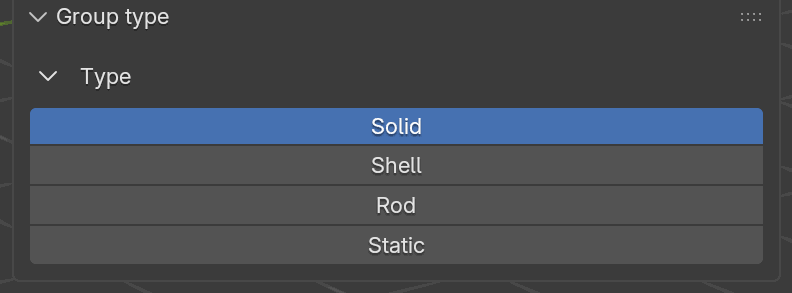
The six options in the group-type dropdown on each group’s header row. Picking one changes the Material Params box to match: Solid shows density, stiffness, and a single shrink factor; Shell shows the full cloth stack including anisotropic shrink, strain limit, inflate, and stitch; Rod shows density, stiffness, shrink, bend, and strain limit; Static collapses to Friction, Apply Soft Constraints, and the contact rows; and Sand shows grain radius, particle mass, friction, and the contact rows.#
The Material Params Box#
At the bottom of each group card in the Dynamics Groups panel is a collapsible Material Params box. When you expand it you see a type-specific set of parameter rows: switching the group’s type (for example from Solid to Shell) immediately changes which rows are visible, so the box always reflects the parameters that actually affect the selected type. A Static group shows only Friction, the Apply Soft Constraints box, the Contact rows and Allow Intersections; a Shell group shows the full stack of density, stiffness, bending, shrink, strain limit, inflation, and stitch fields; and so on.
The Material Params header row carries the Copy / Paste icons. Inside the box, Solid and Shell groups get a Preset dropdown of the bundled materials above the profile row, filtered by the group’s Type: a Shell group lists the six fabrics — Silk, Flag, Cotton, Wool, Denim and Leather (see Fabric Presets) — and a Solid group lists Rubber, Silicone, Foam, Sponge and Jelly. The other types have no bundled presets and omit that row. Each value row below carries a padlock, which holds its value against Preset and Paste, plus Blender’s own keyframe control; the toggles and dropdowns between them (Model, Enable Strain Limit, and so on) carry neither. A keyframe is offered only on the properties the encoder samples, so the densities, the shrink factors, Particle Mass, Sand Friction and Stitch Stiffness are lockable but refuse an F-curve.
The parameter rows, in roughly the order they are drawn (the exact sequence varies by type — a Shell group draws its contact box before Bend and Shrink, for instance):
Model (when applicable): dropdown to pick the material model. Shell groups can choose Baraff-Witkin or ARAP; Solid groups pick between Stable NeoHookean and ARAP; Rod groups are locked to ARAP; Static groups have no model row. Older
.blendfiles that stored Stable NeoHookean on a Shell group still load: theshell_modelenum keeps the slot for.blendindex stability and the transfer step coerces that selection to ARAP at encode time.Density: the material’s density in type-appropriate units (kg/m² for Shell, kg/m³ for Solid, kg/m for Rod).
Young’s Modulus: stiffness. See the note below for how the solver interprets it.
Poisson’s Ratio: for Shell and Solid only.
Friction: Coulomb friction coefficient at contacts.
Bend stiffness and Shrink. Shell shows Bend, the two directional rows Bending Stiffness (Warp) and Bending Stiffness (Weft) right below it, Shrink X/Y, a Strain Limit toggle, an Inflate toggle, and a Stitch Stiffness field. Solid collapses down to a single Shrink slider. Rod draws its Shrink row just under Friction and its Bend Stiffness field in a separate Bend box below the contact rows.
Contact Gap: on Solid, Shell, PDRD and Static groups a toggle picks between absolute distance (in Blender units) and a fraction of the group’s bounding-box diagonal, and the relevant pair of fields shows up below the toggle. A Rod group has no toggle and always uses the absolute pair; a Sand group shows Contact Gap alone, because its grain radius is the contact offset.
Collision Active Duration Windows: optional per-object frame ranges that restrict when contact is active. Off by default for Solid, Shell, Rod, and PDRD groups; unavailable for Static and Sand. Covered in Active collision windows.
Spatial Material Maps: optional per-group maps that vary one material parameter across the surface from painted per-vertex weights. Shell and Solid only; covered in its own section below.
Plasticity: optional non-linear permanent deformation. Covered in its own subsection below.
Velocity Overwrite: optional keyframed velocity targets for one of the assigned objects. Covered separately below.
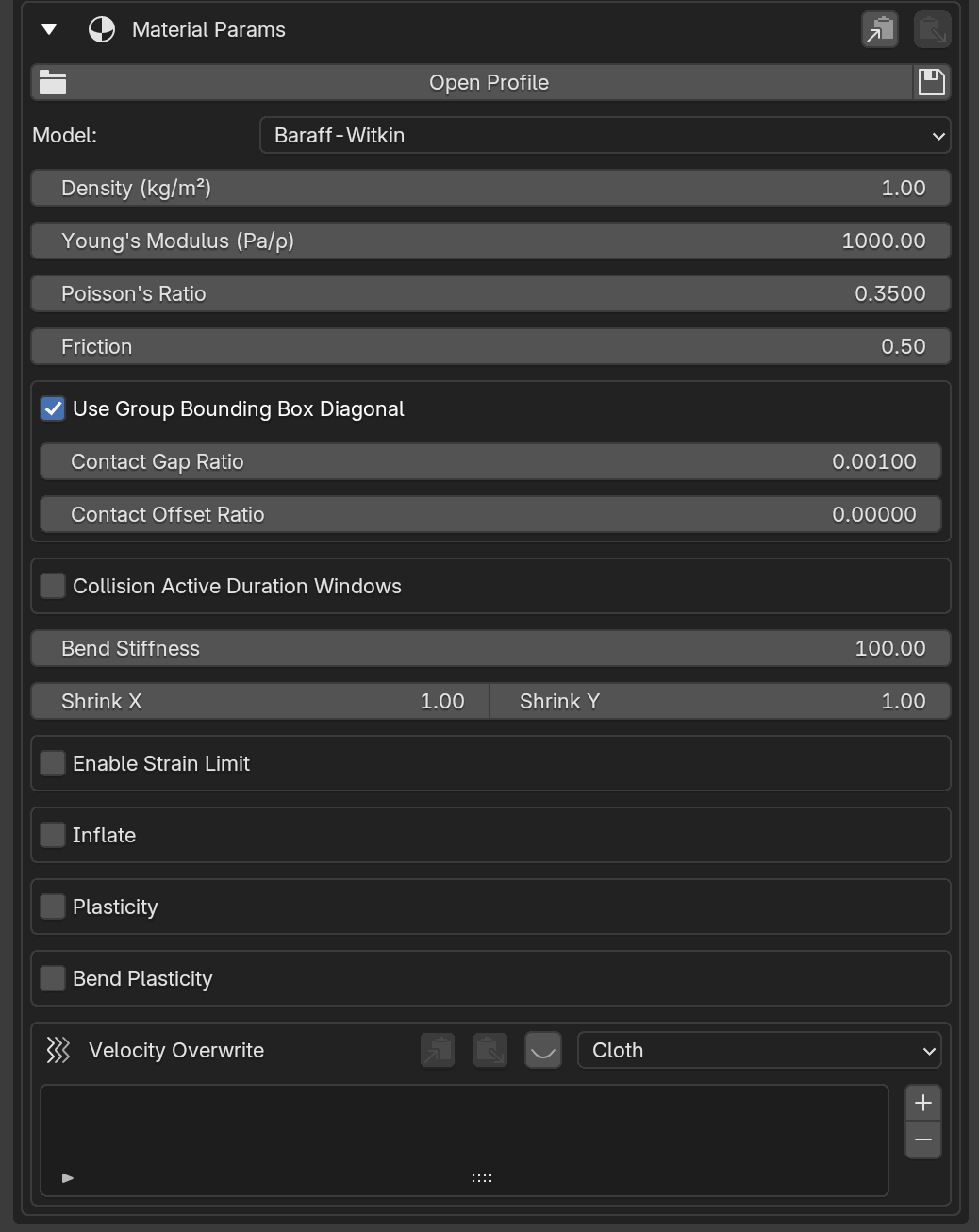
The Material Params box expanded on a Shell group. The exact row set changes with the group’s type: Solid collapses Shrink X/Y into a single Shrink, Rod drops Poisson ratio, and Static hides everything except Friction, Apply Soft Constraints, the contact rows and Allow Intersections.#
Profile Buttons: Open / Clear / Reload / Save#
Along the header of the Material Params box are four small buttons that operate on a material profile (a TOML file listing named parameter presets):
Open: pops a file picker and loads the selected TOML into the profile dropdown for this group. The dropdown then lists every entry in the file; picking one pushes its parameters into the group.
Clear: forgets the loaded file. The dropdown disappears until you open another TOML.
Reload: re-reads the currently loaded TOML from disk and re-applies the active preset.
Save: writes the group’s current parameters back into the loaded TOML under a chosen entry name, replacing the existing entry if the name already exists.
Before a profile is loaded, the row collapses to a single Open Profile button plus the Save icon (save can write a brand-new TOML without an existing one). Once a profile is loaded, the Profile dropdown appears and all four icons line up to the right of it.
Important
Material-profile TOML files are created by the Save icon, not by
hand. Tune the group’s material parameters in the panel, click the
Save icon, name the entry, and the add-on writes (or overwrites) it
in the .toml for you. The TOML structure documented below is shown
for inspection and sharing only; the supported edit path is always UI →
Save.
A profile carries the core material block only. The Rayleigh damping coefficients, the two directional bending rows, the Allow Intersections flags, a Rod’s Shrink, and the PDRD and Sand fields are outside it, so set those on the group after applying a profile rather than expecting Save to preserve them.
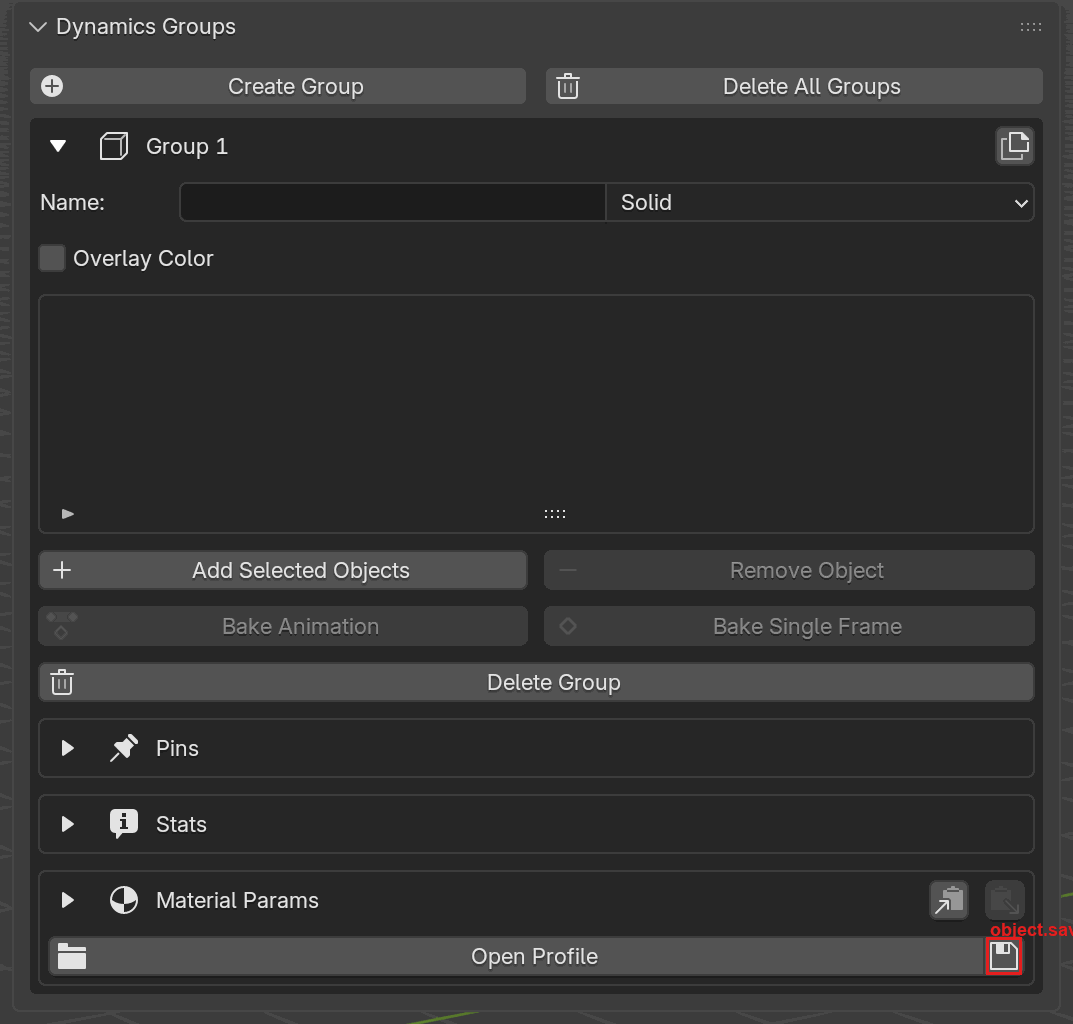
The per-group Save icon (floppy disk, highlighted in red) at the
top-right of the Material Params profile row. Click it to write the
group’s current material-parameter values to a .toml file, creating
the file on first save and overwriting the currently selected entry
afterwards.#

Before loading a profile. The row shows a full-width Open Profile button on the left and the save icon on the right. The Copy / Paste clipboard icons sit at the top-right of the Material Params header for moving parameters between groups in the same session.#

After loading a profile. The Profile dropdown (here set to
Cotton) now lists every entry in the loaded TOML; the four icons to
its right are Open, Clear, Reload, Save, left to
right.#
Copy / Paste#
Next to the profile buttons is a pair of Copy and Paste buttons. Copy snapshots every field in the current group’s material parameters to an internal clipboard; Paste applies that clipboard to another group. This is the fastest way to reuse a tuned material without writing a TOML file, but the clipboard lives only for the current Blender session.
Spatial Material Maps#
What it does: a Spatial Material Maps box, drawn on Shell and
Solid groups just above the Plasticity box, holding a list of
maps. Each row varies one material parameter across the surface instead
of holding it constant over the whole group. The value at a vertex is a
blend between two numbers you already have in front of you: the group’s
own slider, which is what a weight of 0 gives, and the row’s Target,
which is what a weight of 1 gives. The weights are per vertex, and come
from a vertex group you paint or from a float attribute.
The blend runs slider → target, rather than between a minimum and a
maximum, on purpose: a weight of 0 reproduces the unmapped result
exactly, so unpainted geometry keeps whatever the group was tuned to and a
map can be added to a finished material without re-tuning it.
When to use it: a collar or a waistband that should be stiffer than the panel it is sewn to, a crease that should take a set while the rest of the sheet stays elastic, a patch that should grip while the rest of the surface slides. Leave the box empty — the default on every group — when one value over the whole group is what you want.
A map belongs to the group, not to an object, so each row is read against every object assigned to the group and the source is looked up by name on each of them in turn.
Which Parameters Can Be Mapped#
A map is reduced to one coefficient per element, so the parameter has to be one this group’s elements read. That is what confines the feature to Shell and Solid: a Rod, a PDRD body and a Sand cloud carry no element table to reduce over, and a map on one of those types is refused at transfer, in a message naming both the parameter and the type.
Parameter (row dropdown) |
Blends away from |
Applies to |
|---|---|---|
Young’s Modulus |
Young’s Modulus |
Shell, Solid |
Friction |
Friction |
Shell, Solid |
Deformation Damping |
Deformation Damping |
Shell, Solid |
Plasticity Rate |
Theta, in the Plasticity box |
Shell, Solid |
Bending Stiffness |
Bend Stiffness |
Shell |
Bending Damping |
Bending Damping |
Shell |
Strain Limit |
Strain Limit (a percentage) |
Shell |
Bend Plasticity Rate |
Bend Theta, in Bend Plasticity |
Shell |
Bending (Warp) |
Bending Stiffness (Warp) |
Shell |
Bending (Weft) |
Bending Stiffness (Weft) |
Shell |
Inflation Pressure |
— (refused; see the note below) |
none |
The dropdown offers the same eleven entries whatever the group’s type, so the list row is what tells you a parameter is wrong for this group: a row naming one this type does not read is drawn in alert color, so a Bending Stiffness map on a Solid shows red in the list instead of waiting to fail at Transfer.
Target is in the same units as the slider it blends away from — a
Strain Limit target is a percentage exactly as the field is, and a
Young’s Modulus target follows the group’s Density-Normalized
(Pa/ρ) checkbox — and it is held to the same minimum. 0 is a legal
target everywhere except Young’s Modulus, whose slider stops at
0.01, and a target below the floor is refused rather than quietly
clamped.
A Bending (Warp) or Bending (Weft) map with a positive target
counts as asking for directional bending even when both sliders are left
at 0, so a group whose mesh carries no UV map raises the same has no UV
map warning the sliders raise.
Changing a group’s type does not delete its rows. A retyped group keeps drawing the box even when its new type can use nothing in it, so the rows stay visible and removable instead of becoming state you cannot reach.
Note
Inflation Pressure cannot be mapped. The dropdown keeps the entry so that saved files naming it still resolve, but a map on it is refused at transfer. Its per-face potential is translation-invariant only while the pressure is uniform: measured on a 5 cm sphere with pressure painted from 20 to 100, the per-vertex forces are identical under translation with a uniform pressure and change by 275% of their peak once the object is moved 1 m, 2202% at 8 m. The same painted map would mean something different depending on where the object sits in the scene, so it is refused instead of shipped.
Adding a Map#
Expand Material Params and find the Spatial Material Maps box. The
+ beside the list adds a row and selects it; - removes the selected
row and leaves the selection on a row that still exists.
Each list row carries, left to right: an Enable checkbox, the
parameter dropdown, the source name, a +N badge once the row carries
time samples, and the Target. Below the list, the selected row
expands into Source, Name and Target. A row with no source
name is drawn in alert color, because an unnamed source cannot be
resolved and would stop the transfer.
Source says where the weights are read from:
Vertex Group: what weight paint writes. A vertex the group does not contain reads
0rather than failing, so painting a region is enough and everything you left unpainted keeps the group’s own value.Attribute: a scalar attribute on the point domain, read off the evaluated mesh — which is where a Store Named Attribute node in a Geometry Nodes modifier puts one. The evaluated mesh has to have the same vertex count as the base mesh, since the weights ship against the base mesh’s vertex order. An object excluded from evaluation ran no modifiers at all, so its attribute cannot be read: Disable in Viewports (the monitor icon) and excluding the collection from the view layer both do this, while Hide in Viewport (the eye icon) does not.
Weights outside 0–1 are clamped into the interval. A weight that is
not a finite number is refused instead, naming the object, the source and
the vertex, because clamping a NaN would land on 0 and read as “use the
group’s value” while hiding where it came from.
Nothing in a map row takes a keyframe. The fields are deliberately not animatable, and an F-curve found on one stops the transfer with a message pointing at time samples instead. Neither Copy / Paste nor a material profile carries map rows either: both move plain scalar fields only.
Time Samples#
A map can also change over the course of the solve. The row’s own source is the map at the start frame; each time sample names a different source, reached at its own frame, and between two consecutive samples the weights are their linear interpolation. Before the first sample and after the last, the nearest one holds. A constant hold is therefore two samples naming one source, which is why there is no hold flag to look for.
The samples list sits under the selected row’s detail column, below the
line reminding you that the source above is the map at the start frame.
Its + adds a sample at the playhead and copies the row’s source type,
then re-sorts the list by frame; - removes the selected one. Two samples
cannot share a frame — the second is refused with a warning rather than
raising into the UI — and a sample at or before the start frame is moved
to the frame after it, with a message saying why: the row’s own source is
already the weights there.
Time samples are a Shell feature. A Solid takes a static map only, because its map lands on the tetrahedra, which carry no per-element material schedule; a keyed map on one is refused at transfer.
A parameter can be keyframed and mapped at once. The keyframed slider moves the base the map blends away from, so the map spreads each frame’s value toward the target, and the map’s own authored times are voted onto the scene-wide material keyframe axis so they survive its decimation.
Important
A sample names a different source; it does not re-read one source at a different frame. Every source — the row’s own and each sample’s — is read once, while the scene sits at the solve’s starting frame. An attribute that a Geometry Nodes setup varies over time therefore contributes its start-frame values and nothing else. To move the weights, author several vertex groups (or several attributes) and name them from consecutive samples.
What Happens at Transfer#
The weights are read with the scene held at the solve’s starting frame, along with everything else geometry-derived, and shipped per object as one value per vertex; the reduction to one coefficient per element is an average of that element’s own vertices.
On a Solid the weights are painted on the mesh you see, but the
simulated vertices are the tetrahedralized ones, which is what the box’s
Interior values are extended from the painted surface note is about:
each tet surface vertex takes the weights of the closest Blender triangle,
and each interior vertex the Laplace extension of those surface values.
Both stages are convex combinations of painted values, so the carried
weights stay inside 0–1 and every tet ends up between the group’s
slider and the map’s target.
A row whose Enable checkbox is off is skipped entirely. Everything else is checked, and a map that cannot be resolved stops the transfer with a message rather than simulating something else. The refusals are:
a row with no source name, or a name some assigned object does not carry;
a parameter this group’s type does not read;
two rows driving the same parameter, since the blend is base-to-target and a second target is a different answer for the same value rather than a refinement of it;
a target that is not a finite number, or one below the mapped slider’s own minimum;
a parameter the group has switched off, such as a Strain Limit map on a group whose Enable Strain Limit is unticked. A map cannot reintroduce a value that is zero for the whole solve, and the message names the condition, which is not always a checkbox: a Shell with a shrink factor other than
1and a group with a captured pull-pin rest shape each close a gate of their own;a time sample at or before the start frame, two samples on one frame, a sample with no source name, or any sample at all on a group that is not a Shell;
an assigned object that has gone missing or is not a mesh.
Under the hood
The value on an element is base + (target - base) * w, with w the mean
of that element’s own vertices’ weights and base the group’s parameter
for it — that frame’s animated value when the slider is keyframed. The
reduction to one coefficient per element happens on the solver side, where
the per-vertex weights the add-on ships are averaged over each element’s
own vertices as the parameter tables are assembled: a coefficient varying
inside an element would stop the force being the gradient of any energy,
and stop its Hessian being the one the SPD projection was derived for.
The per-element values then replace the replicated scalar in the per-element parameter tables the solver already reads — triangles for a shell, tetrahedra for a solid — so a mapped parameter costs no machinery beyond the tables a uniform one uses.
Lock Translation and Lock Rotation#
What it does: a Lock Translation box, drawn below the type-specific parameters on every dynamic group (Solid, Shell, Rod, PDRD, Sand), holding two independent locks. Lock Translation constrains an object’s mass-weighted center of mass to a fixed world-space line through its initial position; Lock Rotation restricts its mass-weighted best-fit rigid rotation to a fixed world-space axis. Deformation stays free under either, and the two are separate checkboxes, so either, both, or neither can be on. Both are set per object rather than per group, since one group can hold several bodies each on its own axis: the header row carries an object pulldown that picks which assigned object you are editing, and an eye icon that previews every enabled lock in the group.
Each lock adds an all-axes escalation and an axis:
Lock All Translations pins the center of mass to its initial point instead of letting it slide, and Lock All Rotations forbids rotation about every axis. Either one makes the axis below it meaningless, so that axis is grayed out — not hidden — under a line saying it is ignored, and the value you typed comes back when you untick the box.
Translation Axis and Rotation Axis are world-space directions. The encoder normalizes them, so only the direction matters and not the magnitude, but a zero axis is refused: the panel warns that the scene build will fail until it is non-zero.
Prohibit Rotation on Axis flips what the rotation axis means. Unchecked, the axis is the body’s only rotational freedom. Checked, rotation about that axis is forbidden instead and the perpendicular rotation plane stays free.
When to enable: a body that should slide along a rail, a wheel or gear that should turn on one axle without drifting off it, or a piece that should go on deforming while its bulk motion stays where you put it. Leave both off for a fully free body.
Rayleigh Damping#
Solid, Shell, and Rod groups expose stiffness-proportional
Rayleigh damping in a Rayleigh Damping box. Both coefficients default
to 0.0 (no damping), must be non-negative, and are measured in seconds.
UI label |
Python / TOML key |
Default |
Applies to |
Description |
|---|---|---|---|---|
Deformation Damping |
|
0.0 |
Solid, Shell, Rod |
Damps stretch / membrane / solid deformation (seconds). |
Bending Damping |
|
0.0 |
Shell, Rod only |
Damps shell and rod bending (seconds). Solid has no bending term. |
Start near zero and raise these only to calm jitter. Small values (roughly 0.001 – 0.01 s) already reduce visible jitter noticeably; bending damping is usually smaller than deformation damping.
Note
PDRD groups are not Rayleigh-damped. The damping coefficients apply to the FEM element types (Solid, Shell, Rod) only.
Under the hood
Stiffness-proportional damping adds a (beta/dt) * K term to the system,
where K is the element tangent stiffness and beta is the coefficient
in seconds. The deformation term reuses the SPD-projected deformation
Hessian; the bending term uses a lagged-dihedral form so it stays
dissipative. Tetrahedral (Solid) elements use only the deformation term,
since a tet has no bending energy.
Shell-Specific#
UI label |
Python / TOML key |
Default |
Description |
|---|---|---|---|
Model |
|
|
Material model. One of |
Density (kg/m²) |
|
1.0 |
Areal density, kg/m². |
Young’s Modulus (Pa/ρ) |
|
1000.0 |
Young’s modulus (see note below). Min 0.01, soft max 10 M (hard max 1e9). |
Poisson’s Ratio |
|
0.35 |
Poisson ratio, 0 – 0.4999. |
Bend Stiffness |
|
10.0 |
Hinge bending stiffness between neighboring faces. Min 0, soft max 100. Rod groups write the same property on their own scale; see Bend Stiffness on a Rod. |
Bending Stiffness (Warp) |
|
0.0 |
Extra bending stiffness for the warp (UV X) fibers, added on top of Bend Stiffness. |
Bending Stiffness (Weft) |
|
0.0 |
Extra bending stiffness for the weft (UV Y) fibers, added on top of Bend Stiffness. |
Shrink X |
|
1.0 |
Anisotropic warp scale (min 0.1). < 1 shrinks, > 1 extends. |
Shrink Y |
|
1.0 |
Anisotropic weft scale (min 0.1). < 1 shrinks, > 1 extends. |
Enable Strain Limit |
|
|
Turns on non-physical strain clamp (good for stiff cloth). |
Strain Limit |
|
5.0 |
Max stretch beyond rest length, as a percentage (5.0 = 5%). Active only when Enable Strain Limit is on. |
Inflate |
|
|
Turns on per-face pressure along face normals. |
Pressure (Pa) |
|
0.0 |
Inflation pressure, Pa. Active only when Inflate is on. |
Stitch Stiffness |
|
1.0 |
Stiffness of loose-edge stitches detected in the mesh. |
Loose edges (edges not belonging to any face) are automatically treated as stitch constraints, with stiffness set by Stitch Stiffness.
Shrink X / Shrink Y#
What it does: anisotropic rest-shape scale. Shrink X scales the warp direction and Shrink Y the weft; values below 1 shrink the cloth along that axis, values above 1 extend it. They act on the rest shape, so the solver sees the stretched/shrunk target as the relaxed configuration and drives the mesh toward it under the usual stiffness.
When to enable: use to bake in pre-tension (shrink to pull seams taut),
to inflate panels slightly, or to recover the target shape after mesh
sewing. Leave both at 1.0 when you want the mesh drawn in Blender to
be the rest shape.
Example values:
(1.0, 1.0): default; no anisotropic rescale.(0.95, 0.95): ~5% uniform shrink (mild curl / gathers).(0.9, 1.1): shrink warp, extend weft (asymmetric tension).
Note: enabling shrink/extend disables Strain Limit for the same group. The two systems fight, so the UI warns when both are active.
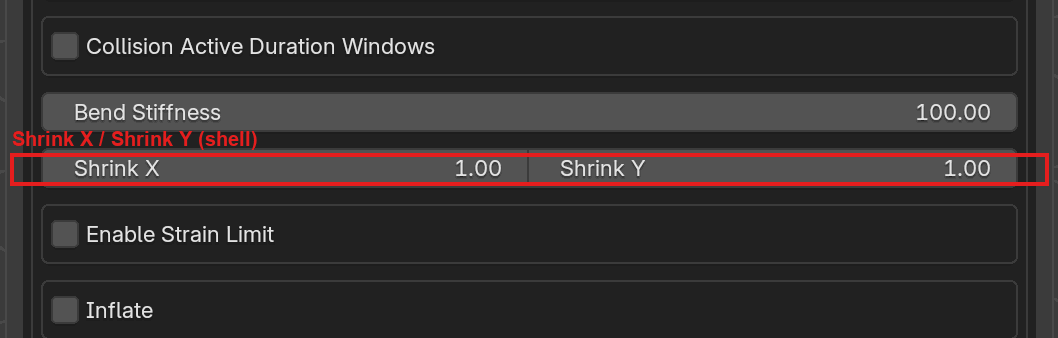
Shell groups expose Shrink X and Shrink Y on the same row. Each is a scale factor relative to the rest shape; 1.0 leaves the axis alone.#
Strain Limit#
Available on Shell and Rod groups (not Solid).
What it does: non-physical clamp that prevents mesh edges from stretching beyond the strain limit. Helpful for stiff cloth or ropes that look rubbery in a plain spring formulation.
When to enable: cloth that should keep its silhouette (denim, tablecloths, airbags) or ropes that must not visibly stretch. Disable when you want the mesh to deform freely under force, or when Shrink X / Shrink Y are non-unity on a Shell group (the two systems conflict).
Example values:
Strain Limit = 2.5%: very stiff (~2.5% stretch).
Strain Limit = 5%: default; tight but drapes visibly.
Strain Limit = 15%: loose; bigger ripples.
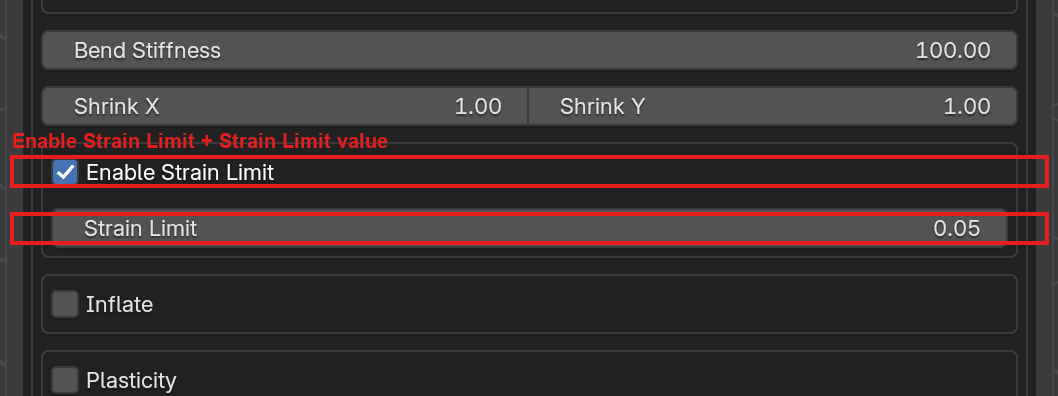
With Enable Strain Limit on, the Strain Limit field activates. The value is a stretch percentage (5% means edges may stretch 5% beyond rest length), not a force.#
Inflate#
What it does: applies a per-face pressure along each face normal, pushing
the mesh outward. The property’s minimum is a hard 0.0, so there is no
inward (suction) pressure from the panel, from Python, or over MCP. Acts
uniformly over the surface like a balloon or airbag.
When to enable: inflatables (pillows, airbags, balloons), soft garments that need a puffy silhouette, or any shell that should resist collapse into a flat sheet. Leave off for ordinary cloth; gravity and bending already do the right thing.
Example values:
Pressure (Pa) = 0.0: default; feature is inert even when toggled on.
Pressure (Pa) = 1.0: gentle puff; subtle volume for a pillow.
Pressure (Pa) = 10.0: strong; airbag-style rapid fill.
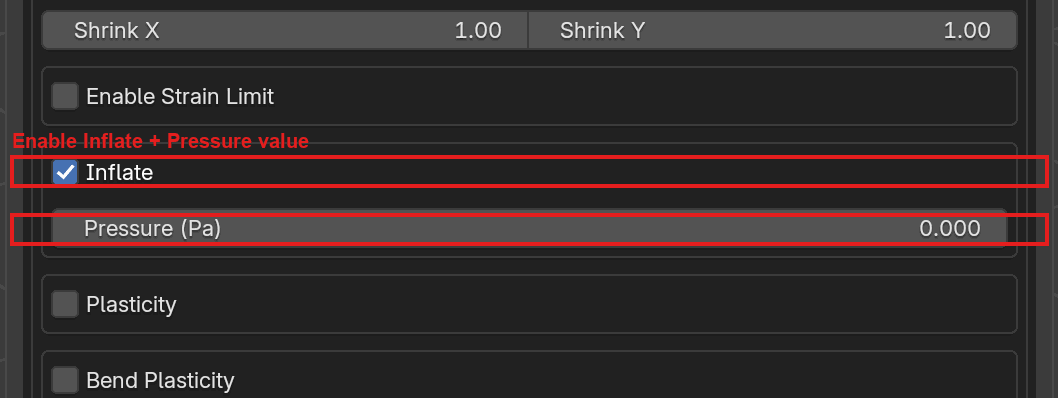
Enable Inflate exposes the Pressure (Pa) slider. The unit label is Pa but the solver applies it relative to density, like Young’s modulus (see the note below), so tune by eye rather than against SI values.#
Plasticity#
What it does: adds permanent deformation on top of the elastic response. When the local stretch exceeds the Threshold (a dead zone around zero strain), the rest shape drifts toward the current shape at a rate controlled by Theta. A matching Bend Plasticity section does the same for the bending energy, with its own theta and angular threshold.
When to enable: materials that remember their deformation, such as crushed foil, wrinkled paper, dented metal sheets, or sagging fabric. Keep off for perfectly elastic cloth.
Example values:
Theta = 0.0: disabled even if the checkbox is on.
Theta = 0.5: default; ~40%/s creep once over threshold.
Theta = 5.0: fast creep (~99%/s); nearly immediate set.
Threshold = 0.02: ignore strains below 2%.
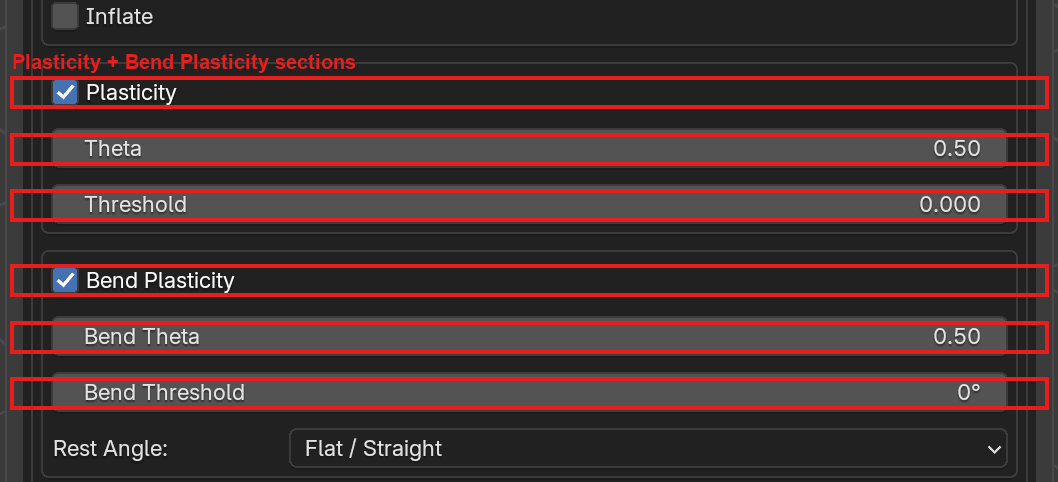
Shell groups expose two plasticity sections: Plasticity (stretch) and Bend Plasticity (hinge/rod-joint rest angle). Each has its own theta rate and threshold; bend plasticity also lets you pick the rest-angle source (Flat / Straight, or From Initial Geometry).#
Velocity Overwrite#
What it does: a box near the bottom of the Material Params stack, above
Lock Translation, Rayleigh Damping, Stitch Stiffness and
Allow Intersections. It stores a
per-object list of keyframed velocity vectors. Each entry pins that
object to a given (direction, speed) at a chosen frame, overriding
the velocity produced by the simulation. The dropdown on the header row
picks which assigned object receives the keyframes; the eye icon toggles
a viewport preview arrow; the copy/paste icons move the keyframe list
between groups.
When to enable: scripted cloth launches (flag unfurling, parachute drops), matching reference motion on hero shots, or giving the solver a strong initial push that no constant velocity could time. Leave empty for fully passive simulations.
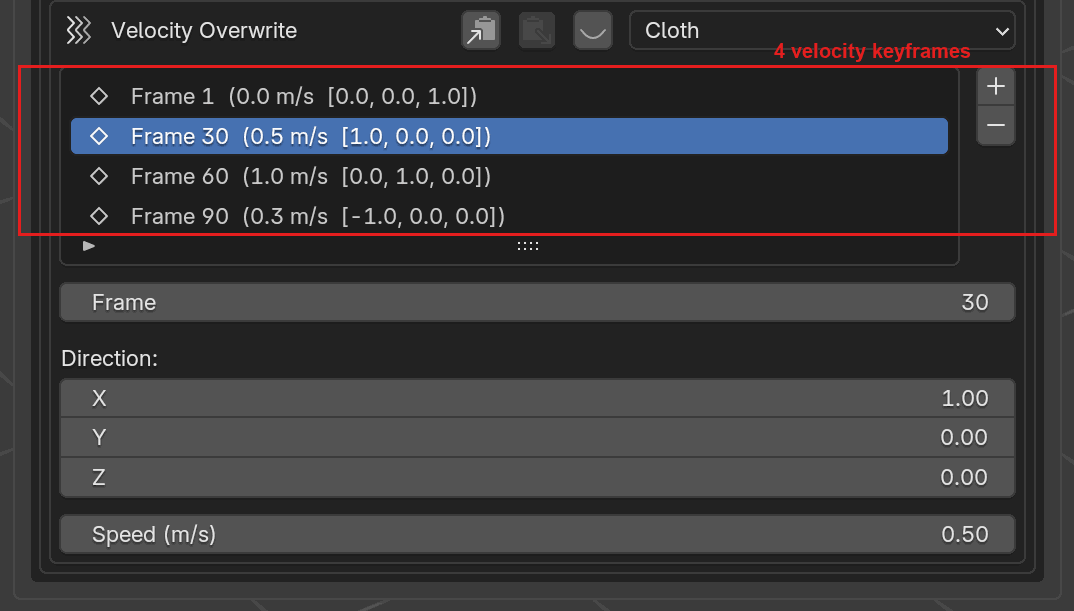
The Velocity Overwrite section with four keyframes populated
(frames 1, 30, 60, 90). Each row is frame (speed m/s [direction]).
The selected row expands into per-keyframe editor rows: Frame, then
a translational box gated by Enable Translational Velocity Overwrite
(Direction XYZ and Speed), and — on Solid, Shell and
PDRD groups — an angular box gated by Enable Angular Velocity
Overwrite (Spin Axis, a Custom Axis field when that is chosen,
and Angular Speed (°/s)). A gated field is hidden, not grayed, while
its checkbox is off, and Rod groups omit the angular box entirely.
The Cloth dropdown at the top picks which assigned object the
keyframes belong to, and the + / - buttons on the right add an
entry at the current timeline frame (a second press on the same frame
is refused with Frame N already has a keyframe) or remove the selected
one.#
Solid-Specific#
UI label |
Python / TOML key |
Default |
Description |
|---|---|---|---|
Model |
|
|
Material model. Either |
Density (kg/m³) |
|
100.0 |
Volumetric density, kg/m³. |
Young’s Modulus (Pa/ρ) |
|
500.0 |
Young’s modulus (see note below). Min 0.01, soft max 10 M (hard max 1e9). |
Poisson’s Ratio |
|
0.35 |
Poisson ratio, 0 – 0.4999. |
Shrink |
|
1.0 |
Uniform rest-shape scale (min 0.1). |
Shrink#
What it does: uniform (isotropic) rest-shape scale for the whole solid. The solver treats the shrunk / expanded shape as the relaxed target and drives the mesh toward it under the usual stiffness, so values below 1 visually contract the body and values above 1 swell it.
When to enable: pre-stressed solids (e.g. a rubber band that should
self-tension once the simulation starts), volumetric shrink after
tetrahedralization, or recovering a target volume after scale tweaks in
Blender. Leave at 1.0 for bodies that should rest exactly at their
modeled size.
Example values:
Shrink = 1.0: default; no rescale.
Shrink = 0.9: 10% shrink; body contracts and pulls on its neighbors.
Shrink = 1.05: 5% expansion; useful for “puffy” solids.
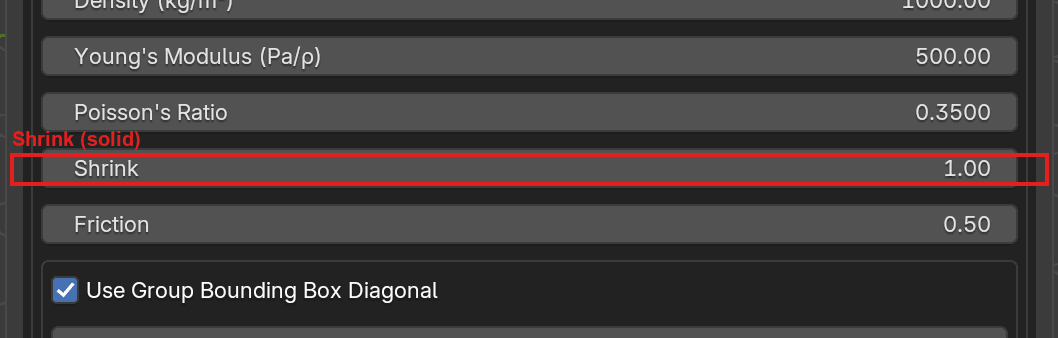
Solid groups expose a single Shrink row in the Material Params box (Shell groups instead get anisotropic Shrink X / Shrink Y).#
Tetrahedralizer (per object)#
Solid groups only. The bottom of the Material Params box on a Solid group has a Tetrahedralizer box. A solid’s surface is tetrahedralized before it is sent to the solver, and the box lets you pick how, per assigned object:
An Object dropdown on the header row picks which assigned mesh in the group you are configuring, so each solid in the group can use its own backend and overrides.
A backend dropdown below it chooses the tetrahedralizer:
fTetWild (the default): a tolerant remesher. It accepts open, cracked, or non-manifold input, but it resamples the surface, so your input vertices are reconstructed through a surface map rather than preserved exactly.
TetGen: surface-exact (a one-to-one vertex map). It requires a clean, closed, manifold mesh and rejects open, coplanar, or non-manifold input. If TetGen refuses a mesh, repair it, route the object to a Shell group, or switch it back to fTetWild.
The override rows below the backend dropdown change to match the selected backend.
fTetWild Overrides#
When fTetWild is selected, seven per-object overrides appear. Each row has an Override checkbox on the left and the value on the right; the value is only forwarded to fTetWild when its checkbox is on. With all overrides off, fTetWild runs at its own defaults.
UI label |
Python / TOML key |
Default |
Description |
|---|---|---|---|
Edge Length Factor |
|
0.05 |
Ideal tet edge length as a fraction of the bbox diagonal ( |
Epsilon |
|
0.001 |
Envelope size as a fraction of the bbox diagonal ( |
Stop Energy |
|
10.0 |
AMIPS energy threshold; larger = faster, lower quality. |
Max Opt Iterations |
|
80 |
Maximum fTetWild optimization passes. |
Optimize |
|
|
Improve cell quality (slower). |
Simplify Input |
|
|
Simplify the input surface before tetrahedralization. |
Coarsen Output |
|
|
Coarsen output while preserving quality. |
Each value has a matching ftetwild_override_<field> boolean that gates
whether the override is sent. Leave the box collapsed and untouched to
get the tetrahedralizer’s out-of-box behavior; reach for these only when
a solid is meshing too coarsely, missing features, or taking too long to
tetrahedralize.
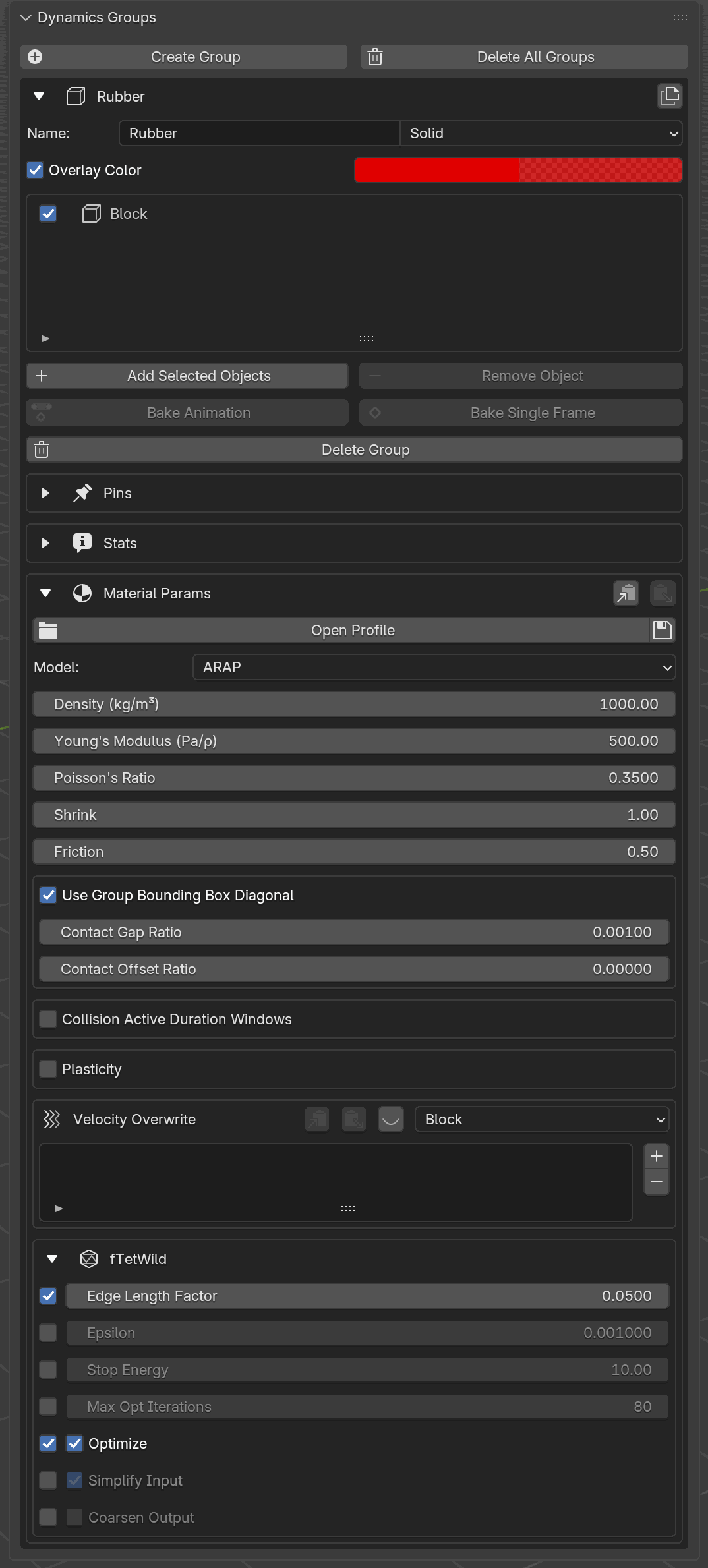
The fTetWild box expanded at the bottom of a Solid group’s Material Params. The left column is the per-field Override checkbox; with it off, the row is grayed and the tetrahedralizer’s own default is used. In this example Edge Length Factor and Optimize are overridden; the rest stay at defaults.#
TetGen Overrides#
When TetGen is selected, the override rows switch to TetGen’s interior controls. TetGen always preserves the input surface exactly, so these tune only the interior refinement. Each row uses the same Override checkbox pattern: the value is forwarded only when its box is on, and the rest of the time TetGen runs at its own defaults.
UI label |
Python / TOML key |
Default |
Description |
|---|---|---|---|
Min Radius-Edge Ratio |
|
2.0 |
Quality bound; smaller forces rounder interior cells ( |
Max Tet Volume |
|
0.0 |
Caps interior cell size in object units ( |
Rod-Specific#
UI label |
Python / TOML key |
Default |
Description |
|---|---|---|---|
(no Model row) |
|
|
Rods are always ARAP, so the panel draws no Model dropdown. The property still exists and is still written to a material profile. |
Density (kg/m) |
|
1.0 |
Line density, kg/m. |
Young’s Modulus (Pa/ρ) |
|
10000.0 |
Young’s modulus (see note below). |
Shrink |
|
1.0 |
Rest-length scale for every segment of the strand (min 0.1). Below 1 pulls the strand taut, above 1 leaves it slack. |
Bend Stiffness |
|
1.0 |
How strongly the strand resists being curved. Min 0, soft max 100. |
Bend Stiffness writes the same bend property a Shell group
writes, so a material profile carries one value for both types. Each
type scales that value on its own terms, so a number tuned on cloth is
not a number tuned on a strand: switching a group’s type to Rod sets
bend to 1.0, the rod-tuned default, while a Shell group keeps the
global default of 10.0.
Rest Angle sits in that same Bend box on a rod. A Shell group draws it instead as the first row of the unlabeled box that also carries Bend Plasticity, so look above the Bend Plasticity checkbox, not below it. Either way, pick Flat / Straight to keep the analytic rest angle (rod θ₀ = π, shell hinge θ₀ = 0), or From Initial Geometry to take the rest angle from the input pose.
Directly under that dropdown is a third route, the From Reference Geometry checkbox. Tick it and a Reference Rest Angle (per object) box opens: pick one of the group’s objects in the pulldown, tick Enable Reference Rest Angle, then press the eyedropper to take the active object as its reference. The reference has to be a topological copy of that object whose vertices were moved — by a modifier, by geometry nodes, or by hand — and it is checked against the source’s topology both when you pick it and again at Transfer, so a mesh that has drifted is refused with a message instead of silently encoded. Every object with an enabled reference that still resolves takes its bending rest angle from that reference, overriding the group’s Rest Angle for that object alone; the rest of the group keeps it.
Bend Stiffness on a Rod#
What it does: sets how strongly the strand resists being curved. At 0
the rod is a limp thread that resists only stretching; raise it and the
strand holds a curve the way a wire, a cable, or a bristle does.
A rod bends the same way no matter how many segments it is drawn with. The stiffness is measured against a reference segment of one centimeter and rescaled to whatever segment length the strand actually has, so adding control points for a smoother silhouette or for finer contact resolution leaves the drape unchanged, and the same strand drawn coarse and drawn fine is the same rod. Tune the value on a draft mesh and keep it when you refine the geometry.
The reference segment also fixes what the numbers mean, which is why a
rod starts at 1.0 where a shell starts at 10.0: the same figure on the
two types is not the same stiffness.
When to change it: raise it for wire, cable, tubing, or hair that should
keep the shape it was drawn with; lower it toward 0 for thread, string,
and yarn that should fall limp and take its shape from gravity and
contact alone.
Important
Opening a saved rod scene. A Bend Stiffness value picked against a particular segment length carries that length with it, so a saved rod whose segments are not about one centimeter long opens looking different from the shape it was authored with: at 1 mm segments it reads much stiffer, at 10 cm segments much softer. To restore the look, multiply the group’s Bend Stiffness by the square of its segment length in centimeters.
Segment length |
Multiply Bend Stiffness by |
|---|---|
5 cm |
25 |
2 cm |
4 |
1 cm |
1 (unchanged) |
5 mm |
0.25 |
1 mm |
0.01 |
Measure the segment length on the rest pose: it is the spacing between
two neighboring points of the strand, times Shrink when that is not
1.0. Shell groups are unaffected; the reference segment applies to
rods only.
Shrink on a Rod#
What it does: scales the rest length of every segment in the strand.
Below 1.0 the rest length is shorter than the drawn geometry, so a
strand pinned at both ends pulls itself taut; above 1.0 the rest length
is longer, so the strand sags or buckles between its pins. It is the rod
counterpart of Shell’s Shrink X / Shrink Y and Solid’s
Shrink, and like them it moves the rest shape rather than the drawn
geometry, so nothing changes until the simulation starts.
When to enable: stringing a warp or a guy line that should be under tension from frame one, taking the slack out of a rope that was modeled loose, or deliberately adding slack so a cable drapes.
Mass is unchanged: a strand’s mass comes from its density and its drawn length, so tensioning a rod with Shrink does not make it lighter.
Bending changes with it. Bend Stiffness is measured against the rest
length, which is what Shrink scales, so Shrink also moves how
stiff the strand is in bending by the inverse square: Shrink = 0.5
leaves the rod about four times stiffer in bending and Shrink = 2.0
about four times floppier. When you want the tension without the change
in stiffness, multiply Bend Stiffness by the square of the Shrink
value.
Example values:
Shrink = 1.0: default; the drawn geometry is the rest shape.
Shrink = 0.97: mild pre-tension; a strand pulled straight between its pins.
Shrink = 1.05: slack; the strand bows out between its pins.
Under the hood
Each interior point of a strand carries the bending energy
0.5 * k * (θ - θ₀)², where θ is the angle between the two segments
meeting at that point and θ₀ the rest angle chosen by Rest Angle
(π for a straight rod). The coefficient is
k = bend * m * (L_ref / l)² L_ref = 1 cm
with m the lumped mass at that point and l its Voronoi rest length
(half the sum of the two segment rest lengths meeting there, so it carries
the Shrink factor).
The two are not the same length. m is half of each incident segment’s
mass, and a segment’s mass is its line density times its drawn length,
taken from the geometry before Shrink scales the rest length. So with
d the drawn spacing at that point, m = density × d while
l = d × Shrink, and the coefficient expands to
k = bend × density × L_ref² / (d × Shrink²)
which reads two ways. Hold Shrink fixed and k falls as 1/d: that
is k = B / l with B the flexural rigidity bend × linear density × L_ref², which is what the continuum bending energy 0.5 * B * κ²
integrated along the strand discretizes to at an interior point. Linear
density is m / l, so B works out to
bend × density × L_ref² / Shrink and carries no d at all, which
is why the bent shape does not depend on how finely the strand is drawn.
Hold the geometry fixed instead and k goes as 1 / Shrink², the
inverse square described above. Taking B per unit density is a separate
normalization, and it is what keeps the shape independent of the density
you set, the same one the shell hinge applies through areal density.
L_ref only places the numeric range of the Bend Stiffness field.
Rest lengths are measured in solver space, after World Scaling has
been applied to the geometry, so at the default World Scaling of 1.0
a segment’s rest length is its length in Blender units.
Sand-Specific#
A Sand group is a granular body: a cloud of grain centers, each grain a sphere of one shared radius. Its geometry is that cloud rather than a surface, so a mesh has to be converted first (see Creating a Sand Body below). The Material Params box for a Sand group is short because most of the cloth and solid stack has nothing to act on.
UI label |
Python / TOML key |
Default |
Description |
|---|---|---|---|
Grain Radius (m) |
|
0.02 |
Radius of one grain, in meters. Chosen when the mesh is converted and drawn read-only after that. Min 0.0001. |
Particle Mass (g) |
|
1.0 |
Mass of a single grain, in grams (the solver receives it in kilograms). Range 0.000001 – 1000000. |
Friction |
|
0.0 |
Coulomb friction coefficient between grains. Min 0. Raise it to make a pile hold a steeper slope. |
Contact Gap |
|
0.001 |
Barrier activation distance on top of the grain radius, in Blender units. |
Friction on a Sand group is its own field (sand_friction), not the
shared Friction row, which the box does not draw for this type.
Grain Radius is fixed at conversion and drawn grayed out afterward, with a Grain radius is locked at convert note under it. The non-overlapping spacing of the grains is derived from the radius when the cloud is seeded, so the two have to agree: a larger radius on the same cloud would put grains inside each other’s contact skin, and the solver refuses an overlapping cloud at startup. To work at a different radius, convert the source mesh again.
The grain radius is also the contact offset: the sphere it describes is the grain’s physical skin, so there is no separate Contact Offset row and Contact Gap is the only extra barrier distance you set. The box says so with a Grain radius is the contact offset note.
Creating a Sand Body#
Convert To Solid Particle Mesh sits on the group’s box just above Delete Group, so you can reach it without expanding Material Params. It is enabled when the active object is a selected mesh that has faces and is not already a particle mesh; otherwise the button is grayed out and a line underneath says which of those three is missing.
The dialog has three fields:
Grain Radius: the physical radius of one grain, and the value that gets locked onto the object.
Extra Spacing: how much room to leave between grains beyond touching.
0packs them as densely as the non-overlap rule allows; larger values give a looser, sparser cloud.Random Seed: picks a different arrangement at the same radius and spacing.
The grain count is not something you set. Grains fill the volume at the radius and spacing you chose, and the count is whatever that comes to; the report line after the conversion tells you the number. If none fit at all, the conversion stops with No grains fit; reduce the grain radius or the extra spacing — but the destructive half has already run: the faces are gone, the object is left as an empty particle mesh, and the button then greys out with Active object is already a particle mesh, so retrying at a smaller radius means starting from a copy of the source mesh.
Warning
The conversion is destructive. The object’s faces are discarded and replaced by a cloud of loose vertices plus a render-only Particle Mesh modifier that draws each vertex as a sphere. Keep a copy of the source mesh if you may want to re-convert at a different radius.
Note
Leave Preconditioner on Block Jacobi for a scene with a Sand group. A grain cloud has no faces and no edges, so it carries none of the connectivity the Schwarz preconditioner builds its aggregates from. See Preconditioner.
PDRD-Specific#
PDRD (Painless Differentiable Rotation Dynamics) is an exactly-rigid body type. It exposes only density, friction, and contact settings. There is no Young’s modulus, Poisson ratio, bend, shrink, strain limit, or inflate, no rigidity or stiffness control (the body is exactly rigid, not a stiff penalty), and PDRD bodies are not tetrahedralized.
UI label |
Python / TOML key |
Default |
Description |
|---|---|---|---|
Density (kg/m³) |
|
100.0 |
Volumetric density, kg/m³. Mass is the density times the enclosed mesh volume. |
Density is the only material number a PDRD body exposes: it sets the mass (and, through the rest shape, the rotational inertia), which is what determines how the body responds to gravity, contact, and pins. The motion is exactly rigid at any mesh resolution, so there is no stiffness or rigidity value to tune.
Under the hood
Each PDRD body is solved in reduced 6-DOF coordinates (translation plus rotation): every Newton iteration fits the single best-fit rigid transform to the body and reconstructs its surface from that transform, so the body stays exactly rigid by construction rather than through a stiff penalty.
Hinge Joints#
A PDRD body can be turned into a hinge: its position is pinned and its rotation is locked to a single principal (PCA) axis of its rest shape, so the body spins on that axis like a wheel on an axle. This is a per-object setting, so each body in one PDRD group can hinge on its own axle (for example, a train of gears that each turn on their own pin while tooth contact passes torque from one to the next).
The free axle is chosen by principal axis of the rest shape: 0 is
the largest extent, 1 the middle, and 2 the thinnest extent (the
usual axle for a flat gear or disk, and the default).
In the panel, a PDRD group’s Material Params box carries a collapsible Hinge box. Expand it and you get:
Visualize draws the hinge axle gizmo in the viewport for the hinged bodies of this group. On by default.
An unlabeled object pulldown lists the bodies assigned to the group and picks whose hinge the two controls below it edit. A PDRD group can hold several bodies (a gear train), so the pulldown is how you move between them.
Hinge is the per-object enable. Off by default; ticking it pins that body and locks its rotation to one principal axis.
Axle offers Principal Axis 1, 2, and 3, grayed out until Hinge is ticked. These are the shown names for
pca_axis0,1and2respectively, so the default Principal Axis 3 is the thinnest-extent axle.
From the Python API a hinge is set per object with Group.set_hinge;
from the MCP layer use the set_pdrd_hinge tool. Pass enable=False
to clear the hinge and let the body move freely again.
from bl_ext.user_default.ppf_contact_solver.ops.api import solver

gears = solver.create_group("Gears", type="PDRD")
gears.add("GearA")
gears.set_hinge("GearA", pca_axis=2)   # spin on the thinnest axis
The hinge is a per-object property, not a group material attribute, so it gets its own box inside Material Params rather than a row in the table above.
Note
Young’s modulus behaves non-conventionally. The solver divides the
entered Young’s modulus by density internally. The practical effect is that
animated behavior is invariant to density alone: doubling density without
touching Young’s modulus produces the same motion (the mass doubles, but
the effective stiffness scales with it). This decouples “how heavy the
material is” from “how stiff it looks”, so you can tune stiffness and mass
independently. The example material presets in this guide (Cotton, Silk, Steel, …)
use physically meaningful values with that normalization in mind.
Density-Normalized (Pa/ρ)#
Below the Young’s Modulus field on Shell, Solid, and Rod groups is a Density-Normalized (Pa/ρ) checkbox that sets what the number you type means.
UI label |
Python / TOML key |
Default |
Description |
|---|---|---|---|
Density-Normalized (Pa/ρ) |
|
|
On: Young’s modulus is the solver’s native Pa/ρ. Off: a true value in Pa. |
When it is on (the default), the Young’s modulus is a density-normalized value in Pa/ρ, the solver’s native convention: changing a body’s density alone leaves its motion unchanged, and the field label reads (Pa/ρ). Keep it on to match existing scenes and the example presets in this guide.
When you turn it off, you enter a true Young’s modulus in pascals (for example a value from a material reference table); the add-on divides it by this group’s density before sending it to the solver, so a denser body of the same material is correspondingly stiffer to move. The field label flips to (Pa) to show which convention is active.
Static-Specific#
A Static group is a collider: you animate its shape, and the solver pushes everything else out of its way. Besides Friction and the contact rows it carries one option.
Apply Soft Constraints#
By default a Static collider follows its animation exactly. Nothing can move it, however hard the cloth presses. That is what you want when the cloth can always get out of the way.
It is the wrong answer when the collider’s own shape closes onto the cloth. If a character’s arm comes down against the torso, or a hand presses into a thigh, the garment in between is caught between two surfaces that will not budge, and the simulation stops with an error saying it cannot advance.
Turn on Apply Soft Constraints and the collider is held toward its animated shape by springs instead of being locked to it. Where the cloth pushes harder than the springs, the collider gives way; once the pinch passes, it settles back onto its animation.
Stiffness#
How firmly the springs hold, shown only while Apply Soft Constraints is on. Lower values let the collider yield more; higher values behave more like the exact default.
There is no universal number, because the springs are competing against however hard your scene’s contacts push. Start at the default of 10 and adjust from what you see. On a clothed character rig, 0.1 was so soft the collider folded into itself, 1 worked but let the body dent by around 3 cm at the tightest contact, 10 kept it within a fraction of a millimetre on average and 8 mm at worst, and 1000 was close enough to exact that the original pinch came back.
Note
A Static group with Apply Soft Constraints on is simulated, not just collided against, even if it never moves. There has to be something for the springs to act on. Expect it to cost more time per frame than the same collider left exact, so turn it on for the colliders that need it rather than for all of them.
Under the hood
An exact collider vertex is a boundary condition: the solver removes its
degrees of freedom, so the contact force has nothing to act on. A soft one
keeps its degrees of freedom and gains a spring term, k * (target - x),
which is what the contact force can work against.
Two exclusions come with it. Collider geometry no longer collides with itself or with another collider, which is what allows a rigged mesh that ships self-intersecting (layered eyelashes, an arm resting inside a torso) to be used at all. Collider faces also carry no stretch or bending energy; their shape comes from the springs, not from a material.
Contact Gap and Contact Offset#
Contact Gap and Contact Offset are two distances that together shape the invisible contact layer around each group’s geometry. They serve different roles and both are configurable.
Contact Gap is the barrier’s reach: the distance at which the solver starts applying a push-back force between two surfaces. A larger gap gives a softer, earlier-engaging barrier and costs more contact pairs; a smaller gap lets surfaces sit closer before the barrier kicks in. This is the setting most scenes need to tune.
Contact Offset is per-group padding added on top of the gap. At each contact check the solver sums the two participants’ offsets with the (averaged) gap and treats that total as the effective separation threshold. You can think of it as the group’s “skin thickness”: it guarantees a minimum clearance regardless of what the other side chose. The default is
0.0(no extra clearance), which is what most scenes want.
Reach for Contact Offset when one group needs a specific thickness for visual or collision reasons independent of what its neighbors do, for example a garment that should never touch the body by less than a millimeter no matter which body group it comes near. For day-to-day tuning of how tightly surfaces sit, leave Contact Offset at zero and adjust Contact Gap instead.
Contact Gap: Absolute vs Ratio#
Both Contact Gap and Contact Offset can be specified in either of two ways:
Absolute (the Contact Gap and Contact Offset fields): a literal distance in Blender units. Good when you want a hard, known thickness, e.g. a 1 mm skin for a body.
Ratio (the Contact Gap Ratio and Contact Offset Ratio fields): a fraction of the group’s bounding-box diagonal, computed at transfer time. Good because it scales with the scene: rescaling a character by 10× doesn’t make the cloth penetrate.
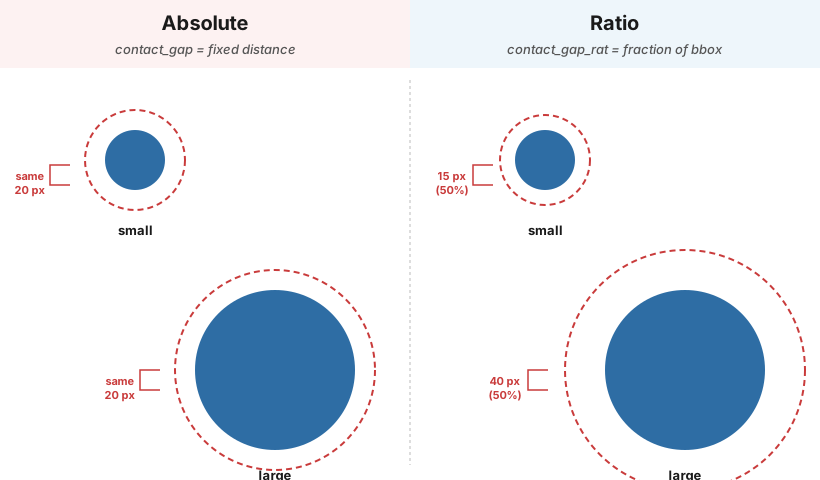
The dashed red ring shows the contact-gap layer. Absolute mode keeps the layer thickness constant in world units, so it looks huge around a small object and thin around a large one. Ratio mode scales the layer with the object’s bounding box, so both look proportionally wrapped regardless of scale.#
On Solid, Shell, PDRD and Static groups the Use Group Bounding Box Diagonal toggle picks between them, and the default is ratio-of-bbox-diagonal because that’s what most users want; you only need to flip to absolute when the group contains unusually elongated objects (where the diagonal overestimates characteristic size) or when you need an exact contact thickness for matching against another group.
Both pairs (Contact Gap / Contact Gap Ratio and Contact Offset / Contact Offset Ratio) are independently controlled by the same toggle.
A Rod group is not offered the toggle: setting a group’s type to
Rod switches it to absolute mode and seeds Contact Gap at
0.001 and Contact Offset at 0.005, and its panel draws that
absolute pair only. A Sand group draws Contact Gap alone,
because its grain radius already is the contact offset.
Allow Intersections#
A simulation does not start on geometry that is already overlapping. The scene build counts the overlapping pairs and reports them instead of finishing, and the solver runs its own intersection test as it goes, so an overlap that appears part way through a bake ends the run there.
Every group carries two settings that accept an overlap instead of refusing it. They sit in an Allow Intersections box at the bottom of the group’s Material Params, and both are off by default. Each one applies to every object assigned to the group.
Allow Self-Intersections: a mesh in this group may overlap itself. Use it for a sleeve folded through its own cuff, or a collar that passes into the shoulder in the pose the mesh arrives in.
Allow Inter-Object Intersections: a mesh in this group may overlap a different mesh, including another mesh assigned to this same group.
Both are drawn for every group type, Static included, though on a Static group whether they take effect depends on how the collider is driven (see below). With either one on, the panel adds the line “Overlaps are simulated, not reported” beneath the checkboxes.
Important
These settings suppress the error, not the collision. The two surfaces are still in contact, the solver still pushes them apart, and any overlap you did not allow is still reported. What changes is that the run starts, and keeps going, through the overlaps you allowed.
Only One Side Has to Allow It#
An overlap between two meshes is accepted when either of them has Allow Inter-Object Intersections on. Turn it on for a garment and every pair the garment forms with a different mesh is accepted, including the pair with the character body it is fitted to, so you do not have to find each mesh the garment might reach and set it there too. The garment’s overlaps with itself are a separate question, answered by Allow Self-Intersections.
Set it on the group that is simulated. A Static collider counts as simulated, and carries both settings, when it is animated, when it uses Apply Soft Constraints, or when it is one end of a cross-stitch. A collider that is none of those never moves and is a collision surface only: neither box on its group has any effect, so a garment overlapping it needs Allow Inter-Object Intersections on the garment’s own group. That is the safe habit in every case, since it does not depend on how the collider is driven.
The Two Settings Do Not Substitute for Each Other#
Allow Self-Intersections says nothing about other meshes, and Allow Inter-Object Intersections says nothing about a mesh folding through itself. A group with only the first still stops on an overlap against another mesh; a group with only the second still stops on a fold through itself. Turn both on where both can happen.
“Self” here means one mesh object, not one group. A group holding two meshes holds two objects, so an overlap between those two is an inter-object overlap even though a single group covers both.
When to Use Them#
The case these exist for is a garment fitted onto a rig-deformed character. The fitted pose is whatever the rig produced, tangles included: a cuff that starts inside a wrist, an armpit that folds a sleeve into the torso. The simulation is expected to resolve that over the first frames, and without an allowance it never runs at all, because the start pose is refused before the first frame is solved.
They are not a general repair for messy geometry. An overlap the solver cannot resolve stays in place for the whole bake, and geometry that starts deeply inside another mesh keeps showing through it until it separates, if it separates at all. Fix the geometry wherever you can instead: see Mesh Cleaning.
Where the problem is confined to a region you have pinned, the per-pin Allow Intersections Here option is narrower than either group setting.
Under the hood
The check at scene build and the check the solver runs while it steps are separate pieces of code, and both consult the allowance, so a scene that builds is not then stopped by the first step. It is evaluated per overlapping pair of elements, whether that is two triangles, a rod segment against a triangle or against another rod segment, or two grains of a Sand cloud, and it decides one thing: whether that pair is reported.
The other geometry checks are unrelated and are not lifted by these settings. In particular, a start pose whose elements are closer than their contact offset is still rejected as too close, which is a different report from an intersection.
Contact forces, the continuous-collision test, and the line search that enforces separation are all untouched. Two surfaces that are apart at the start of a step still cannot pass through each other during it, whatever these settings say.
Material Profiles#
A material profile is a named set of material parameters saved to a TOML file with the Save icon. A single file can hold any number of presets; profiles like these are easy to build:
Preset |
Type |
Notes |
|---|---|---|
|
Shell |
Light, stiff. Young = 100, density = 0.1 kg/m², strain limited. |
|
Shell |
Young = 50, density = 0.5 kg/m², bend = 0.5. |
|
Shell |
Soft, low-density, bend = 0.2, friction = 0.15. |
|
Shell |
Heavier, stiffer; full block of shell/solid/rod fields for hybrids. |
|
Solid |
Stable NeoHookean, density = 1100 kg/m³, friction = 0.8. |
|
Solid |
Stable NeoHookean, Young = 200 000, density = 7800 kg/m³. |
|
Rod |
Young = 10 000, density = 1.0 kg/m, bend = 1.0. |
|
Static |
Just a friction value, used for colliders. |
Note
Material profiles do not carry any object assignments, pin vertex groups, or per-object velocity overrides. They describe a material, not a scene.
Example TOML Stanza#
The block below shows what the add-on writes out when you click Save. It is not a template to fill in by hand. Adjust a group’s Material Params in the panel and click the Save icon to produce (or update) a file like this.
The per-group Save icon (floppy disk, highlighted in red) on the
Material Params row. Clicking it writes the group’s current
material-parameter values to a .toml file, creating the file on the
first save and overwriting the currently selected entry afterwards.#
[Cotton]
object_type = "SHELL"
shell_model = "BARAFF_WITKIN"
shell_density = 0.5
shell_young_modulus = 50.0
shell_poisson_ratio = 0.35
bend = 0.5
friction = 0.3

[Denim]
object_type = "SHELL"
solid_model = "ARAP"
shell_model = "BARAFF_WITKIN"
rod_model = "ARAP"
solid_density = 1000.0
shell_density = 0.8
rod_density = 1.0
solid_young_modulus = 500.0
shell_young_modulus = 200.0
rod_young_modulus = 10000.0
solid_poisson_ratio = 0.35
shell_poisson_ratio = 0.35
friction = 0.5
contact_gap = 0.001
contact_offset = 0.0
use_group_bounding_box_diagonal = true
contact_gap_rat = 0.001
contact_offset_rat = 0.0
bend = 2.0
shrink = 1.0
enable_strain_limit = true
strain_limit_percent = 5.0
stitch_stiffness = 1.0
Only the keys you include are applied; missing keys keep their current
value on the group. You don’t have to list every field for a preset to be
valid — a Static collider preset, for instance, can carry just a
friction value.
Blender Python API#
The same workflow is available from Python. Most fields in the
Material Params box are reachable through each group’s .param
attribute, which is whitelisted: the accepted names are listed in the
Blender Python API Reference,
and anything outside that list raises AttributeError. Changes from
Python appear in the panel immediately and vice versa.
from bl_ext.user_default.ppf_contact_solver.ops.api import solver

cloth = solver.create_group("Cloth", "SHELL")
cloth.param.shell_density       = 0.5
cloth.param.shell_young_modulus = 50.0
cloth.param.friction            = 0.3
cloth.param.bend                = 0.5

# Solid body with Stable NeoHookean and a tighter contact skin.
body = solver.create_group("Body", "SOLID")
body.param.solid_density       = 1100.0
body.param.solid_young_modulus = 5000.0
body.param.use_group_bounding_box_diagonal = False
body.param.contact_gap         = 0.001

# Static collider: friction and contact settings.
floor = solver.create_group("Floor", "STATIC")
floor.param.friction        = 0.8
floor.param.contact_gap_rat = 0.001
Apply Soft Constraints and its Stiffness are among the fields off the whitelist, so a collider whose own shape closes onto the cloth is held with springs from the Material Params box rather than from Python.
Under the hood
Loose-edge stitch encoding
At transfer time, edges on Shell meshes that are not adjacent to
any face are automatically emitted as stitch constraints with stiffness
set by stitch_stiffness. There is no UI surface for this; it happens
on every transfer.
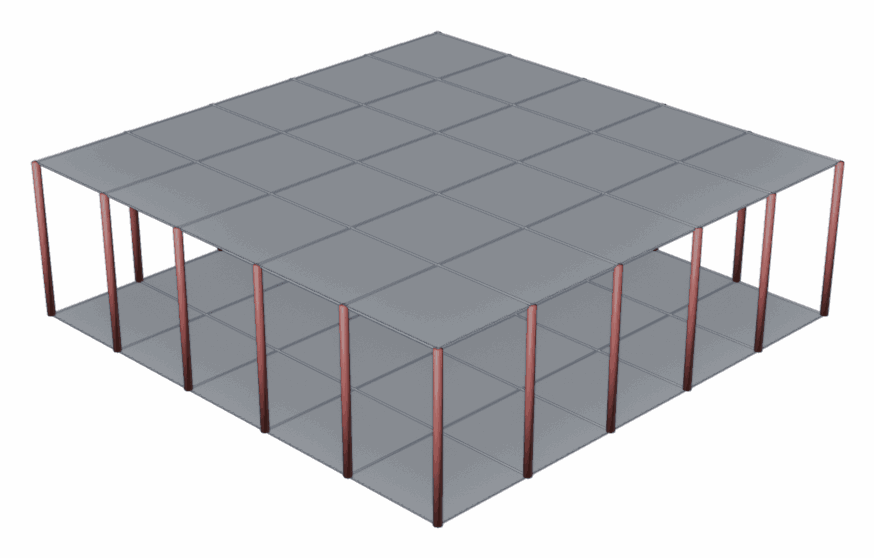
Two subdivided square Shell patches joined by vertical loose edges
(rendered here as red tubes). The patches are separate face regions;
the connecting edges belong to no face, so the transfer step emits each
one as a stitch constraint with stiffness stitch_stiffness.#
Copy / Paste clipboard
The Copy / Paste buttons move parameters between groups within a
single Blender session. The clipboard is not persisted to the .blend
file, so restarting Blender clears it.