🧭 Tour of the UI#
All panels live in View3D → Sidebar (N) → ZOZO’s Contact Solver.
Backend Communicator#
The main panel. Profile row (Open / Clear / Reload / Save), then a
collapsible Connection box holding the server-type selector
(Local, SSH, SSH Command, Docker, Docker over SSH,
Docker over SSH Command, Windows Native), the path fields that
type needs, a GPU picker naming the CUDA device on the solver host
(it appears only once you are connected, and greys out while the server
is running because the choice is applied at Start Server; see
Picking a GPU), Project Name,
Connect / Disconnect, and Start Server on Remote / Stop
Server on Remote. Below the box sit the live status line and, as the
connection and the run supply them, a Remote Hardware readout, a
statistics box (Realtime Statistics during a run, Average
Statistics once it ends), and a Scene Info box. When a port-in-use
error is reported, a Force Terminate Process button surfaces so you
can release the port; if the existing process is itself a
ppf-cts-server, Windows Native attaches to it instead of erroring out.
Tick Debug Options, the checkbox sharing a row with Update Stat
and Show Console, to unlock the shell, data-transfer, UUID-migration
and reload-server tools, which appear in a block at the bottom of the
panel.
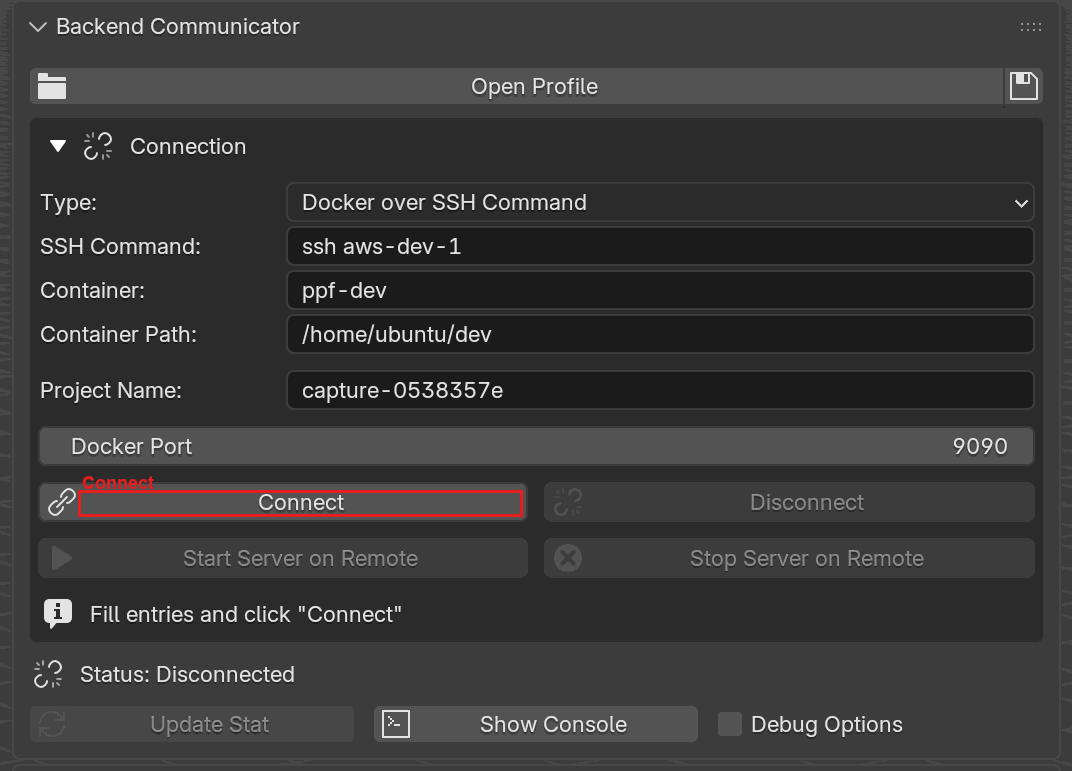
The Backend Communicator panel, with Connect (the button that opens the transport to the solver) highlighted.#
Solver#
The buttons that drive a simulation: Transfer, Update Params on Remote, Run, Resume, Fetch All Animation, Delete Remote Data, Clear Local Animation, plus Bake buttons. Below them sit two always-visible boxes. Deformations holds Re-capture All Deformations, which re-records every deforming Static collider and every animated pin in the scene in one pass, and Clear All Deformations, which deletes every one of those recordings, including any left behind by an object that was deleted or taken out of its group. Export holds Export USD and Export Alembic (ABC), which write the simulated result as a point cache another application can read, once every frame has been fetched; see Exporting USD and Alembic Caches. The JupyterLab and MCP Server collapsible sections live inside this panel; see JupyterLab and MCP.
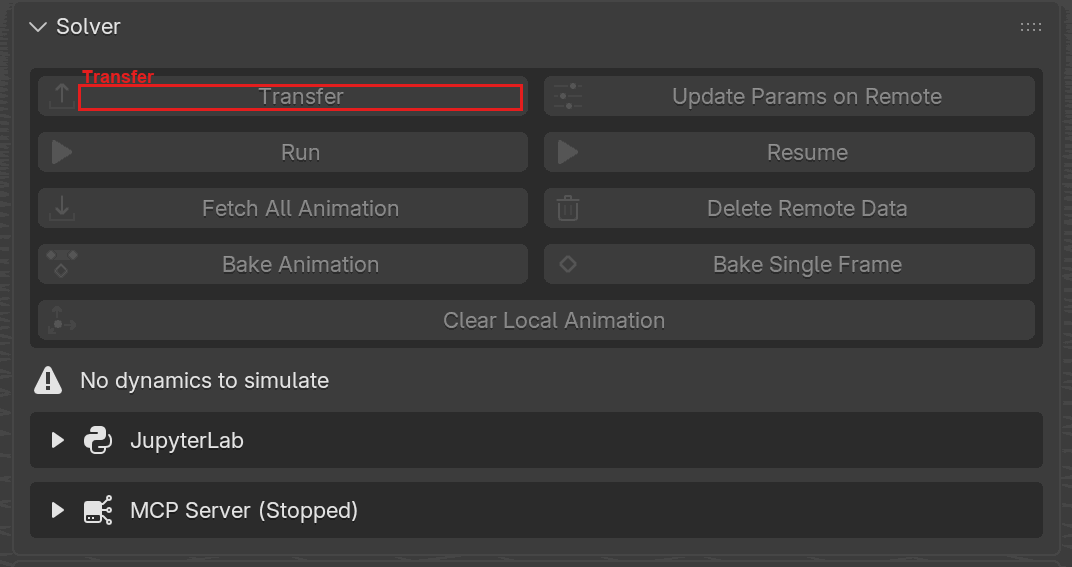
The Solver panel, with Transfer (the button that uploads geometry and parameters to the solver) highlighted.#
Scene Configuration#
Global solver inputs: FPS, time scale, starting frame, frame count, step size, min Newton steps, air density, air friction, world scaling, and gravity. Five collapsible sub-sections: Save and Checkpoints, Wind, Invisible Colliders (walls and spheres), Linear System Solver, and Advanced Params. Only some of these settings can be keyframed; the ones that can are keyframed on their own sliders, the same gesture as a material parameter, so the panel carries no scene-parameter keyframe list of its own. See Dynamic Parameters for which ones.
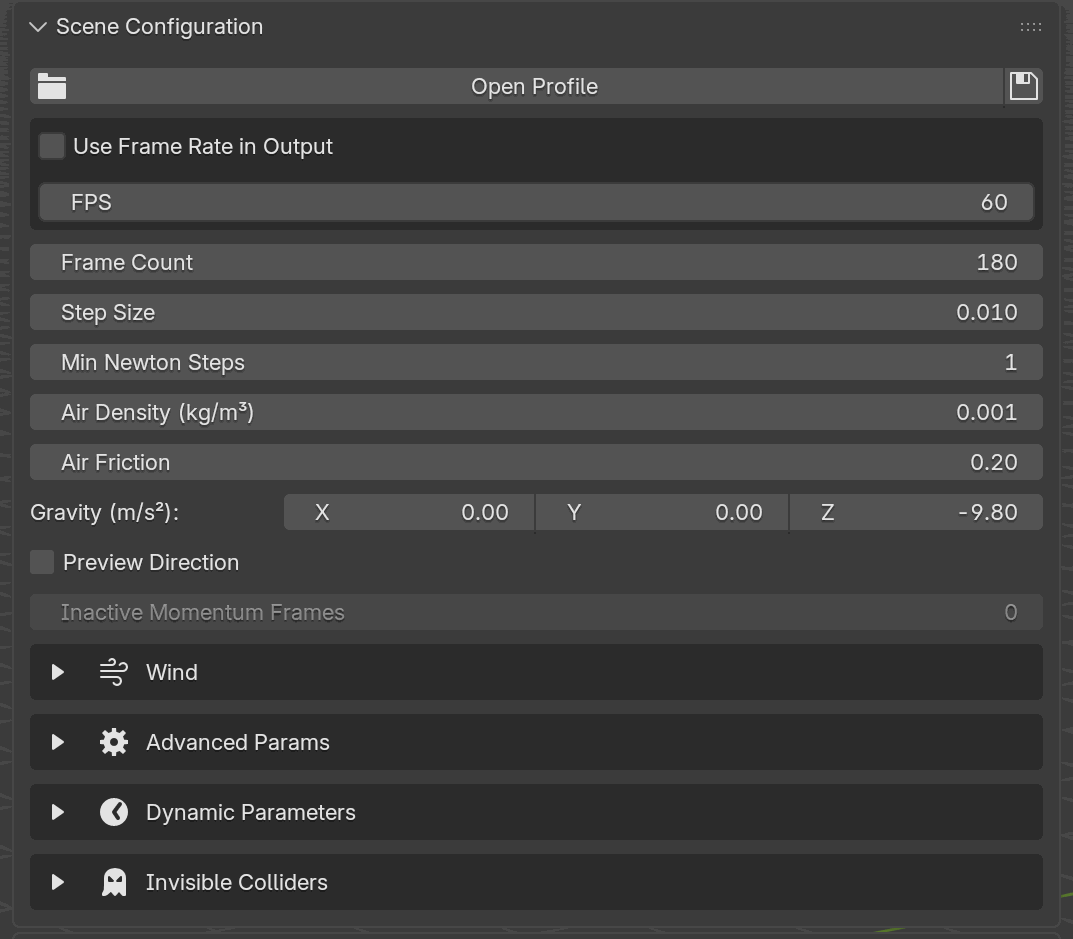
The Scene Configuration panel. Every field here applies to the whole scene; the collapsible sections below the flat fields expand to reveal more inputs.#
Dynamics Groups#
Up to 32 groups. Create a group, pick its type (Solid / Shell / Rod / Static / PDRD / Sand), assign meshes, set per-group material parameters, manage pin vertex groups, and attach pin operations (Move By, Spin, Scale, Torque). See Object Groups for what each type means.

The Dynamics Groups panel in its empty state, with Create Group (the button that allocates a new group slot) highlighted. Each created group appears as its own box below.#
A Sand group simulates a cloud of grain centers rather than a surface, so its box carries an extra Convert To Solid Particle Mesh button above Delete Group. It fills the active solid mesh with grains at the Grain Radius you type into the dialog and discards the original faces, which is what a Sand group takes as input. The radius is fixed at that moment (the grain spacing is derived from it) and reads back as a grayed-out field on the group afterward.
Snap and Merge#
Snap vertex positions between two objects and register merge pairs so the solver stitches them at build time.
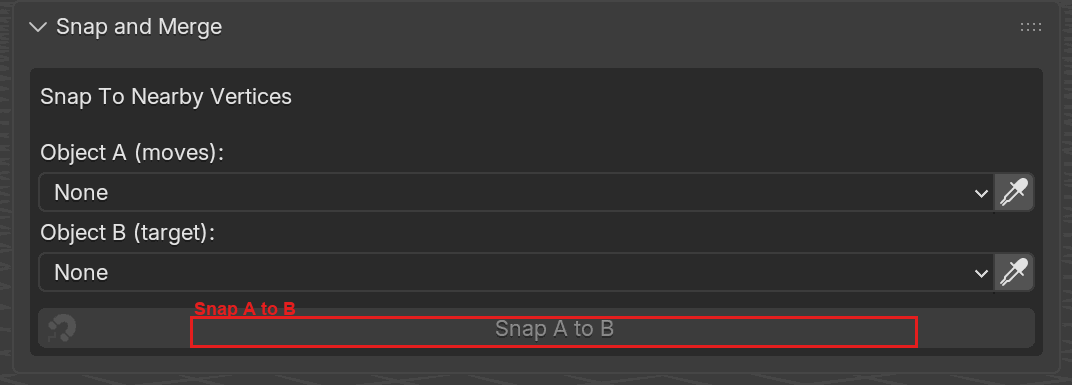
The Snap and Merge panel, with Snap A to B (the snap that pulls Object A’s closest vertex onto the nearest point of Object B’s surface) highlighted. The panel is collapsed by default; click the header to expand.#
Utility Tools#
Mesh preparation that belongs to no single group. Mesh Cleaning scans the selected mesh objects for geometry the solver rejects and offers a targeted fix under each finding: Merge by Distance, Remove Loose Vertices, Dissolve Degenerate, Delete Duplicate Faces, Triangulate, and Recalculate Outside. The first three change the vertex count, so they ask for confirmation first and offer to clear the caches that count invalidates (the display cache and any captured deformation). Symmetric Triangulate, in its own box below, pokes each face into a center fan so a symmetric mesh folds symmetrically; that adds one vertex per face and it does not ask first. The panel is collapsed by default; click the header to expand. See Mesh Cleaning.
Visualization#
Toggle overlay draws for group colors, pins, spin/scale centers, and other editing guides.
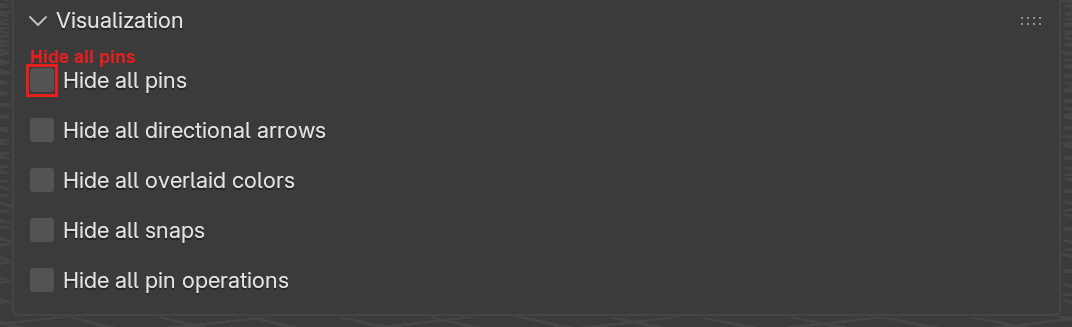
The Visualization panel, with Hide all pins highlighted. Each checkbox hides one overlay category (pins, directional arrows, group color tints, snap indicators, pin operations) so you can declutter the viewport without actually disabling the underlying data.#
Object Statistics#
The last panel in the tab, collapsed by default: a per-object readout
of what the solver measured on the frame you are looking at. Pick an
object from the Object menu — it lists every object included in an
active group, Static colliders among them — and the panel prints that
object’s frame and time, then the vector rows every object carries:
location, velocity, acceleration, angular velocity and angular axis.
Below those come the measures its geometry supports — volume for a solid
or a closed shell, surface area for anything with faces, rod length for
a rod, each followed by its percentage of the same measure on the run’s
first frame — and then the scalars: speed, acceleration magnitude and
angular speed. A contact count closes the list. The rows follow the
playhead, so scrubbing walks the run. Export CSV picks one of those
values from a menu and writes it for every fetched frame to a .csv
file. An object the statistics cache does not cover reads Statistics
unavailable; rerun the simulation; see Reading Per-Frame
Statistics
for where the numbers come from and when they go away.
Other Sections#
The Debug tools (Shell Calls, Data Transfer Tests, Options, Console Log Export, GitHub Repo on Remote / Local, UUID Migration, Render, and the Add-on Local Debug Server) are hidden behind the Debug Options toggle on the Backend Communicator panel. What each of those tools does, what it needs before it will run, and the problem it exists to solve are described under Debug Options.
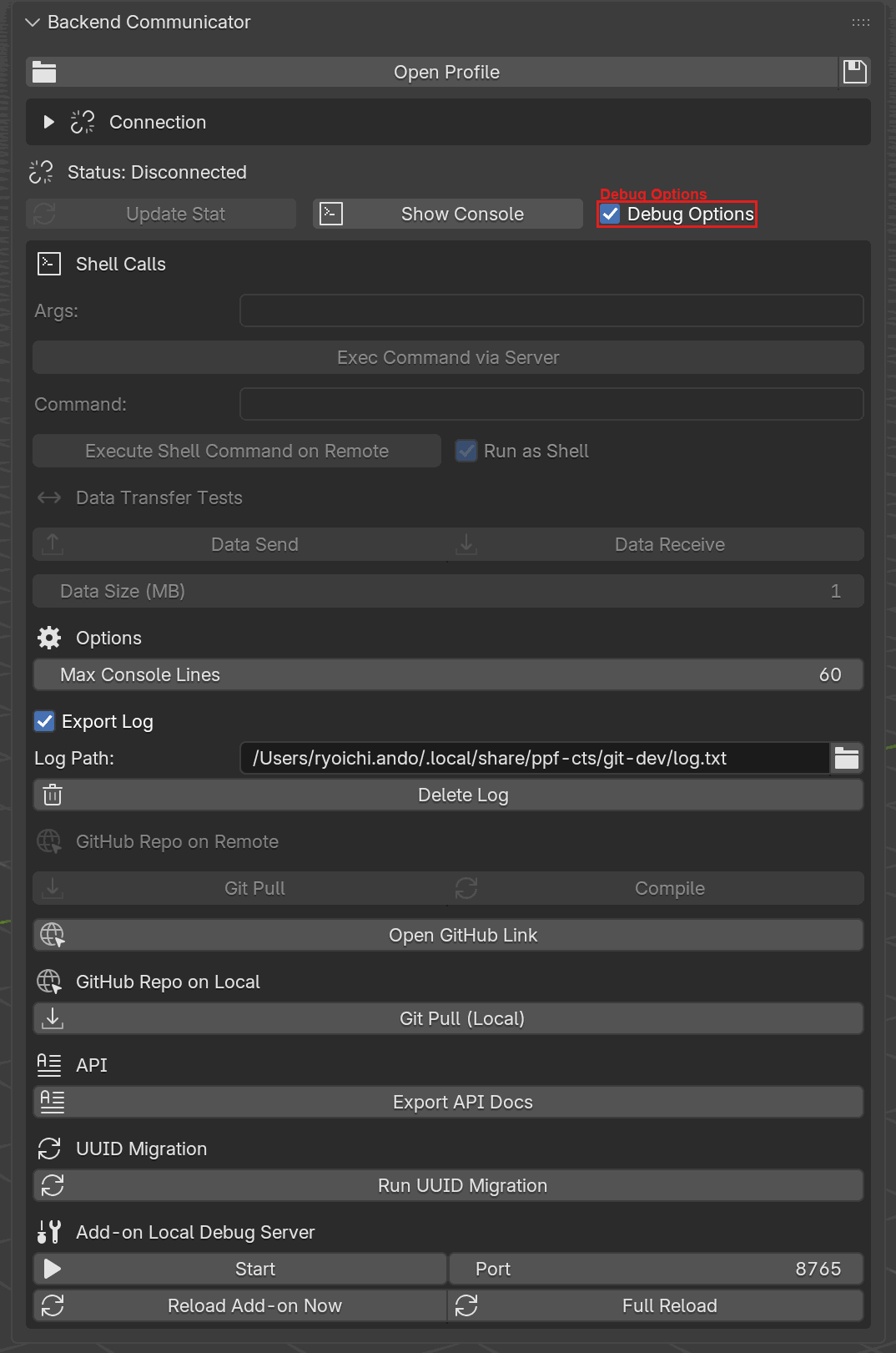
With Debug Options toggled on — the checkbox on the Update Stat / Show Console row of the Backend Communicator panel — a debug section appears below exposing Shell Calls, Data Transfer Tests, Options, Console Log Export, GitHub Repo on Remote / Local, UUID Migration, Render, and the Add-on Local Debug Server controls.#